
Settings » General Settings » Search Settings
Link: https://support.brilliantdirectories.com/support/solutions/articles/12000074107
The Search tab of the General Settings page controls the member search results page and how member searches pick their results: the page's web address, which members and categories show, how categories are ordered, and how location searches match members.
Open it from Settings » General Settings, then click the Search tab. The tab is split into sections, listed in the side menu: Search Results Page, Member Categories and Location Matching, plus Lead Matching on websites that use the earlier lead system. Click a section in the side menu to jump to it. The layout of the page and how changes are saved are explained in Settings » General Settings Tab.
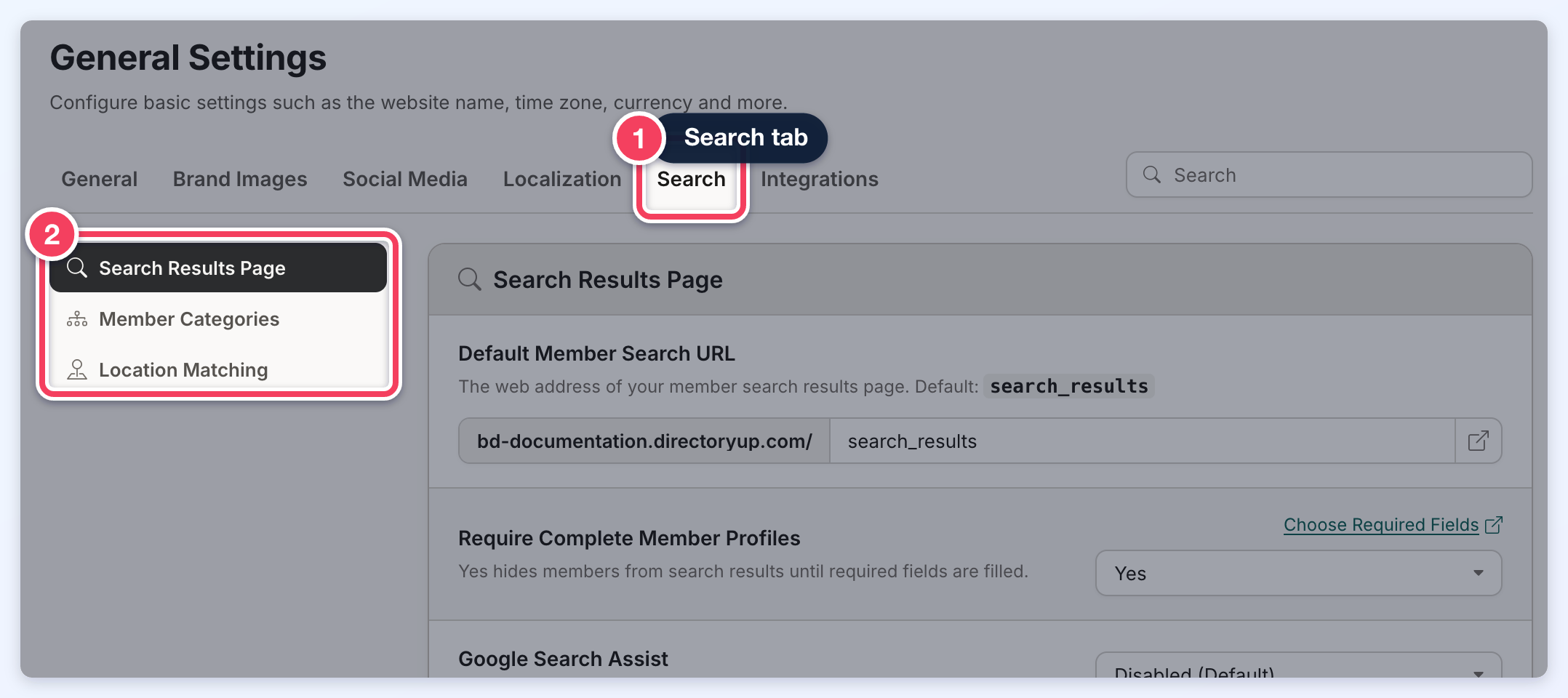
After a change, a bar with Discard and Save appears at the top of the page. Click Save to keep the changes.
Search Results Page
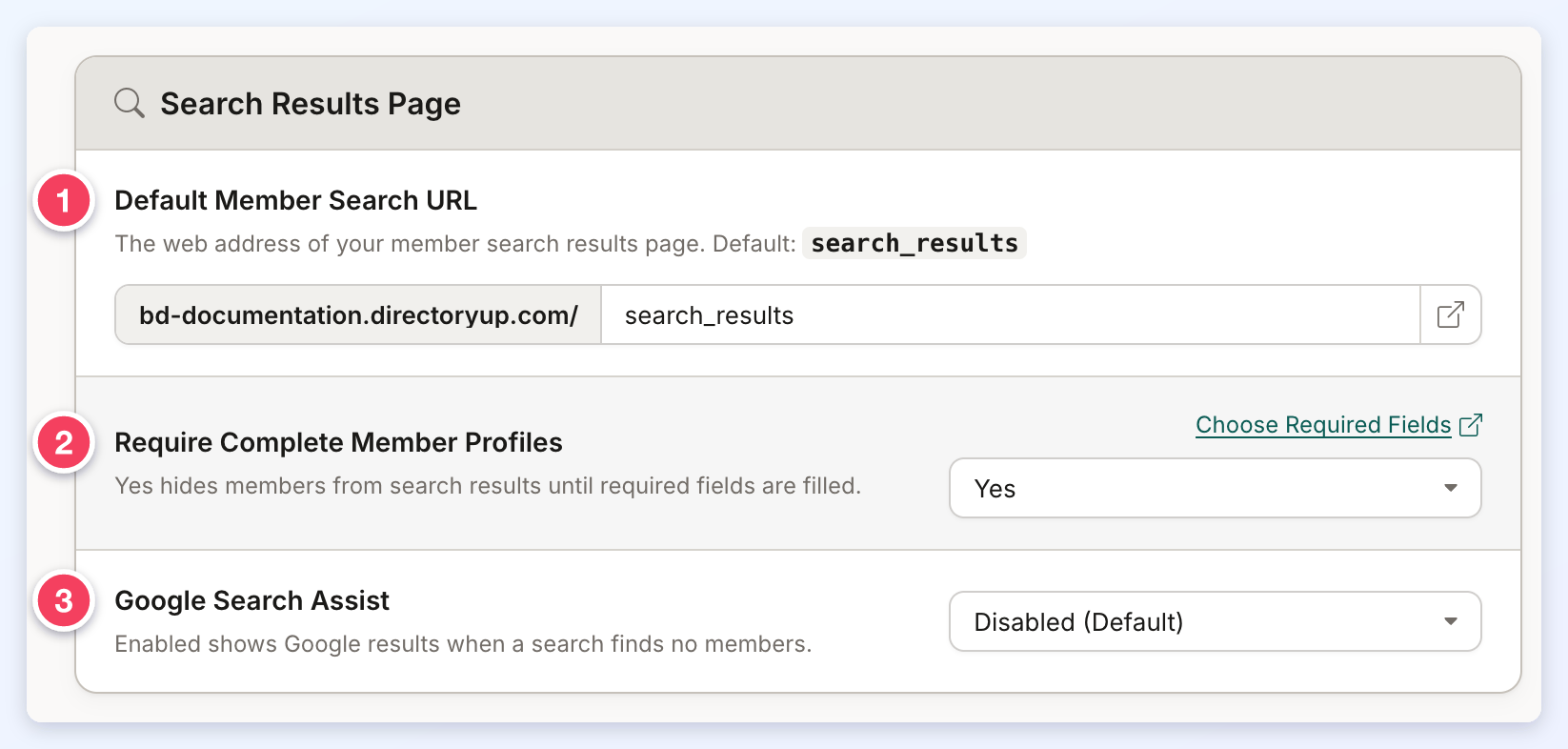
- Default Member Search URL: the web address of the member search results page, typed after the website's domain. The default is search_results. The button at the end of the field (View Page) opens the page in a new tab.
- Use only English letters, numbers, dashes and underscores, EG search_results or find-a-member. A space is dropped as it is typed, and spaces at either end are removed when saving.
- Any other character, EG an accented letter, shows the message Use only English letters, numbers, dashes and underscores, such as search_results. under the field, and the settings are not saved until it is fixed.
- An address the website already uses, EG join, is refused with the message URL Is Reserved. Choose a different address and save again.
- If an address is still refused when saving, a Search URL Not Saved message names the setting. The other changes are saved, and the field keeps the typed address as an unsaved change to correct.
- Require Complete Member Profiles: Yes hides members from the search results until they fill in the required profile fields. No (Default) shows every member. Click Choose Required Fields above the setting to pick which fields count. More details: Require Complete Profiles - How To Hide Incomplete Profiles.
- Google Search Assist: Enabled fills a search that finds no members with Google search results. Disabled (Default) shows only results from the directory. This setting shows only with the Google Search Assist add-on: Google Search Assist.
Member Categories
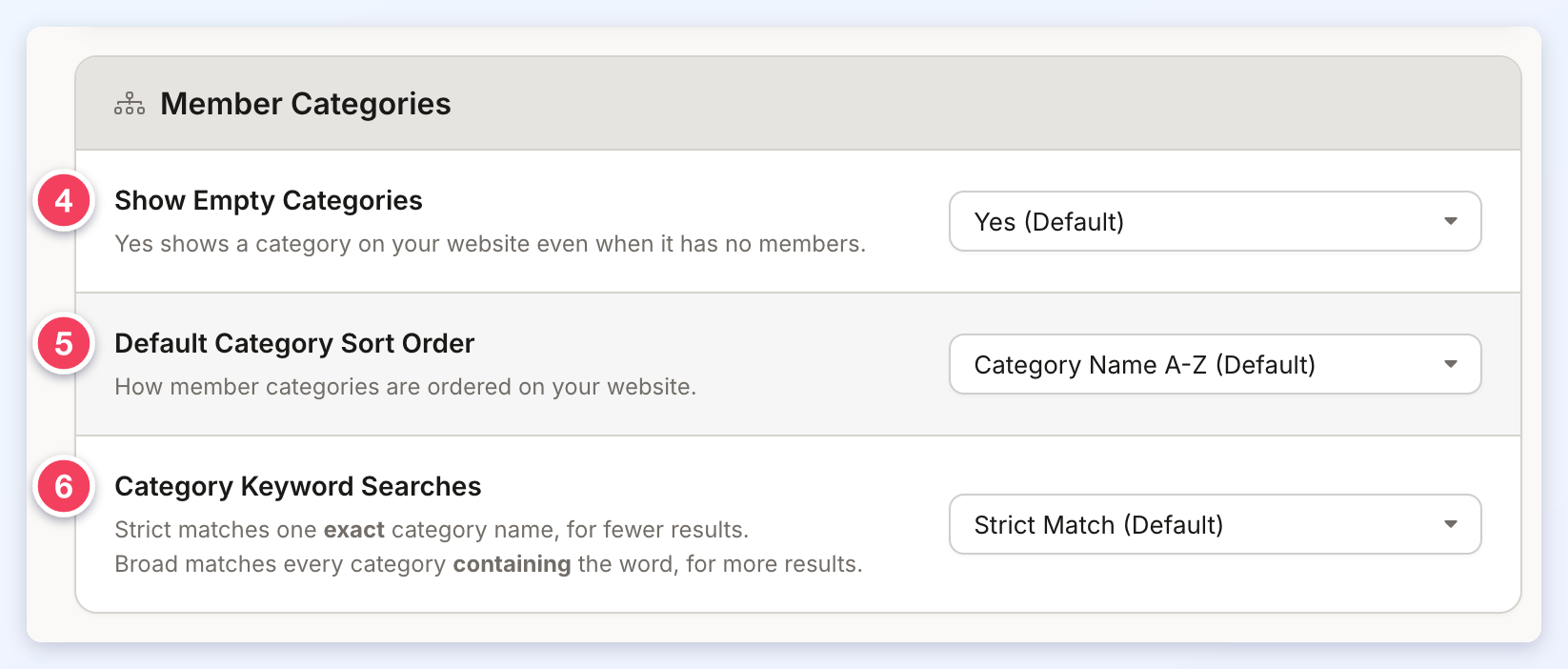
- Show Empty Categories: Yes (Default) shows a category on the website even when it has no members. No hides categories that have no members.
- Default Category Sort Order: the order categories show in the category search widgets, the category streaming widgets and the categories page:
- Category Name A-Z (Default) and Category Name Z-A: alphabetical. EG A-Z shows Auto Repair, Cleaning Services, Restaurants.
- Custom Sort Order (Low to High) and Custom Sort Order (High to Low): by the sort order number given to each category. EG Low to High shows the category numbered 1 first, then 2, and so on.
- Date Added (Oldest First) and Date Added (Newest First): by when each category was created.
- Category Keyword Searches: how a keyword search matches categories. Strict Match (Default) matches only a category whose name is exactly the searched word, for fewer results. Broad Match matches every category whose name contains the word, for more results.
Location Matching
These settings decide which members a location search includes. More details: Differences Between Strict (Bounds) & Not-Strict (Radius) Location Search Settings.
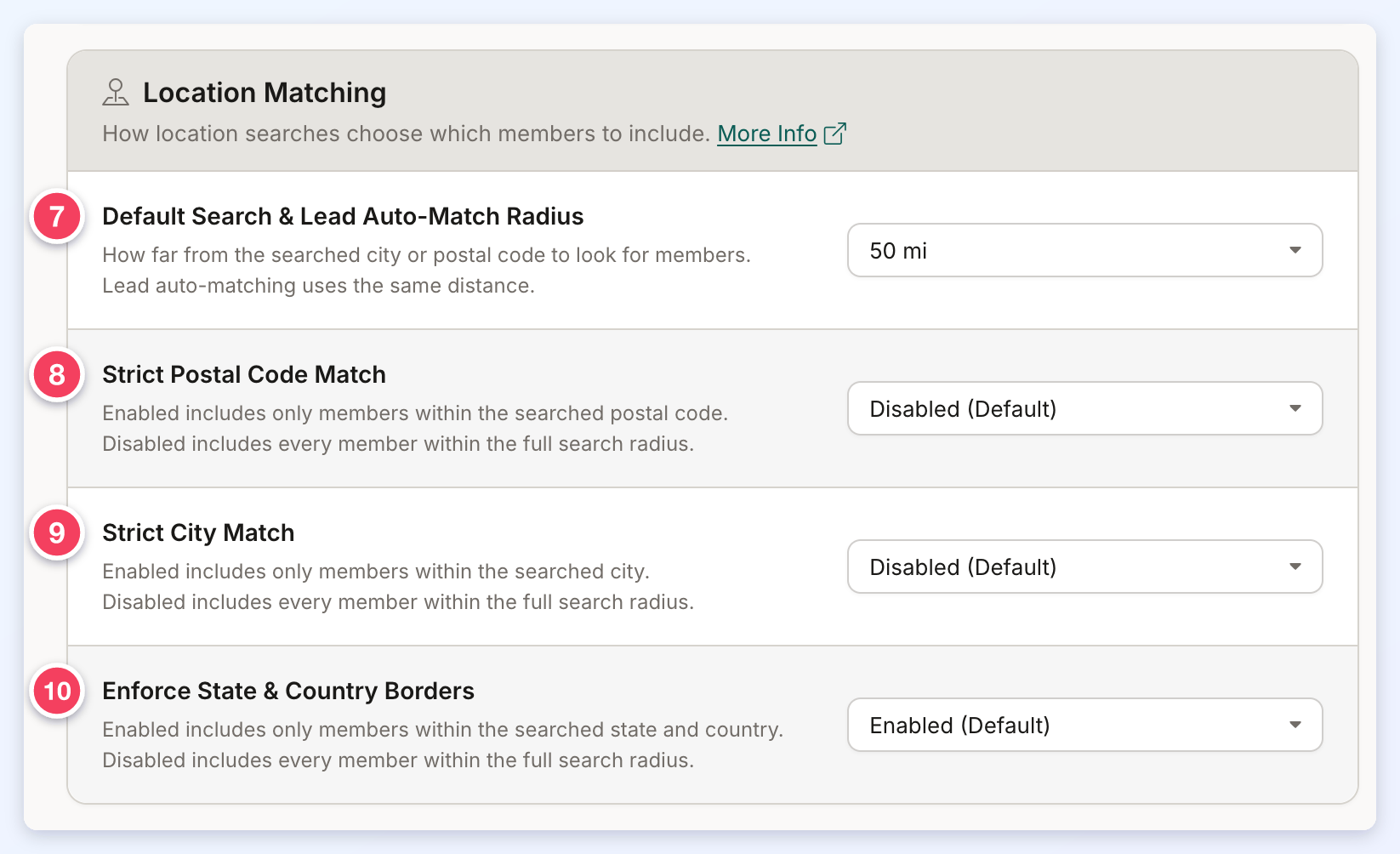
- Default Search & Lead Auto-Match Radius: how far from the searched city or postal code to look for members. A radius search (postal codes and cities by default) returns the members within this distance of the searched location. Lead auto-matching uses the same distance to find the members a lead can match. The choices run from 1 to 1000, plus No Limits; the default is 100. They show in miles or kilometers, following Distance Format on the Localization tab.
- Strict Postal Code Match: Enabled includes only members within the searched postal code. Disabled (Default) includes every member within the full search radius, even outside the postal code.
- Strict City Match: Enabled includes only members within the searched city. Disabled (Default) includes every member within the full search radius, even outside the city.
- Enforce State & Country Borders: Enabled (Default) includes only members within the searched state or province and country. Disabled includes every member within the full search radius, even across a border.
Lead Matching
This section shows only on websites that still use the earlier lead system. Websites updated to the new lead system set lead delivery in their lead settings instead: Update Lead System - Dashboard Installer.
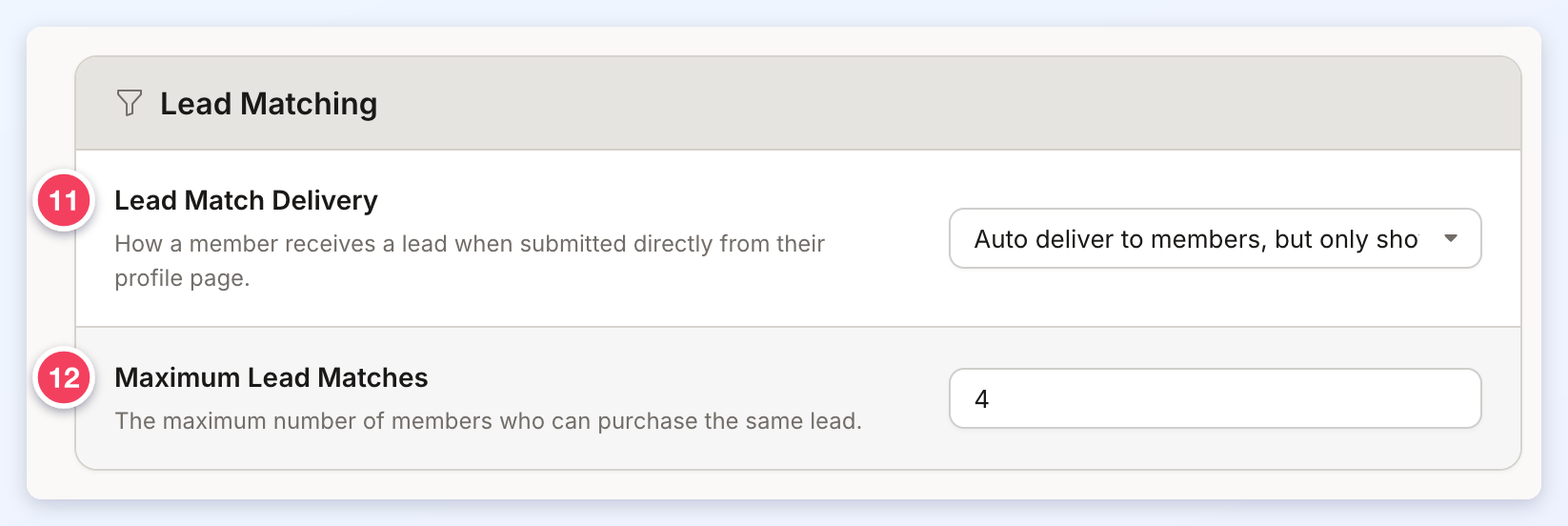
- Lead Match Delivery: how a member receives a lead that a visitor sends straight from the member's profile page:
- Auto deliver to members, but only show message preview
- Auto deliver to members with full message and contact details
- Require manual matching: the admin matches the lead by hand.
- Maximum Lead Matches: the most members who can purchase the same lead.
