
Showing Related Posts by Category
Link: https://support.brilliantdirectories.com/support/solutions/articles/12000069504
How Does It Work?
The Related Posts by Category widget shows a Related Posts box (1) in the sidebar of the website's post detail pages. By default, it lists up to five (5) related posts.
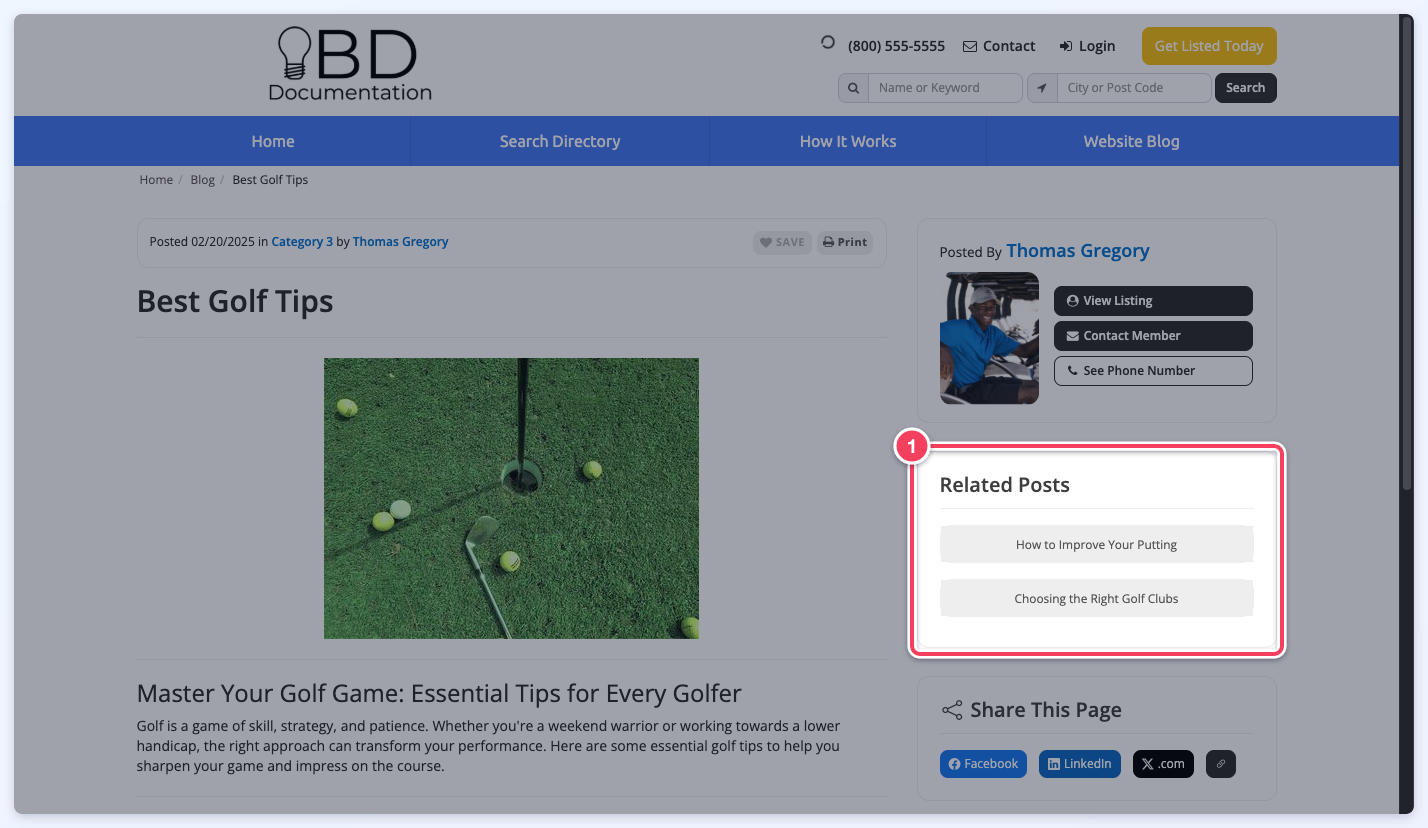
This example uses a Website Blog Article post, but the widget works with every post type under My Content » Edit Post Settings.
How To Enable It:
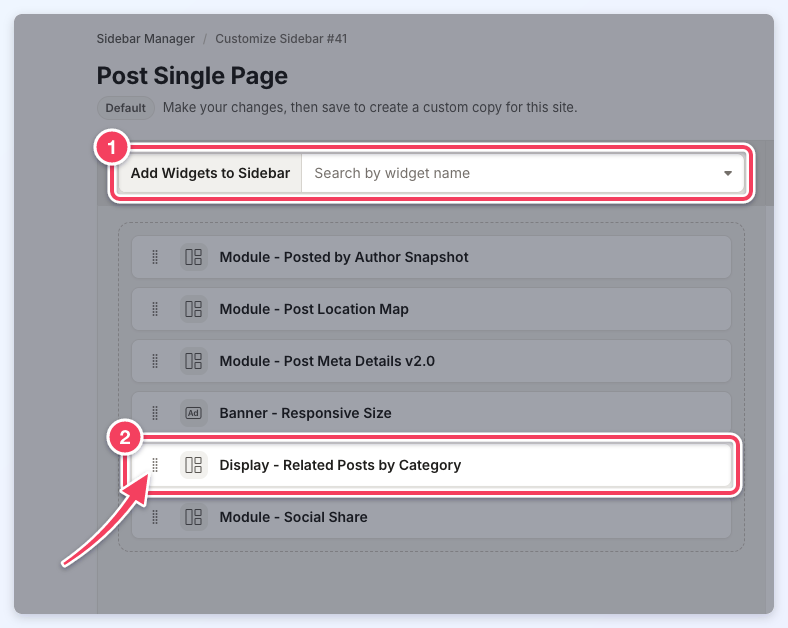
The widget is listed as Display - Related Posts by Category and is part of the default Post Single Page sidebar under Toolbox » Sidebar Manager:
- To add it to another sidebar, open that sidebar and search for it in Add Widgets to Sidebar (1).
- To change where the box shows in the sidebar, drag the widget (2) by its handle into a new position, then save the sidebar.
Additional Information:
How Posts are Determined to be Related:
The widget will follow the exact order outlined below to display Related Posts -
- User Category Post Match:
This means that the system will look for other posts within the same Post Type (EG Website Blog Article) that have the same post type category selected from the Member posting (EG Thomas Gregory). - User Post Match:
This means that the system will look for other posts within the same Post Type from the Member posting. - Post & Category Match:
This means that the system will look for other posts within the same Post Type that have the same post type category selected from all Members that have published this Post Type. - Other Match for Same Post Types:
This means that the system will look for other posts within the same Post Type from all Members that have published this Post Type.
Posts with a start date in the future (scheduled posts) and expired posts are not shown in the Related Posts box, the same as on the post type's search results page, unless the post type is set to show expired posts (Display Expired Posts in Search Results set to Yes).
