
Auto-Match Workflows » Additional Notifications Settings
Link: https://support.brilliantdirectories.com/support/solutions/articles/12000067996
With the Automatic Lead Matching add-on, each lead rule has its own Notifications settings: the emails sent to the admin, the visitor who submitted the lead, the matched members and third parties. Without the add-on, the same section has only the Admin and Visitor tabs (see Member Leads » Lead Settings » Notifications).
Open the Notifications Settings
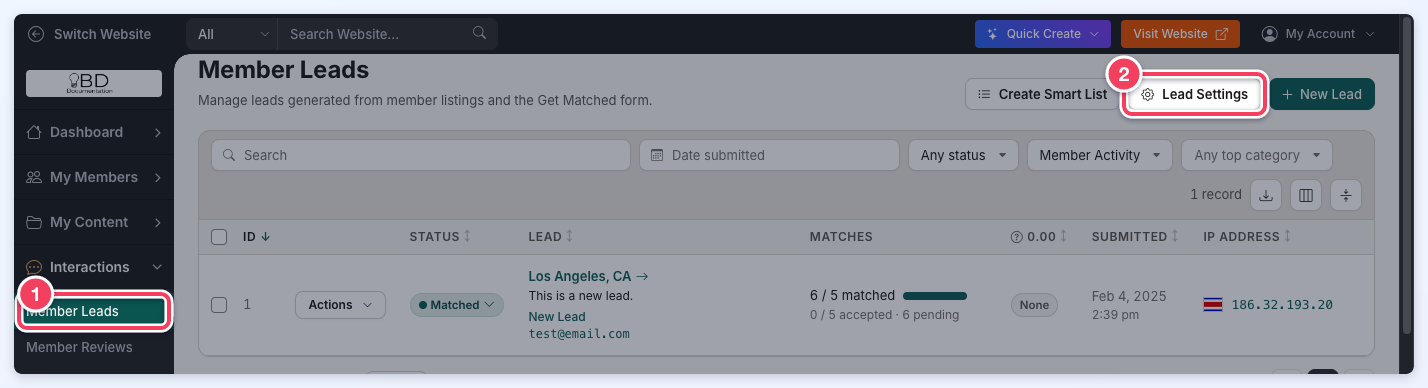
- Navigate to Interactions » Member Leads (1).
- Click Lead Settings (2) at the top of the page.
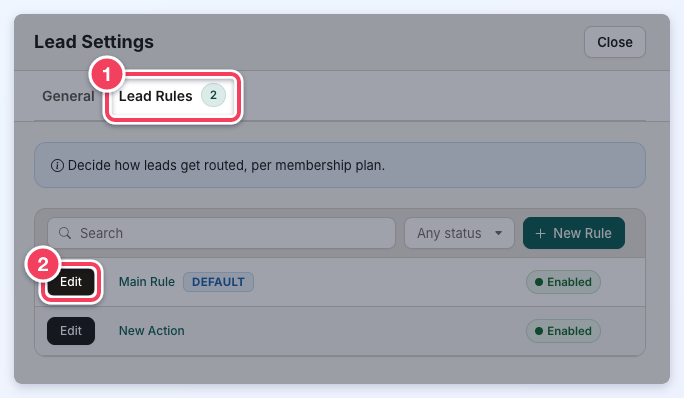
- In the Lead Settings drawer, open the Lead Rules tab (1) and click Edit (2) beside a rule. The Main Rule is the default rule; additional rules apply to the membership plans chosen in them.
- Click Notifications under Lead Rules in the rule's side menu.
The Notifications section has four tabs: Admin, Visitor, Members and Third Party & SMS. Each email setting is a switch; when it is on, a field below it chooses the email template to send, and most also offer Send a copy of this email to the Admin email address(es).
Admin
These emails go to the website's admin email address(es).
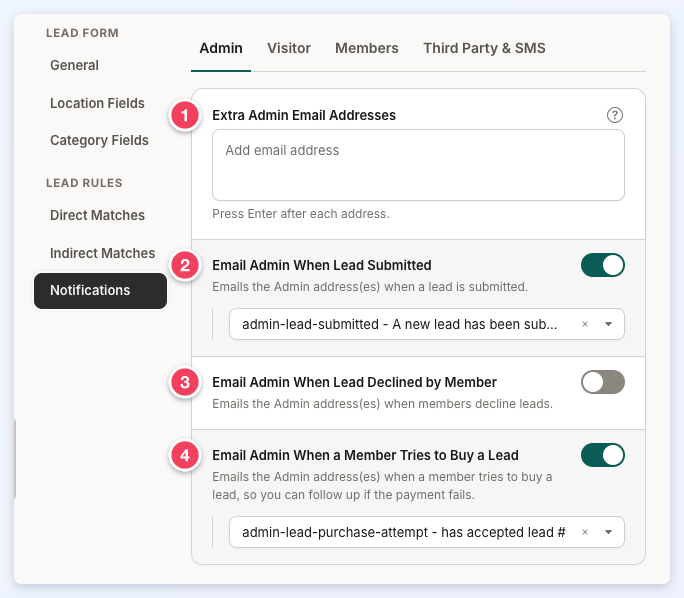
- Extra Admin Email Addresses: More addresses that also receive every email sent to the admin, including the copies sent when Send a copy of this email to the Admin email address(es) is ticked. Press Enter after each address.
- Email Admin When Lead Submitted: Emails the admin when a lead is submitted, using the template chosen below it.
- Email Admin When Lead Declined by Member: Emails the admin when a member declines a lead.
- Email Admin When a Member Tries to Buy a Lead: Emails the admin when a member tries to buy a lead, so the admin can follow up if the payment fails.
Visitor
These emails go to the visitor who submitted the lead.
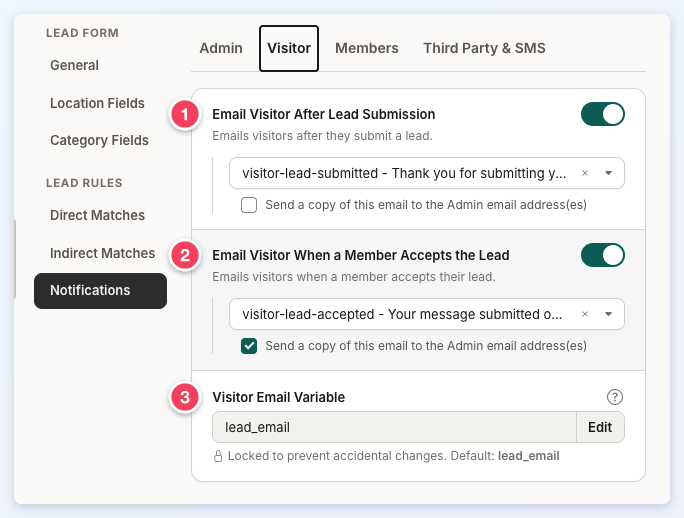
- Email Visitor After Lead Submission: Emails the visitor after they submit a lead.
- Email Visitor When a Member Accepts the Lead: Emails the visitor when a member accepts their lead.
- Visitor Email Variable: The lead form field that holds the visitor's email address; the visitor emails are sent to the address entered in this field. The default is lead_email, and it is locked to prevent accidental changes. Leave it unchanged for most websites; click Edit only when a custom lead form stores the visitor's email in a different field.
Members
These emails go to the matched members.
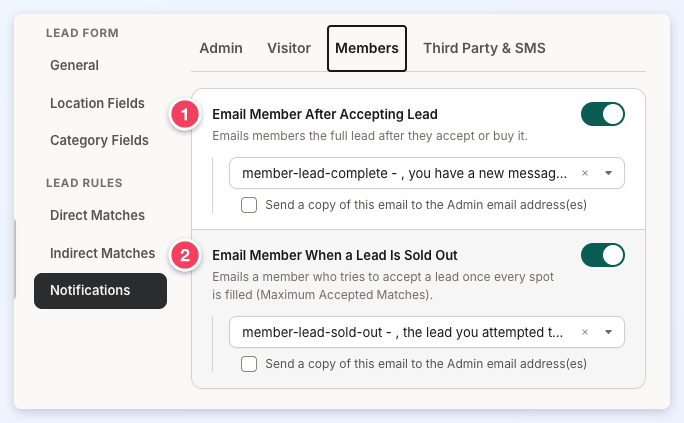
- Email Member After Accepting Lead: Emails members the full lead, including the visitor's contact details, after they accept or buy it.
- Email Member When a Lead Is Sold Out: Emails a member who tries to accept a lead once every spot is filled (the lead reached its Maximum Accepted Matches).
Third Party & SMS
These emails go to other addresses, such as a partner's inbox or an email-to-SMS address.
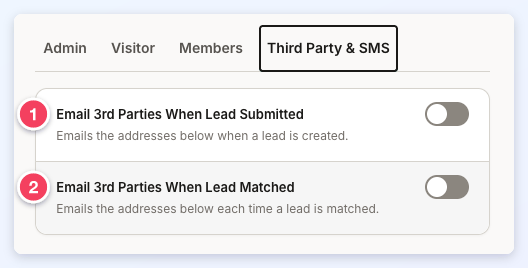
- Email 3rd Parties When Lead Submitted: Emails the addresses entered below it when a lead is created. When on, choose the email template and enter the 3rd Party Email Addresses, pressing Enter after each address.
- Email 3rd Parties When Lead Matched: Emails the addresses entered below it each time a lead is matched with a member. When on, choose the email template and enter the 3rd Party Email Addresses, pressing Enter after each address.
Click Save at the top of the drawer to keep the changes.
Send SMS Notifications
More information on sending members SMS lead notifications: How To Send SMS Notifications To Members When They Receive a Lead
