
In-Depth Look into Form Fields and their Settings
Link: https://support.brilliantdirectories.com/support/solutions/articles/12000059251
How to Create a New Form Field When Customizing a Form
To add a new form field to a form, click the Add Field button:

Clicking this button generates a new form field:

Clicking the Gear icon displays additional field settings:

To enable and require validation rules for a form field, see this article:
Toolbox » Form Manager » Field Validation Options
To clone a form field, go to Actions » Clone Field:

In-Depth Look Into Each Setting
In general, customizing forms is not recommended unless handled by a developer. However, these instructions can help with simple changes such as updating field text or adding a basic custom field.
Field Label

Enter the name or label of the field in the Field Label section:

Database Variable
This section defines how the field data is stored in the database.
Important notes:
- If a field is created without a database variable, submitted data will not be saved.
- Existing database variables should not be changed unless the consequences are fully understood.
The database variable is entered here:

This variable is also visible in the front-end code view:

Database variables must use lowercase letters only, contain no spaces, and use underscores for multiple words.
All database variables must be unique.

Type of Field
Select one of the available field types:

For a detailed explanation of each option, see:
In-Depth Look Into Each Field Type
Required Field
This setting determines whether the field must be completed before submitting the form:

When enabled, a red asterisk appears on the front end:

Placeholder Text:
Enter example text to be displayed inside the field as a placeholder:

Front-end display:

Field Help Text:
Enter text in this section that will be displayed below the field.

Front-end display:

Default Field Value:
In this section, include a pre-filled value that will appear inside the form field by default.

Front-end display:

The difference between the Placeholder Text and Default Field Value is that if a website visitor submits the form without making any changes to the field, the value-added on Placeholder Text will not be saved while the value-added on the Default Field Value will be saved in the database.
Additional Field CSS Class:
Inside this section add custom CSS classes to enhance the design of the fields. This is particularly useful for developers/web designers. If not familiar with CSS we do not recommend using this field:

Front-end display:

If a field needs to be grayed out, add "readonly" after the CSS class:

Front-end display:

Outer Element ID:
Inside this section, add a custom ID element to the field. This is especially useful for developers and web designers, as it allows for applying additional CSS styling or custom scripts to this specific form field.

Front-end display:

Input View:
Inside this section, choose whether the new field will be displayed on the customized form.
If disabled, the field will not appear on the form. This can be useful when adding fields that may be needed in the future but are not yet ready for members to fill out.

Below the display settings, there are some fields called "Alt. Field Label".
They allow adding a new field label name for each display setting.
For example, the main field label is "Courses".
The Input View (Form) is going to be renamed "Completed courses".
The Display View (Front-end) is going to be renamed "Latest Courses".
The other fields labels (Lead Previews, Include in Emails, Table View) are empty, so they will use the main field label.

Below the Input View, it's a checkbox for Admin Only, this works when inputting data, only the admin of the website will be able to view and edit this field, not the members.

NOTE: If the field is set to "Require Field" and "Admin Only" at the same time a warning message will show up avoiding the form to be saved.

Display View:
Inside this section, choose whether the data entered in the new field will be displayed on the front end of the site.

Important to note that this particular setting does not apply to all forms. For example, enabling or disabling this setting for Contact Us form will not make any difference as there is no front-end view for this form on the site (after submitting). This would apply however if a custom field is added to a feature form like Classifieds or member form like Contact Details.
A good example of the functionality of this setting can be found in the article down below:
How To Display Custom Post Fields In The Post Details Page
Inside this section is the option to add a button to the form. The Type of Field needs to be set to "Website URL", the Display View set to "On" and the options for buttons will show up like this:

Inside this section it's also the option to open the link button into a new tab:

Lead Previews
Inside this section, you can choose whether the data entered in the new field will be displayed on Lead Previews. Enabling this setting allows the information to be visible when reviewing leads, while disabling it will keep the data hidden from lead previews.

This setting applies to only lead forms like Website - Lead Form - Get Matched. If this setting is enabled and the member is set to receive a preview email when a lead is submitted, the field specified will display as it can be seen down below:

This can be helpful in instances where the site owner might not want to share all the details of a lead submitted to encourage the member to visit the website or even purchase the lead.
Include In Emails:
Like the previous setting, if enabled, this option ensures that the data appears when the form is rendered in an email and for accepted leads. If disabled, the information will not be included in lead previews or email notifications.

A good example to enable this setting would be for the Contact Us form as when it is submitted, it does send out an automated email to the admin of the site.
To include a field in an email template endit the email template to add the field variable using percentage signs i.e: %test_field%
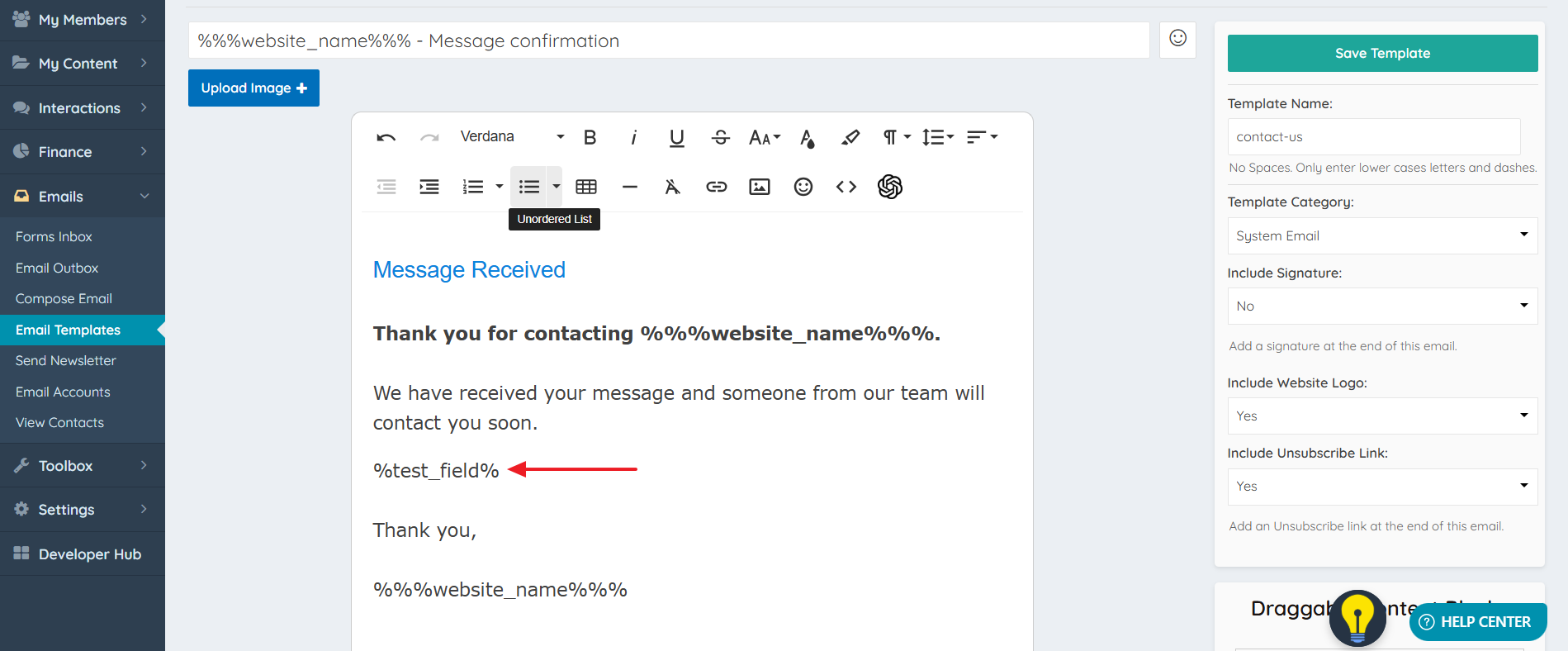
Table View:
This setting will make the Field Label and the Content visible on the Admin Dashboard.

This field only works with the following forms:
- Website - Lead Form - Get Matched
- Listing - Write Review


