
How To Display Custom Social Media Icons On Member Profiles
Link: https://support.brilliantdirectories.com/support/solutions/articles/12000052828
Every Brilliant Directories website includes a default contact details form where members can add social media links and display them on their profiles.

When these fields are completed, the social media icons display on the member profile.

This article explains how to create additional social media fields for members and display them on their profiles.
Adding a New Field to the Form
Identify the contact form that needs to be edited.

Go to Toolbox → Form Manager, then click Customize for the preferred form.
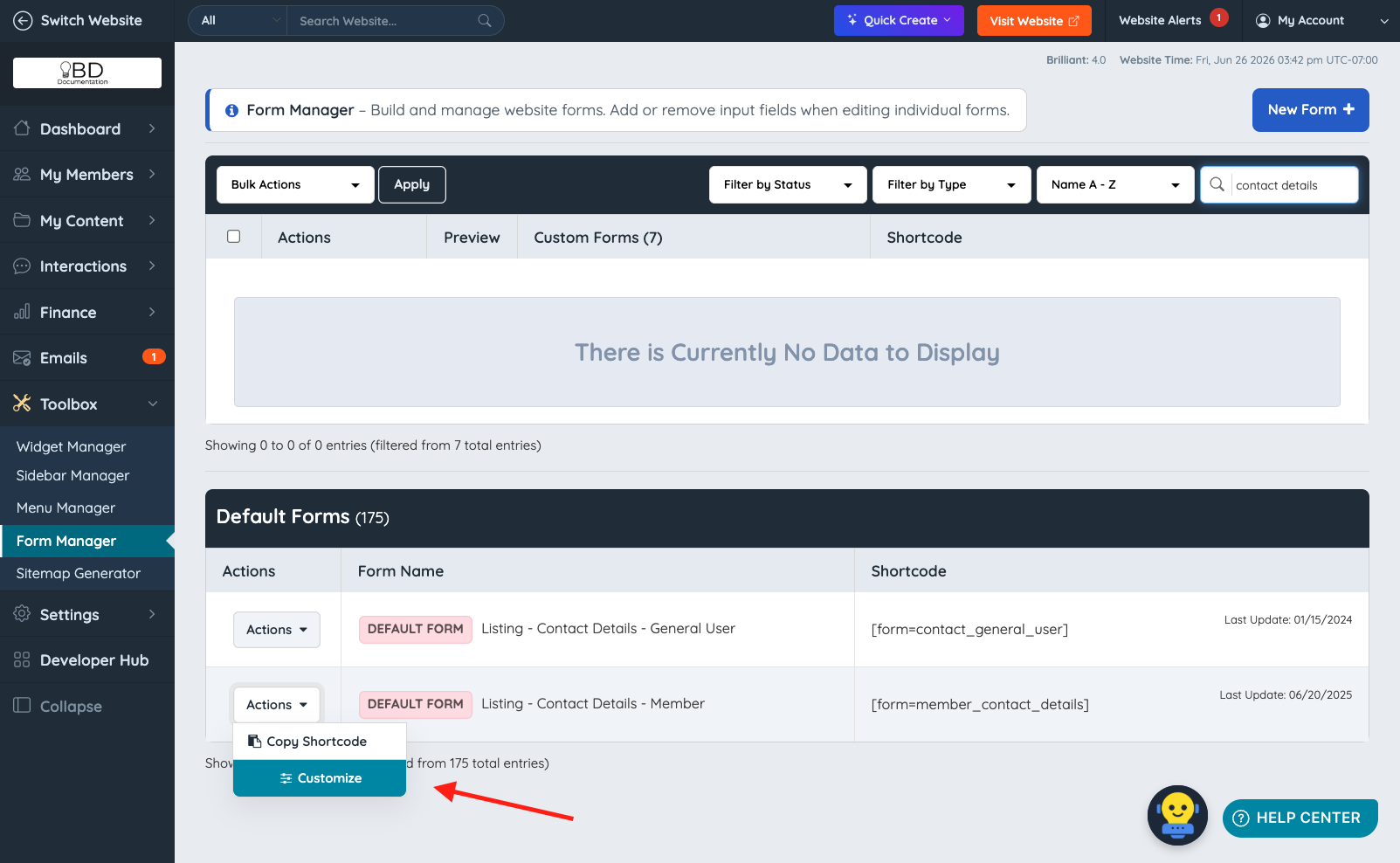
In the edit view, click New Field and complete the required field settings as shown below.
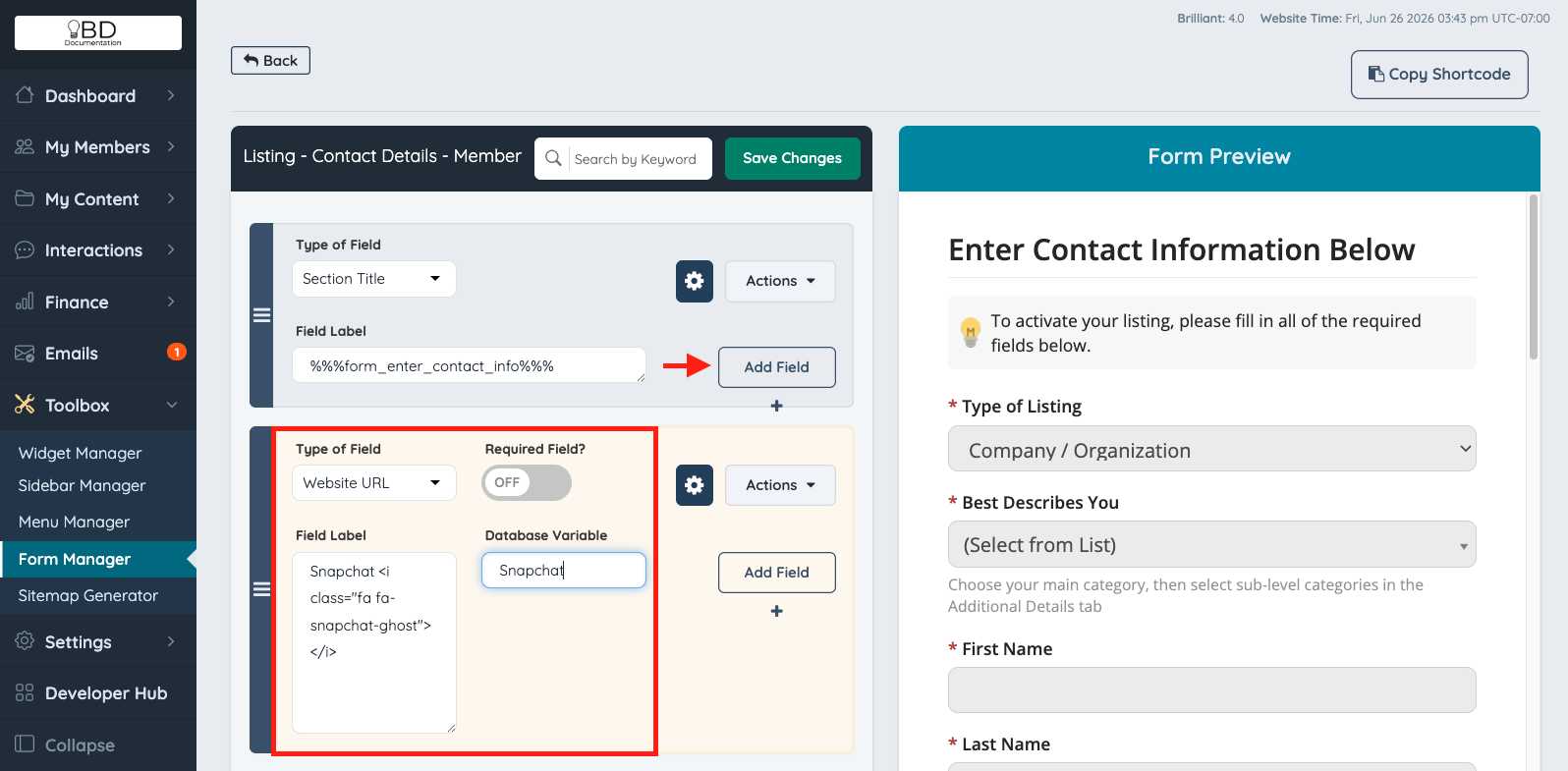
Make sure the new social media field uses the same Display Options as the default social media fields.
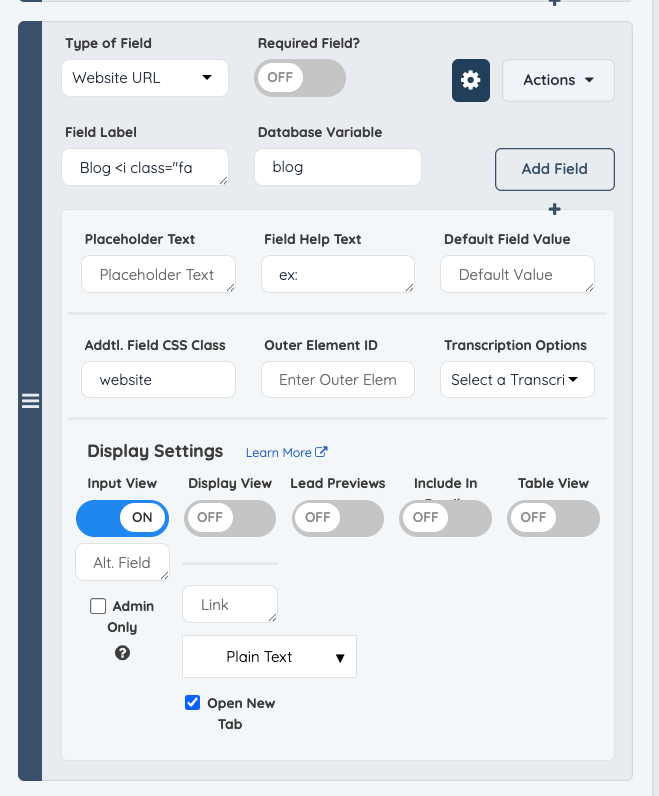
The Field Label Name and Database Variable Name can be changed as needed. In this example, Snapchat is used.
The Field Type must be set to Website URL for the field to work like the default social media fields.
This is the Font Awesome icon code used in this example:
<i class="fa fa-snapchat-ghost"></i>
The full list of available Font Awesome 4.7 icons can be found here:
https://fontawesome.com/v4.7.0/icons/
For display purposes, drag the new field below the Instagram option.
Click Save Changes.
The custom form can now be selected in the Membership Plan settings.
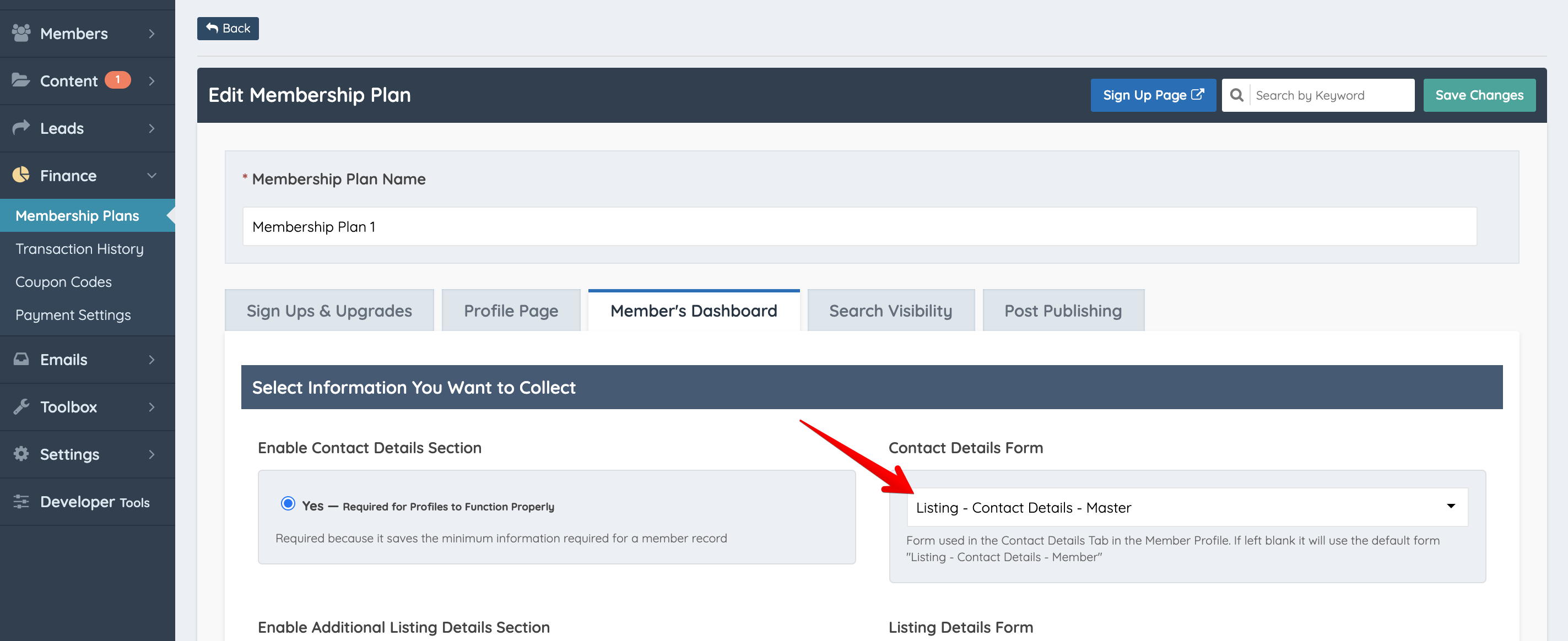
For more information about creating a new form and assigning it to Membership Plans, please refer to this article:
How To Assign Different Member Forms To Various Membership Levels
The new field will now display properly on the member form inside the Member Dashboard.

Displaying the New Field on Member Profiles
To display the new social media field on member profiles, the new variable must be added to the widget that controls the social media icons.

First, identify which widget is being used to display the existing social media icons.

For more information about locating widgets from the front end using the Admin Bar, please refer to this article:
https://bootstrap.brilliantdirectories.com/support/solutions/articles/12000051553
Clicking the widget name will open the Widget Manager. Click Customize to view the widget code.

In the code view, scroll down to the area between the last closing anchor tag and the opening PHP tag.

Add the following code, then click Save:
<?php }
if ($user['snapchat'] != "" && $subscription['social_link'] == 1) { ?>
<a class="network-icon blog weblink" style="background-color:#bcbc0c;"<?php if ($subscription['nofollow_links'] == 1){ ?>rel="nofollow"<?php } ?> href="<?php echo $user['snapchat']?>" target="_blank" title="Snapchat"><i class="fa fa-snapchat-ghost"></i></a>
Once the widget has been customized and the new link has been added to the contact details form, the custom social media icon will display on the member profile.
[Keep existing screenshot]


