How To Edit Login Page Button
Link: https://support.brilliantdirectories.com/support/solutions/articles/12000052073
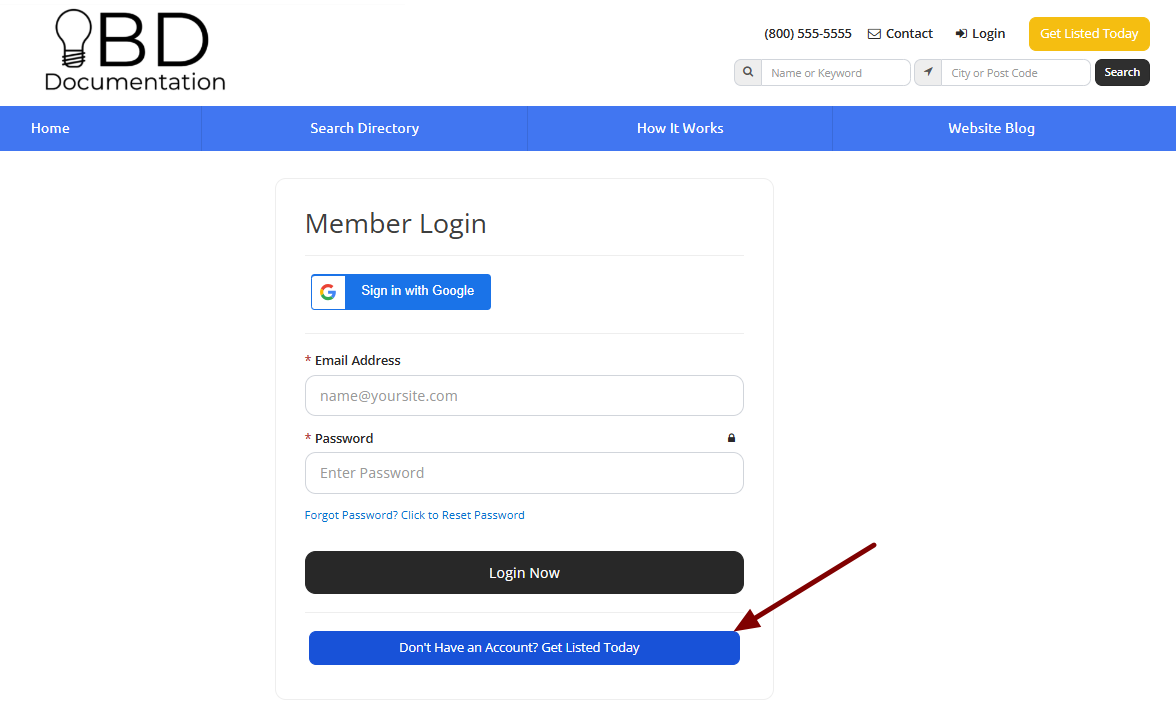
Every Brilliant Directories website comes with a default /login page. On this page, the default login form and the signup button are available to edit:
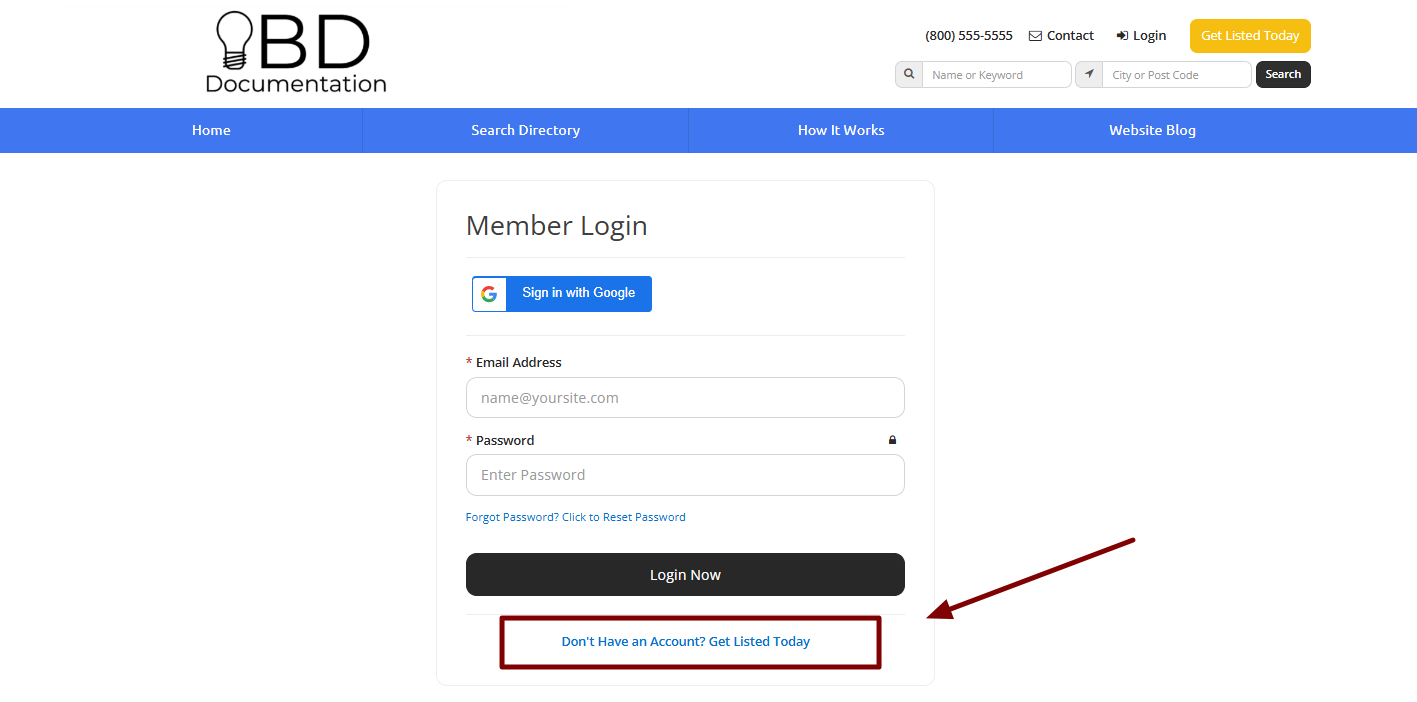
Edit This Button in the Back End
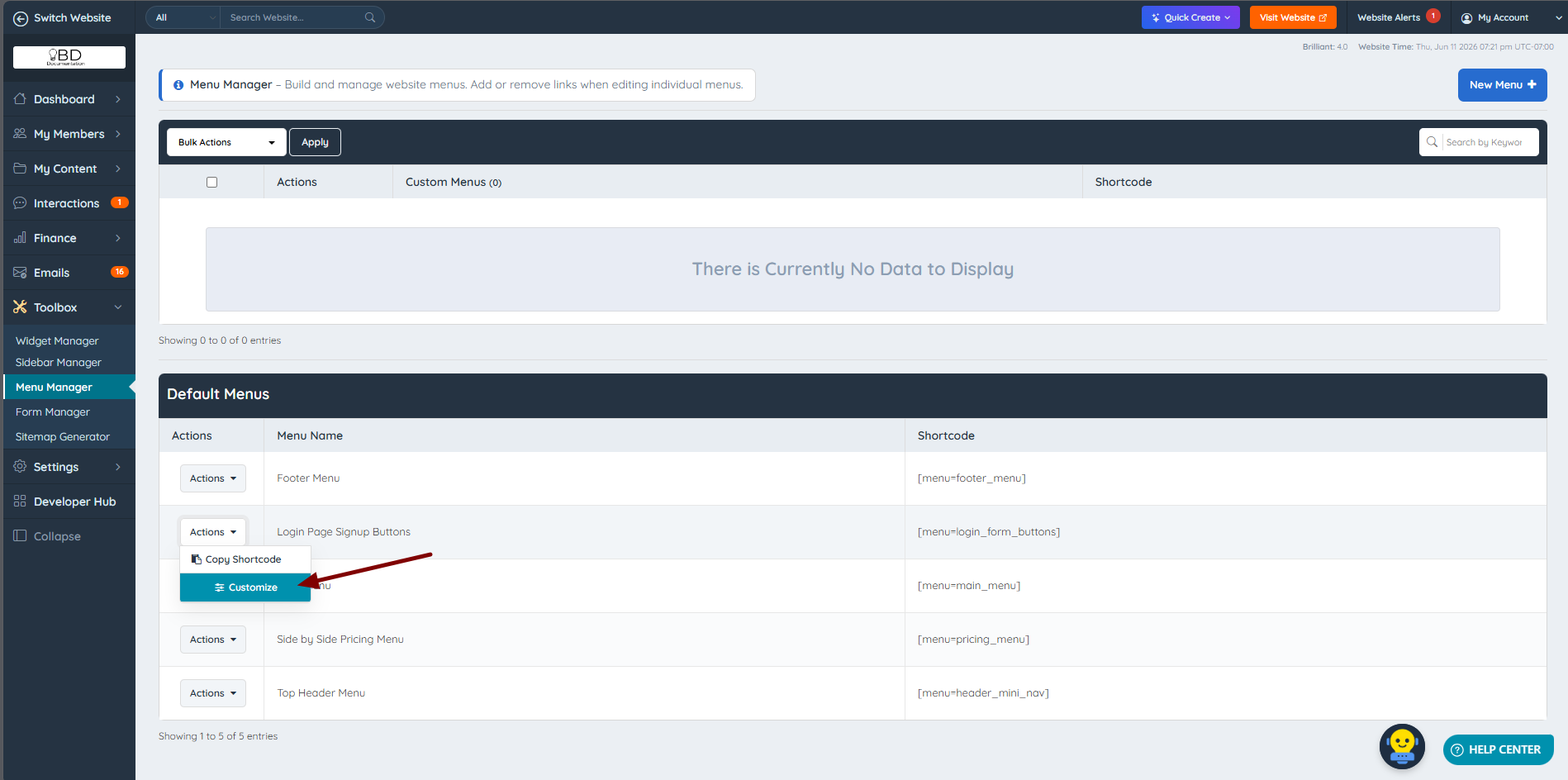
Navigate to Toolbox » Menu Manager, search for the "Login Page Signup Buttons" menu, and click "Customize":
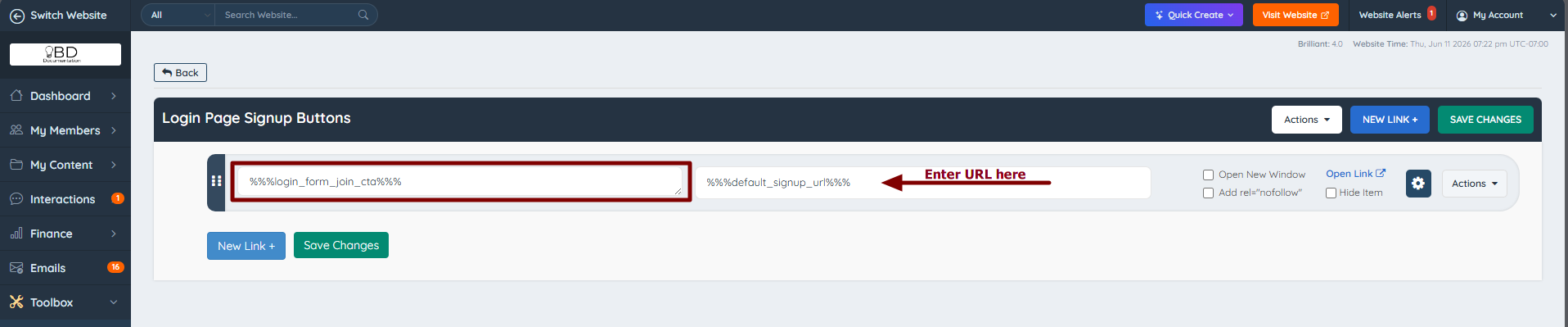
In the "Edit" view, the text areas can be edited to change the wording and the URLs:
The admin can choose to either edit the wording directly in the Menu Manager or edit the text labels.
The text and URL can be edited under Settings » Text Labels:
login_form_join_cta

default_signup_url

Make the Link a Button
Each menu link has its own "Edit" button for further changes. Clicking it opens a dropdown of settings. In the Menu Item CSS Class field, add the following:
Menu Item CSS Class
btn btn-danger btn-block sm-nopad nav

It will look like this:
Change The Link to the Deprecated Two Buttons
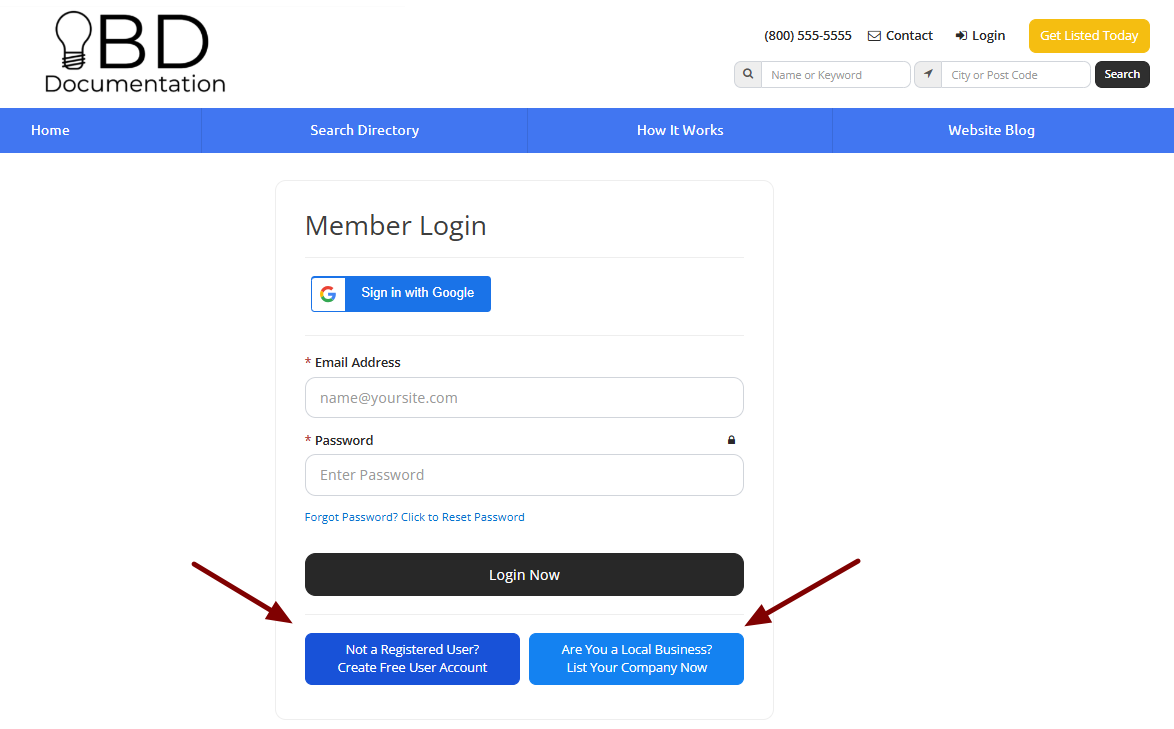
Older versions of the /login page displayed two signup buttons instead of one. To recreate that layout, add two menu items with the following settings.
This is the information that needs to be added to add the 2 buttons, please click on Add Menu Item:

Note: the URLs below are examples. /checkout/5 points to a specific membership plan — replace the plan ID with the correct one for the website.
Button 1
TEXT: Not a Registered User? <span class="inline-block">Create Free User Account</span>
URL: /checkout/5
Menu Item CSS Class: btn btn-danger btn-block sm-bmargin
Outer <li> CSS Class: col-xs-12 col-sm-12 col-md-6 nolpad sm-nopad nav

Button 2
TEXT: Are You a Local Business? <span class="inline-block">List Your Company Now</span>
URL: /join
Menu Item CSS Class: btn btn-success btn-block
Outer <li> CSS Class: col-xs-12 col-sm-12 col-md-6 norpad sm-nopad nav

This is how it will look on the /login page:
Change The Color of These Buttons
The menu link has its "Edit" button that can be utilized to make further changes. When clicked on these, a dropdown of sections will appear. On one this section called "Link CSS Class", the kind of a button that is being used as default will display:

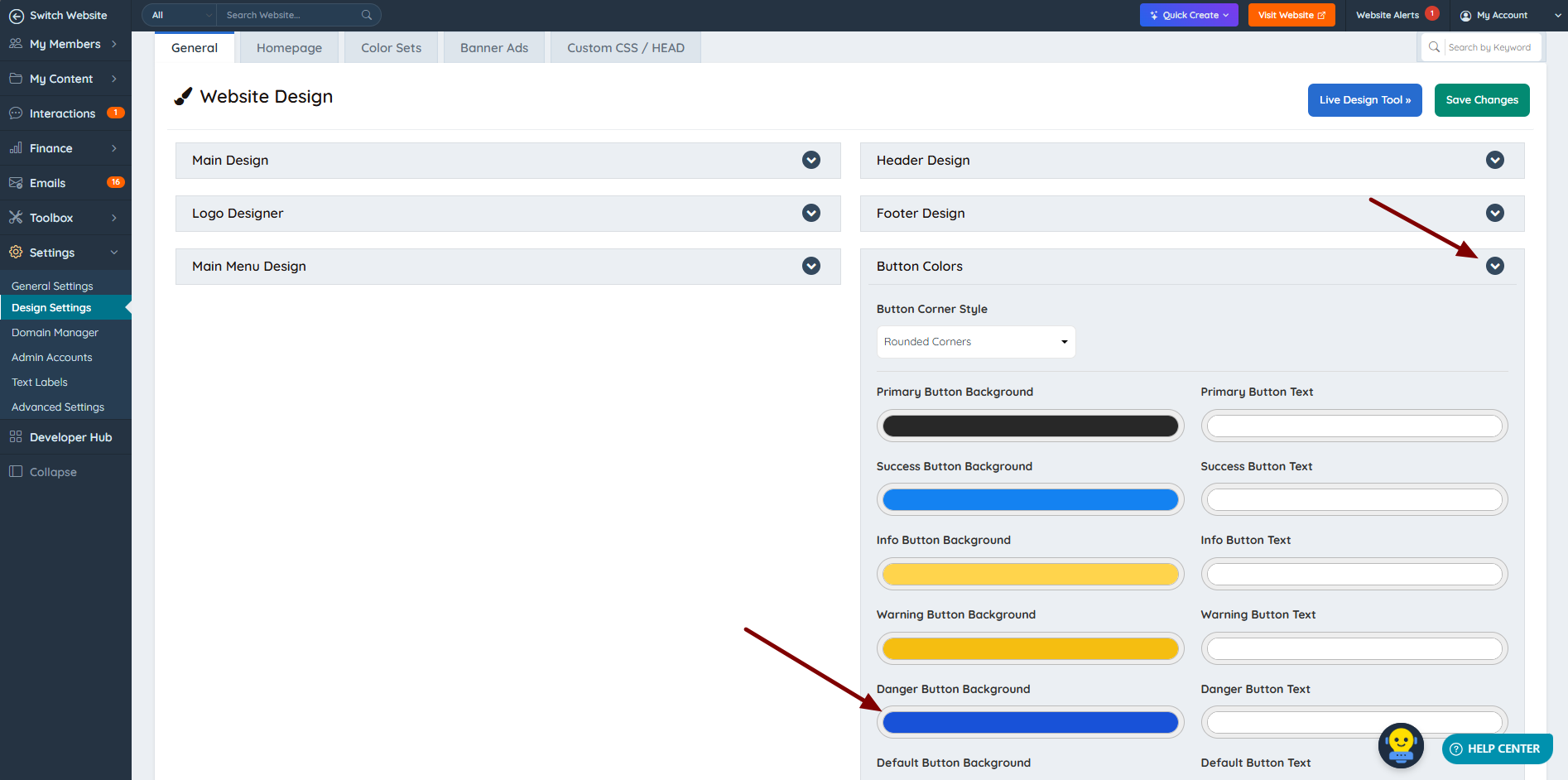
Highlighted areas indicate our button is Danger Button. In this scenario, the specific button color can be changed via Settings » Design Settings » Default Button Link Colors