
Webpage Builder: Page Details Tab & Page Options Tab
Link: https://support.brilliantdirectories.com/support/solutions/articles/12000047142
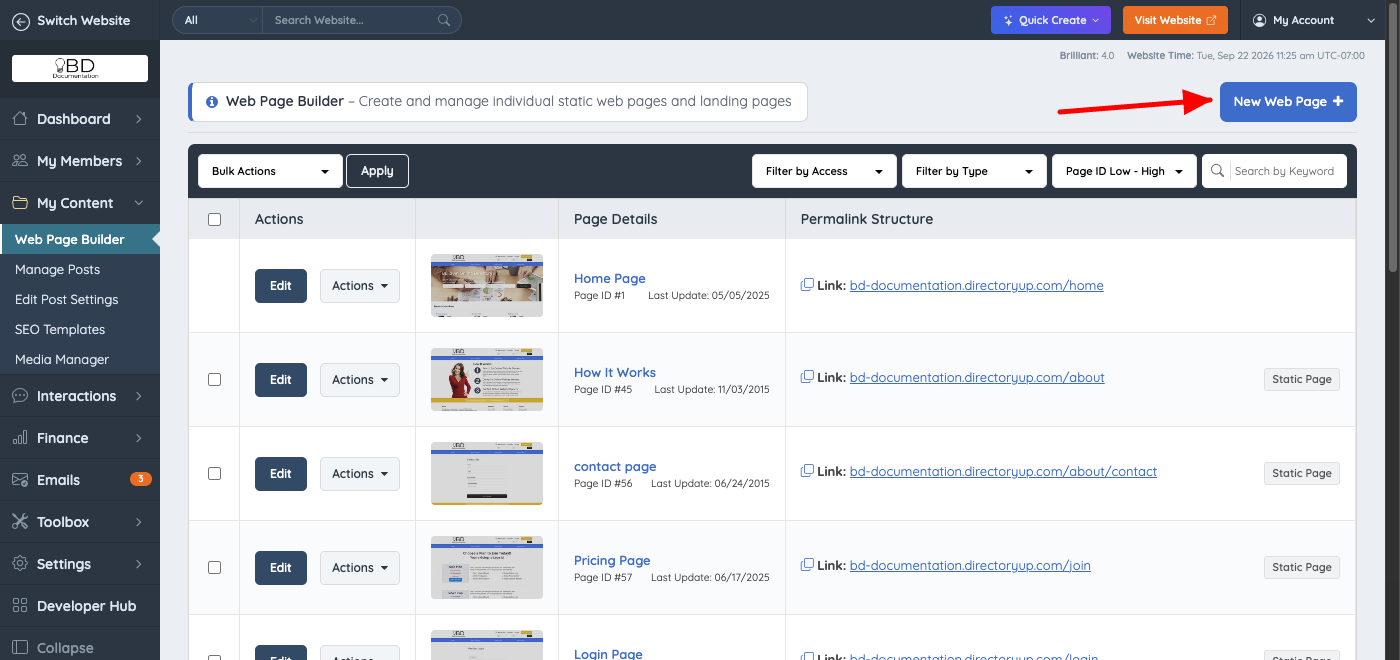
Navigate to My Content >> Web Page Builder >> then click "Edit" for the existing page or click the New Web Page button to create a new web page:
Within the web page editor, the following options will be available in the sidebar:
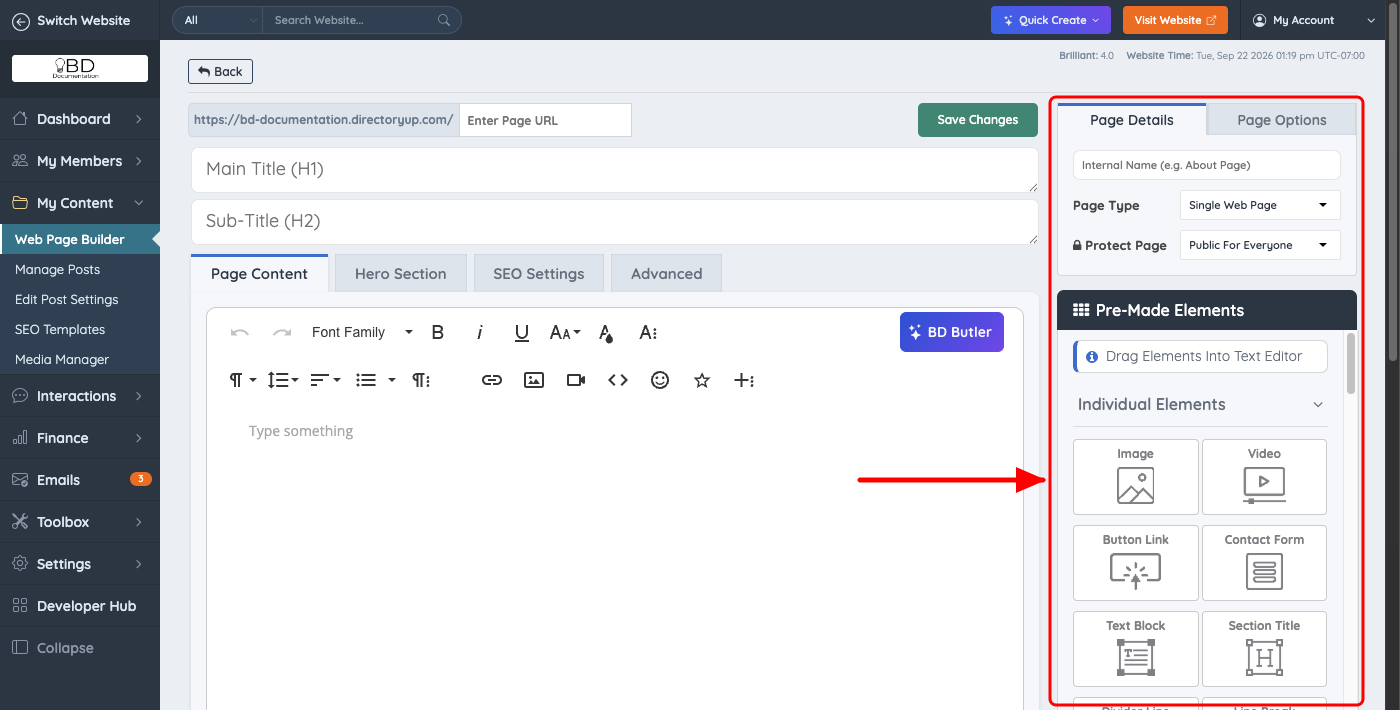
Page Details Tab
This section allows users to control key attributes of a page and update its accessibility or structure.
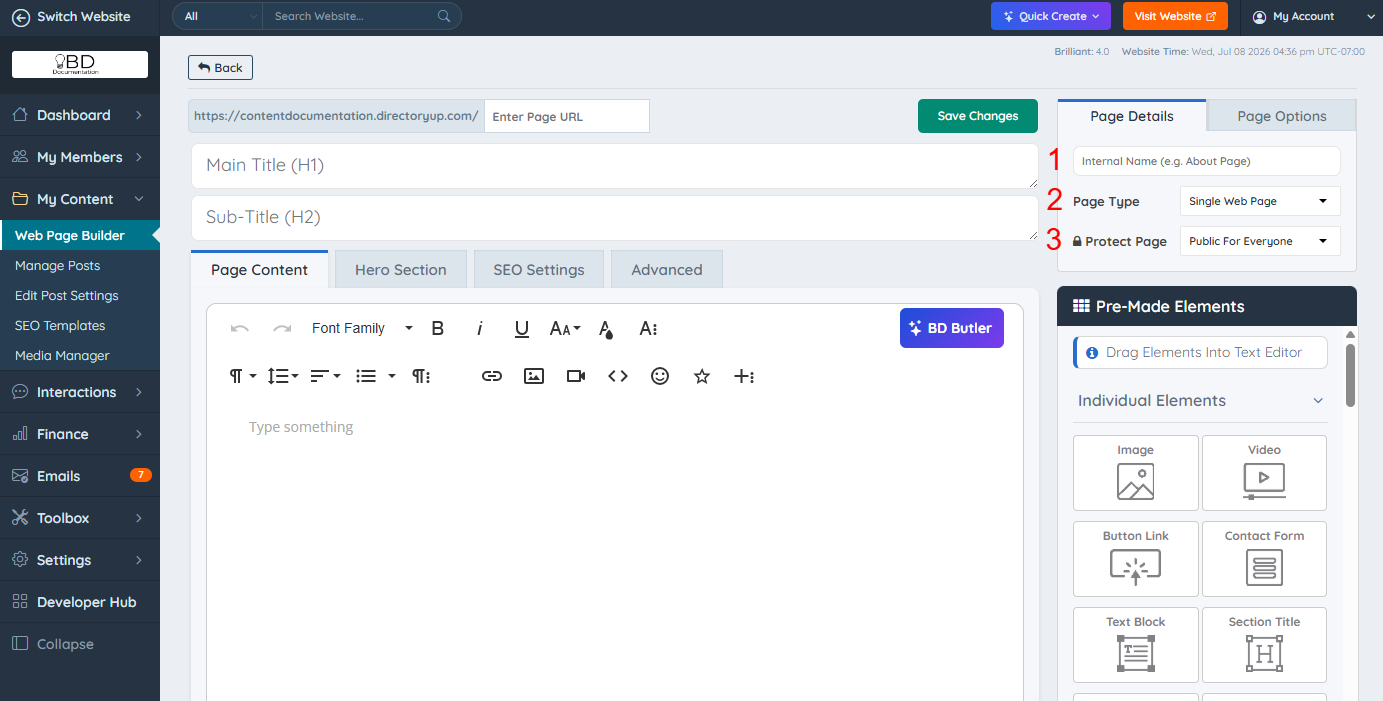
1. Internal Nickname
This is an internal reference name for the page. It is not visible to users on the front end, but it helps with organization and searchability.
2. Page Type
Select the type of page you are creating. Learn more about page types here: What Page Types Can I Use?
3. Protect This Page?
Enable this setting to restrict access to members only. This requires the Members-Only add-on.
Page Options Tab
Use this tab to customize the layout, visibility, and structure of the page using the following options.
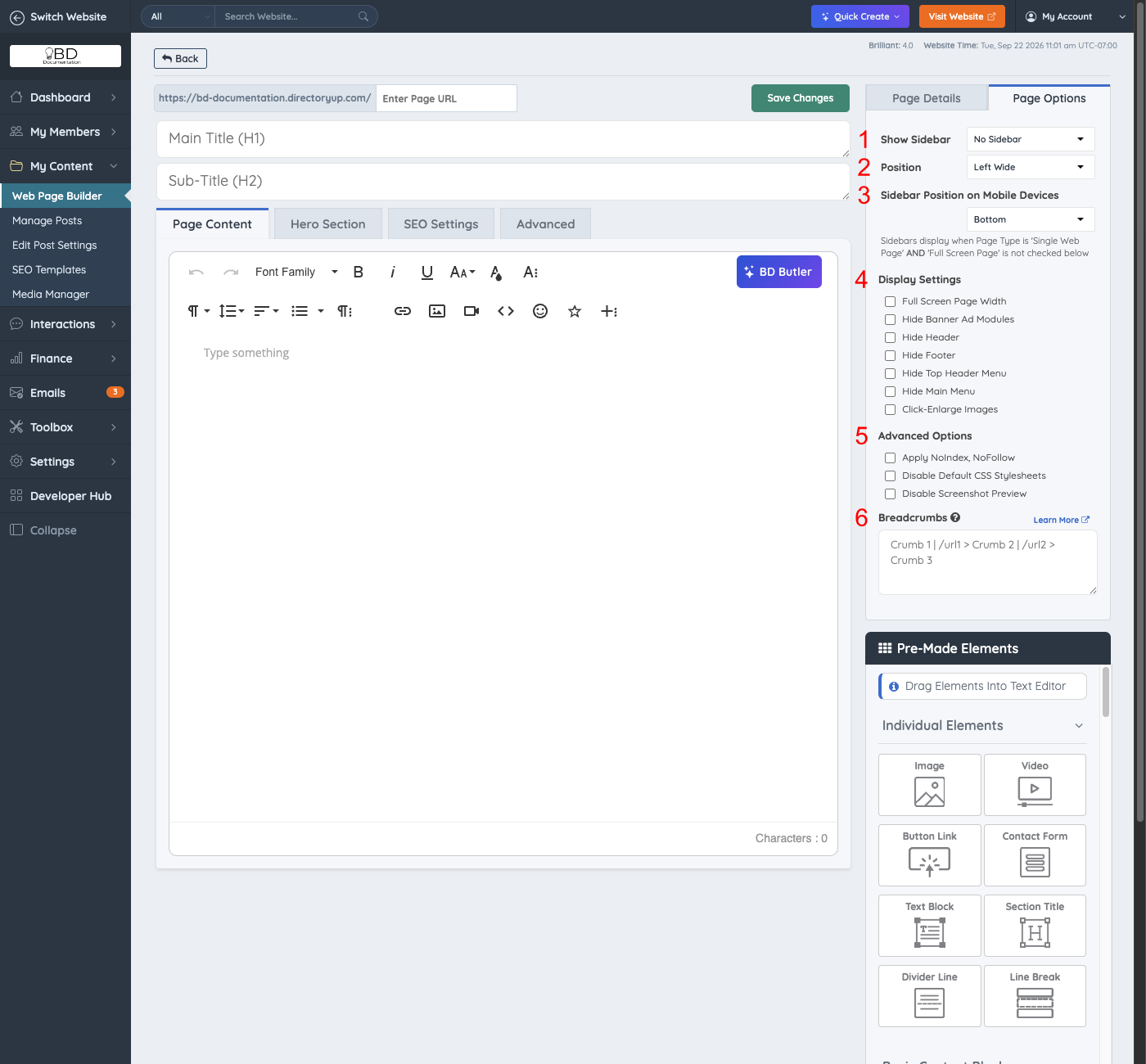
1. Show Sidebar
Choose which sidebar to display on the page.
2. Sidebar Position
Set whether the sidebar appears on the left or right side of the page.
3. Sidebar Position on Mobile Devices
Set where the sidebar appears when the page is viewed on a phone:
- Top: the sidebar is shown above the page content.
- Bottom: the sidebar is shown below the page content. This is the default.
- Hide: the sidebar is not shown on phones.
This setting applies to screens narrower than 768 pixels. Tablets and phones turned sideways are usually wider than that, so they keep the desktop layout. Desktop screens are not affected.
4. Display Settings
Customize the page’s appearance with these options:
Full Screen Page Width
Expands the page content to fill the entire width of the browser window, removing any margins.
Hide Banner Ad Modules
Removes any banner advertisements that would normally display on the page.
Hide Header
Hides the entire header section of the website on this specific page.
Hide Footer
Prevents the footer from appearing at the bottom of the page.
Hide Top Header Menu
Removes the top navigation menu from the page.
Hide Main Menu
Hides the main navigation menu that is typically displayed at the top of the site.
Click-Enlarge Images
Allows users to click images to view a larger version in a pop-up window.
5. Advanced Options
These options provide more advanced control of the web page, such as search engine indexing and stylesheet behavior.
Apply NoIndex, NoFollow
This setting prevents the page from appearing in the sitemap and stops search engines from indexing it. If the page is set to Members Only, this option is enabled by default. More information: Members-Only Pages
Disable Default CSS Stylesheets
Prevents the page from inheriting the default CSS styles. Learn more: How to Override and Edit Default CSS Stylesheets
Disable Screenshot Preview
Prevents a screenshot preview of the page from appearing in the Web Page Builder.

6. Breadcrumbs
Enable breadcrumb navigation to improve user experience. Learn more here: Common Breadcrumb Variables.
Blog | /blog > Partner | https://example.com > My Page> — Separates each breadcrumb level.| — Assigns a URL to the breadcrumb immediately before it. Both relative URLs (such as /blog) and absolute URLs (such as https://example.com) are supported.- The text before the
|is the breadcrumb label that will be displayed. - The URL after the
|is the destination for that breadcrumb. - Each
>creates the next level in the breadcrumb trail. - The final breadcrumb can be plain text without a URL if it represents the current page.
Blog | /blog > Partner | https://example.com > My Page- Blog links to
/blog - Partner links to
https://example.com - My Page is the current page and is not linked.
Pre-Made Elements
Pre-built content elements are available for use in custom web pages and landing pages. They can be used to create a wide variety of custom landing pages.
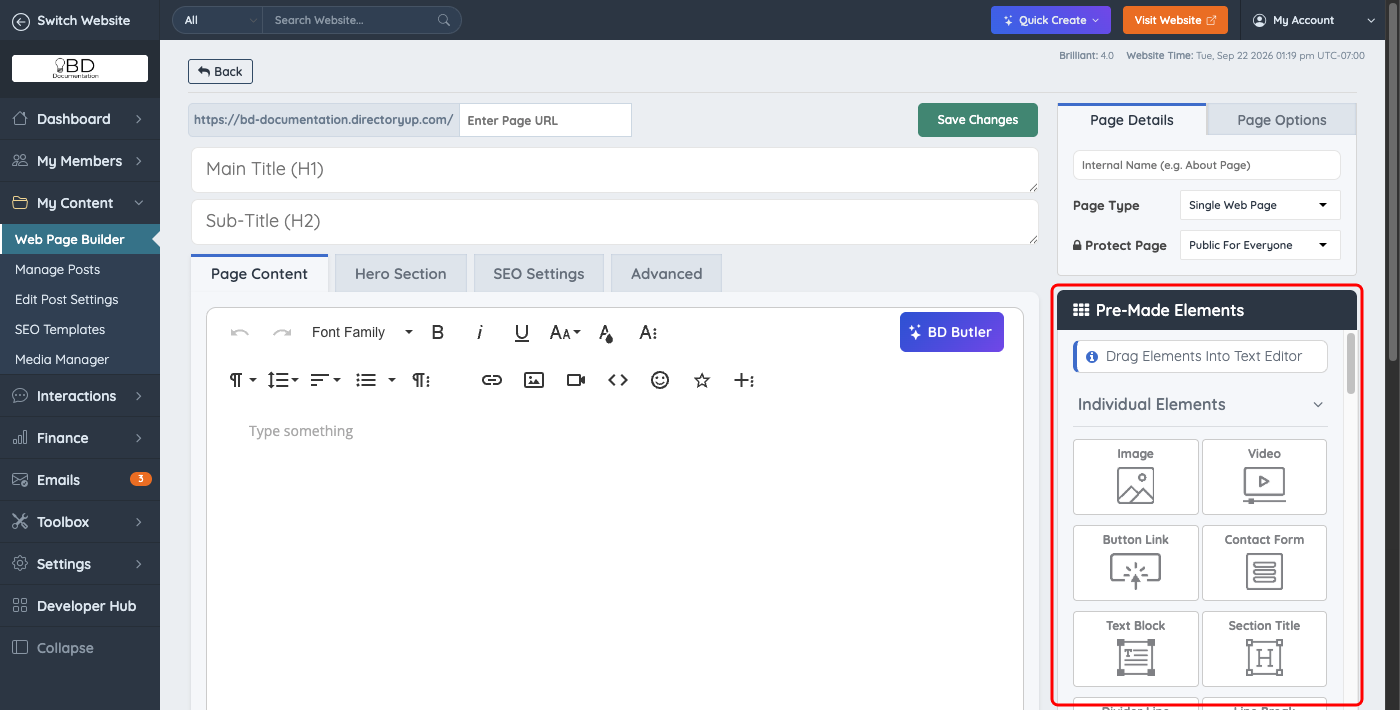
More info: Web Page Builder » Pre-Made Elements
Additional Information
Web pages can include sidebars. See: How to Create a Sidebar
