
How to Match a Lead
Link: https://support.brilliantdirectories.com/support/solutions/articles/12000009392
Leads reach the Member Leads page in two ways, and both are matched with members the same way. A lead sent through the Get Matched form is an indirect lead: it is not sent from a particular member's page. A lead sent from a member's profile contact form is a direct lead. A lead that is not matched with members automatically arrives Unmatched, and the site admin matches it by hand, as described below.
When a Lead Needs Matching
Get Matched Form Leads
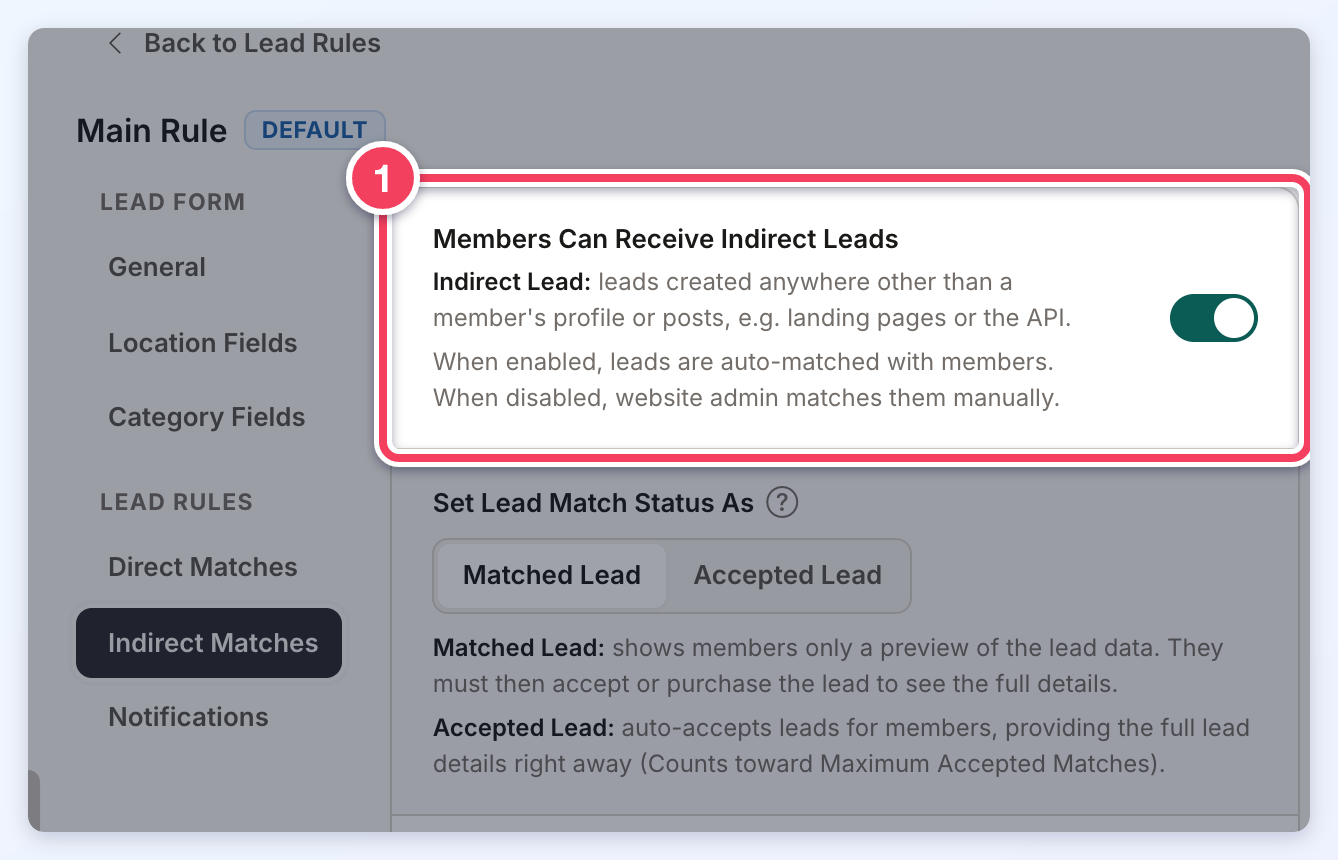
Get Matched leads are matched with members automatically only when the Automatic Lead Matching add-on is active and the lead's rule has Members Can Receive Indirect Leads (1) turned on (Interactions » Member Leads » Lead Settings » Lead Rules » Edit » Indirect Matches).
Member Contact Form Leads
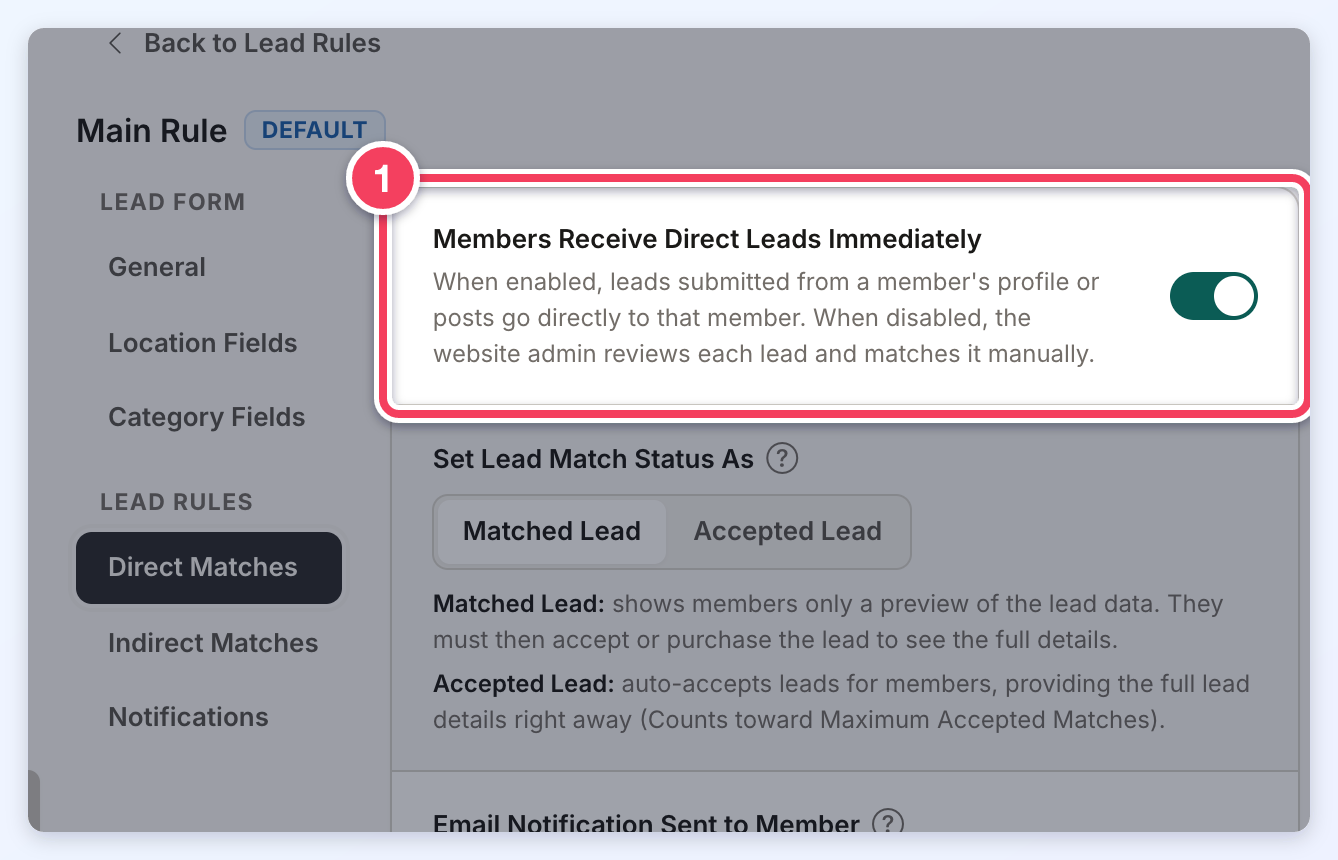
If the website delivers direct leads to the contacted member automatically, no further action is required unless the lead should also go to other members. This is controlled by the Members Receive Direct Leads Immediately setting (1) in Interactions » Member Leads » Lead Settings » Direct Matches. With the Automatic Lead Matching add-on, the setting is in each rule: Lead Settings » Lead Rules » Edit » Direct Matches. When it is off, the lead arrives Unmatched and the site admin matches it with the member who should receive it.
» Automatic Lead Matching Documentation
Find the Lead
- Navigate to Interactions » Member Leads.
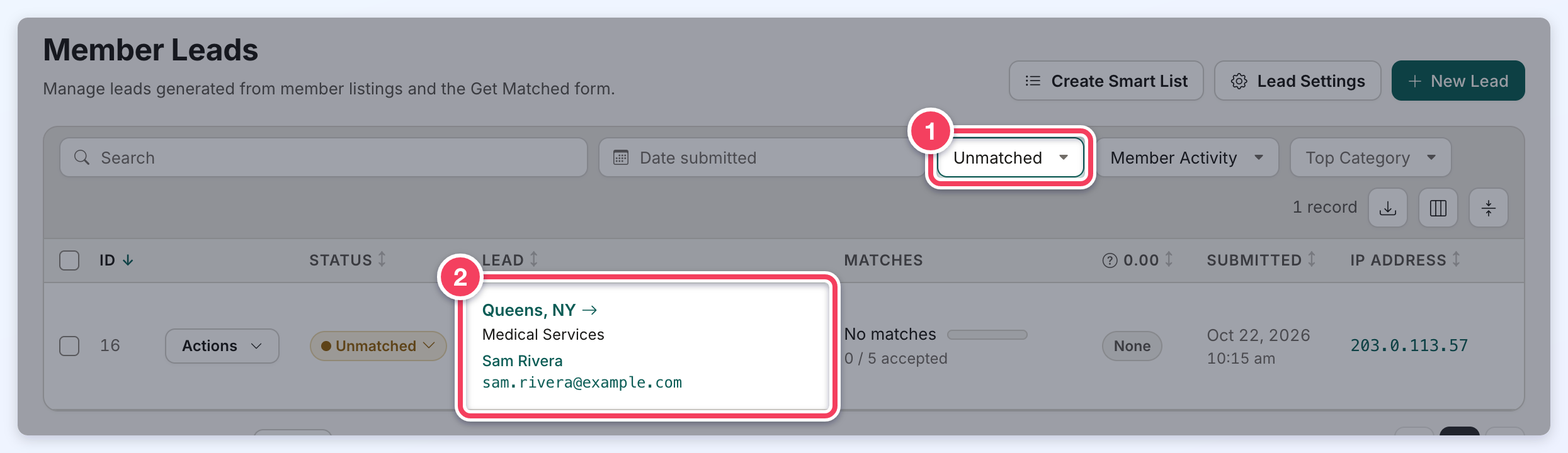
- Open the status filter (1) and choose Unmatched to list the leads that have not been matched with any member yet.
- Click the lead's location or message (2) to open the lead drawer.
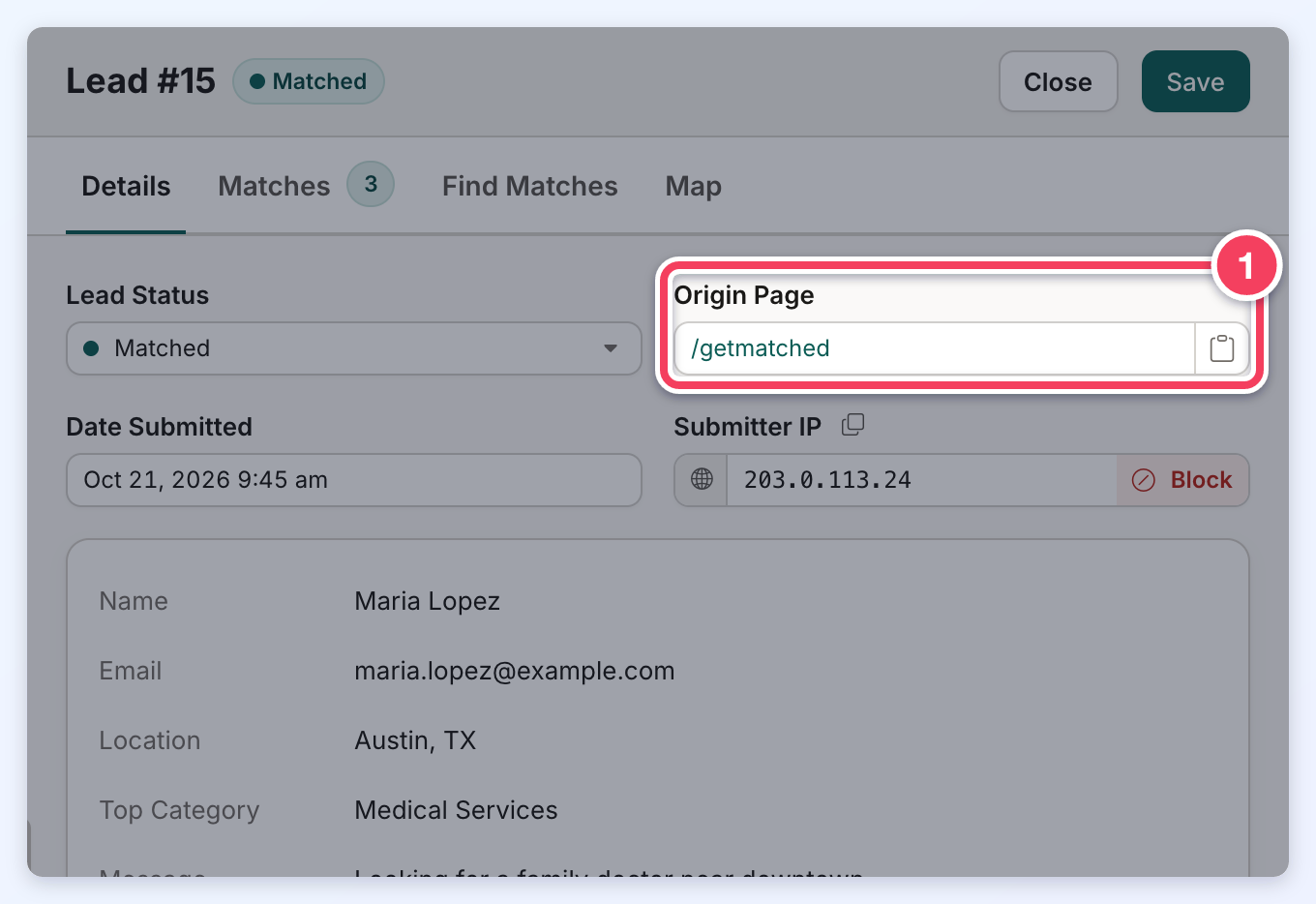
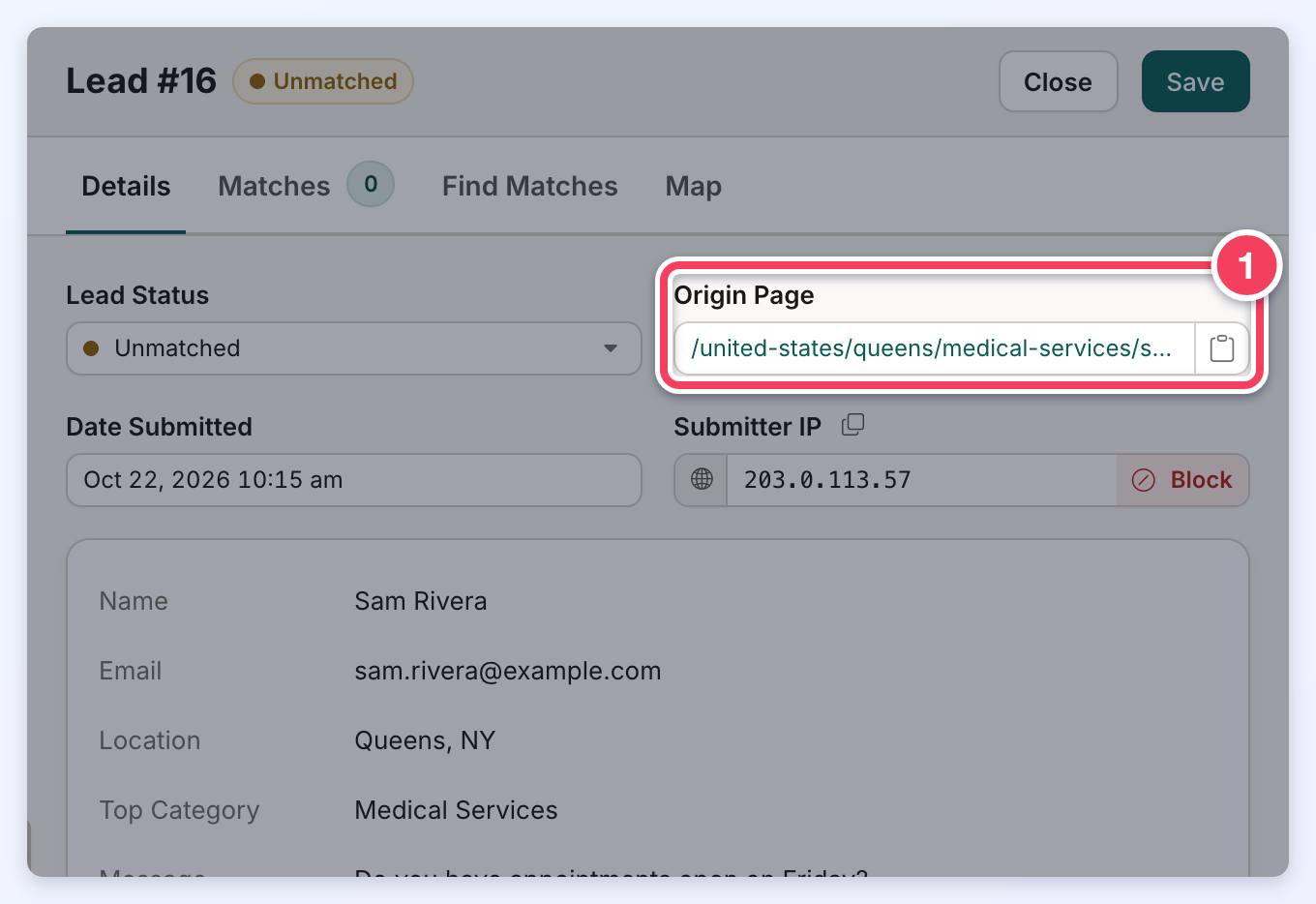
The Details tab shows everything the visitor submitted. To confirm where the lead came from, check the Origin Page field (1). Click the copy button beside it to copy the page address.
- A lead from the Get Matched page shows /getmatched. If the form is embedded on a custom page, the field shows the page the visitor was on when they filled out the form.
- A member contact form lead shows the profile page of the member who was contacted.
Match the Lead with Members
Click the Find Matches tab. It suggests members who fit the lead's location and categories, nearest first (the Distance column), with members on higher-priority membership plans (the Search Priority column) ahead of others at the same distance.
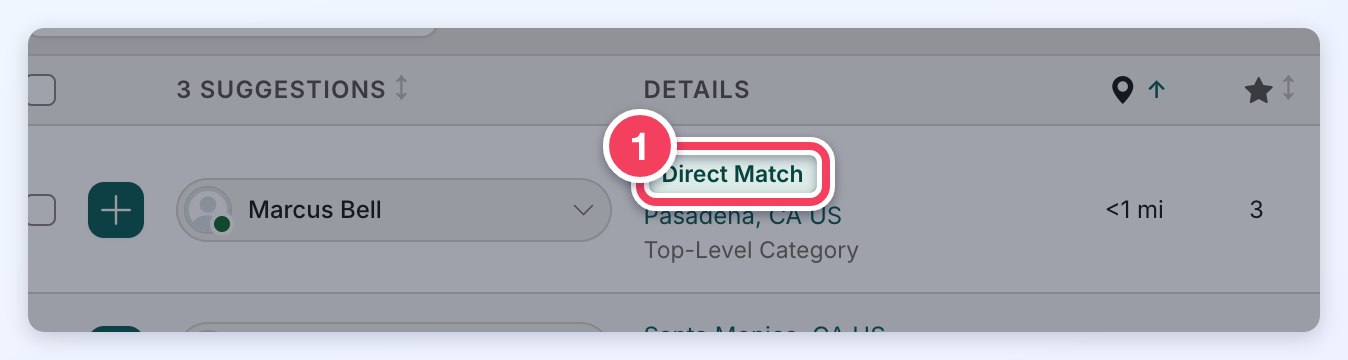
For a member contact form lead, the member whose profile, post or portfolio page sent the lead is listed first with a Direct Match tag (1). If that member is not the right fit, use the filters to find other members.
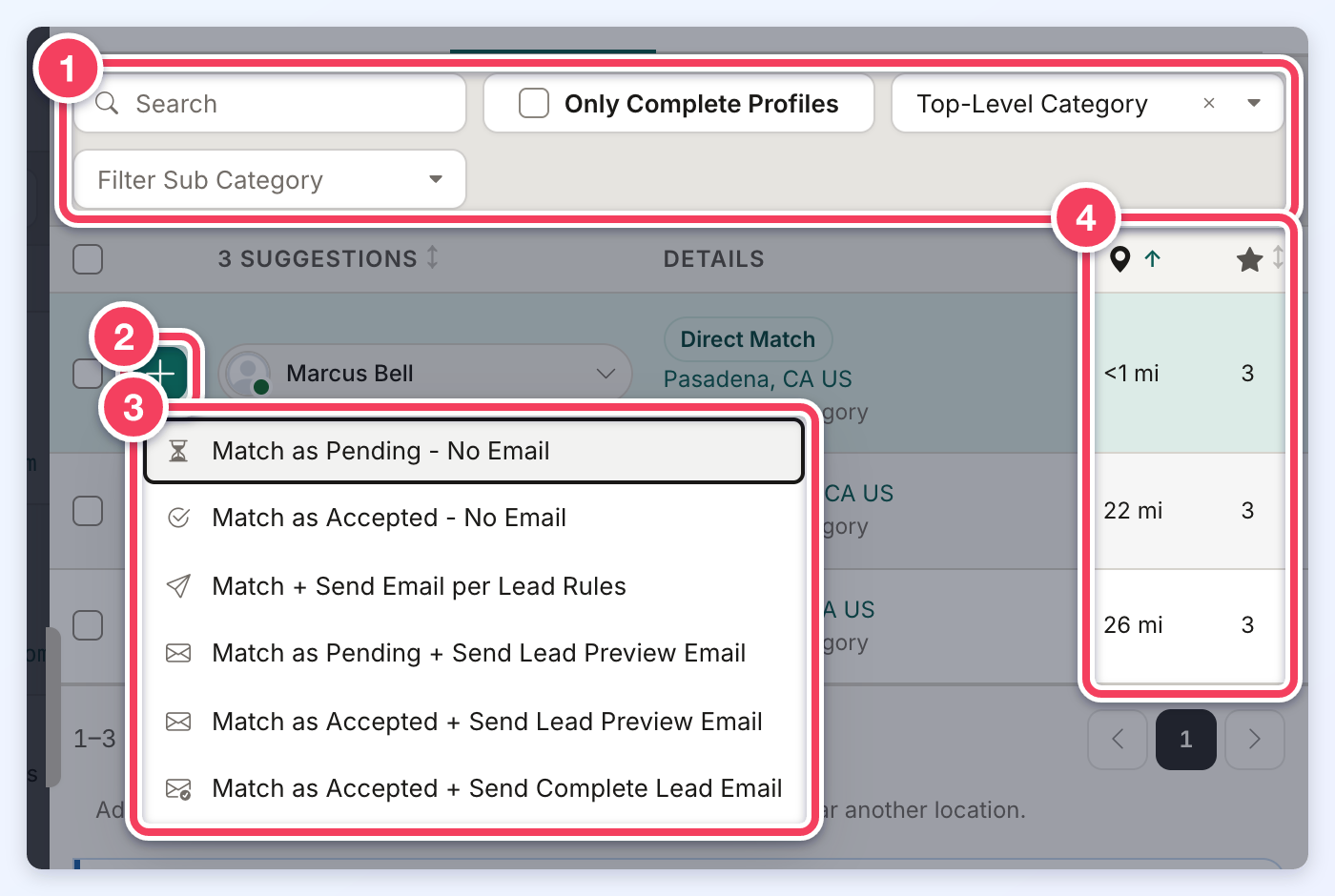
- The filters at the top change the search:
- Search: find a member by name, company, email, phone or member ID.
- Location: search near a different place. Click the X to clear it. This filter appears when the website has a Google Maps API key.
- Only Complete Profiles: suggest only members whose profiles are complete. It is off by default, so members with incomplete profiles are suggested too. It appears only when Require Complete Profiles is set to Yes in Settings » General Settings » Search Settings. See Require Complete Profiles - How To Hide Incomplete Profiles.
- Filter Top Category: limit the suggestions to a category. Sub category and sub-sub category filters appear after a top category is chosen.
- The + button beside a suggested member.
- The match options (explained below).
- The Distance and Search Priority columns. Priority is the membership plan's search priority, where 0 is the highest. Click a heading to sort by it.
Click Reset to Lead's Request at the top of the tab to go back to the lead's own location and categories.
Each search suggests up to 1,500 members (100 when the Automatic Lead Matching add-on is not active). Members already matched with the lead are not counted in that limit.
A member with a blank or placeholder email (such as an address at the site's own domain made up from the member ID, an importdata- address or an @sample.com address) cannot receive the lead, so the tab leaves them out and shows how many potential matches were not included.
Match One Member
Click the + button (2) beside a member and choose how to match them (3):
- Match as Pending - No Email: matches the member with the status Pending and sends no email.
- Match as Accepted - No Email: matches the member as Accepted (counts toward Maximum Accepted Matches) and sends no email.
- Match + Send Email per Lead Rules: matches the member and sends the email notifications set in the lead's rule.
- Match as Pending + Send Lead Preview Email: matches the member as Pending and emails a preview of the lead without the visitor's contact details. The member accepts or purchases the lead on the website to see the full details.
- Match as Accepted + Send Lead Preview Email: matches the member as Accepted and emails the lead preview.
- Match as Accepted + Send Complete Lead Email: matches the member as Accepted and emails the full lead, including the visitor's email and phone number.
Our recommendation is Match as Pending + Send Lead Preview Email. A complete lead email gives the member the visitor's email and phone number right away, which leaves them no reason to come back to the website.
A confirmation shows what will happen before the match is made.
Match Several Members at Once
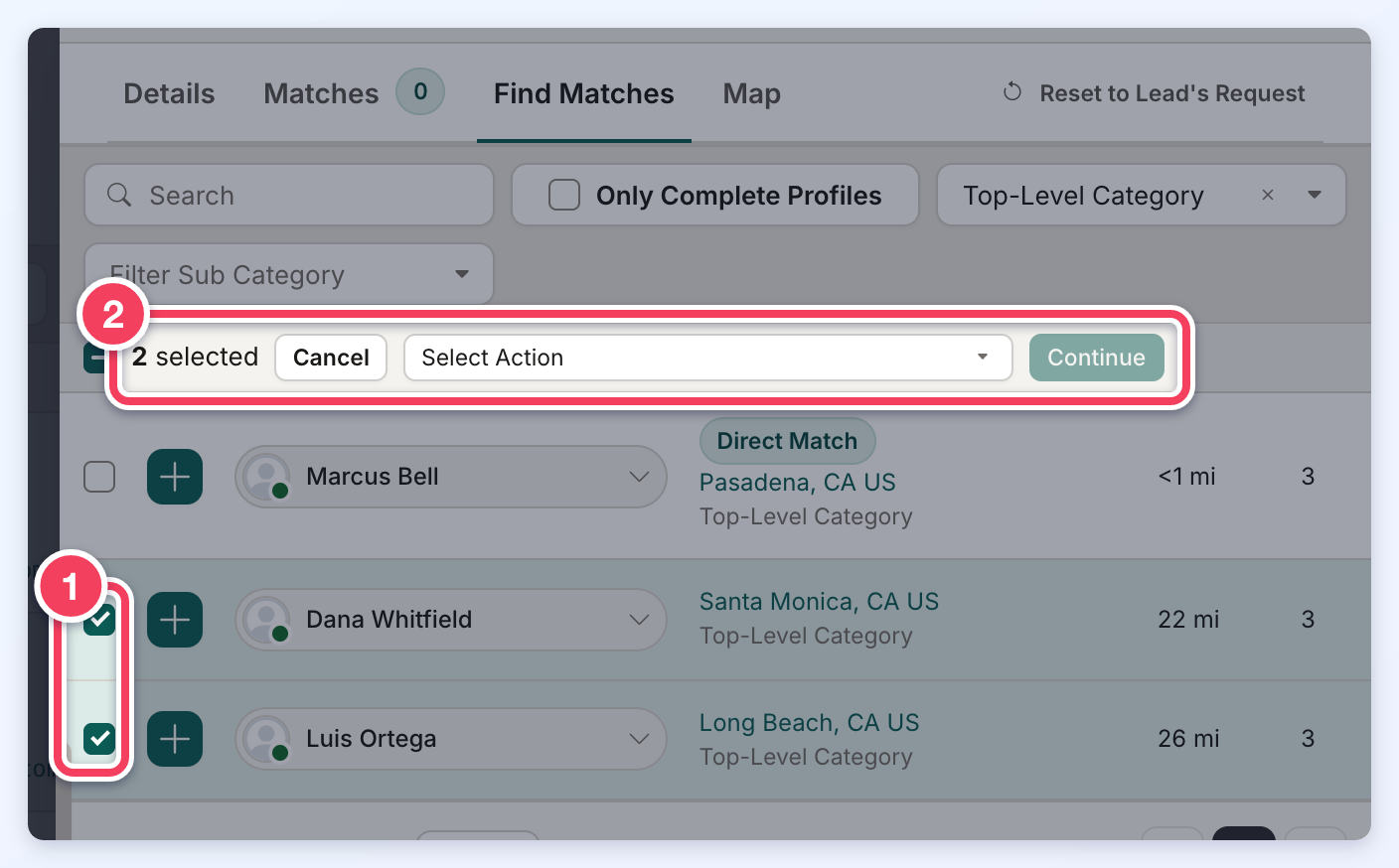
- Tick the checkbox beside each member to match (1), or tick the checkbox in the header to select all of them.
- Choose a match option from Select Action and click Continue (2).
- Review the confirmation, which names the option and the number of members, and click its button to match the members.
After Matching
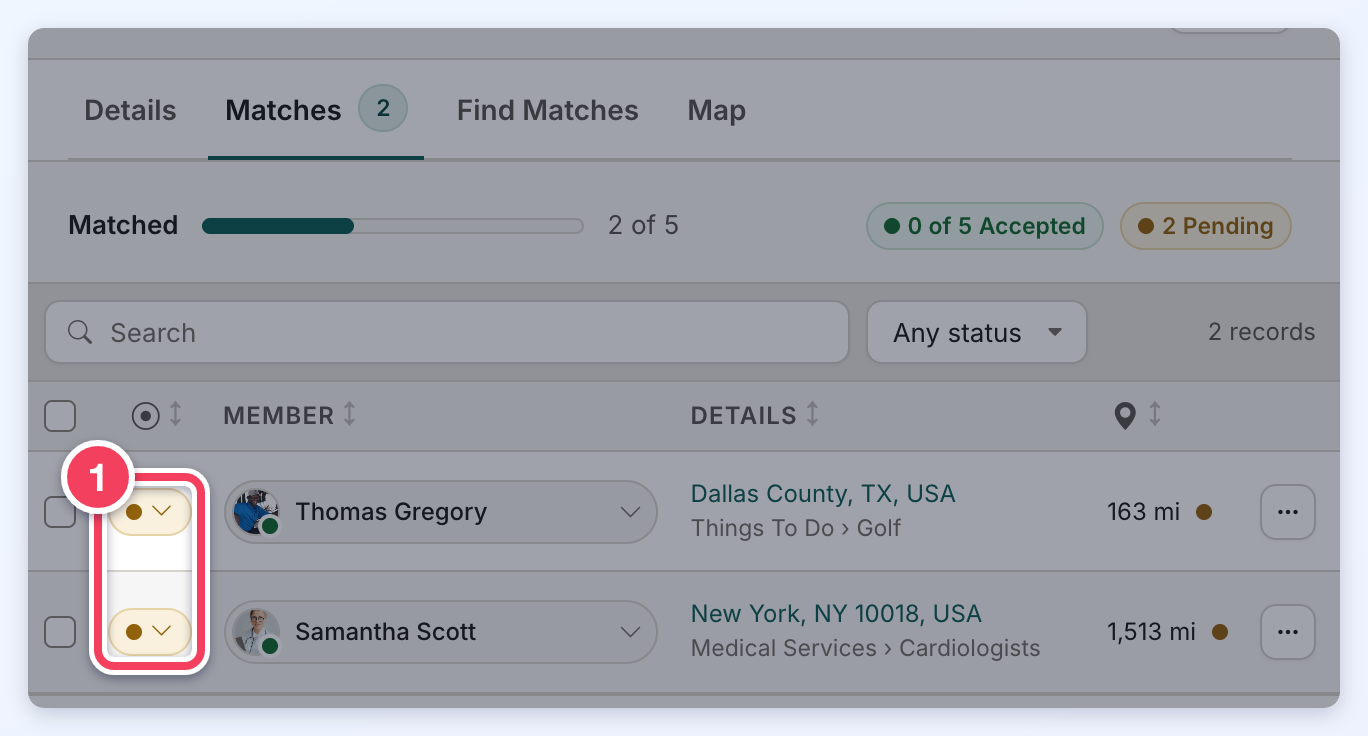
The matched members move to the Matches tab, which shows how many members are matched and how many have accepted, and each match's status (1). The lead's status changes from Unmatched to Matched, or to Accepted when a member is matched as Accepted. Members matched as Pending see the lead in their account under Manage Leads, where they can accept or decline it.
Change a Match's Status
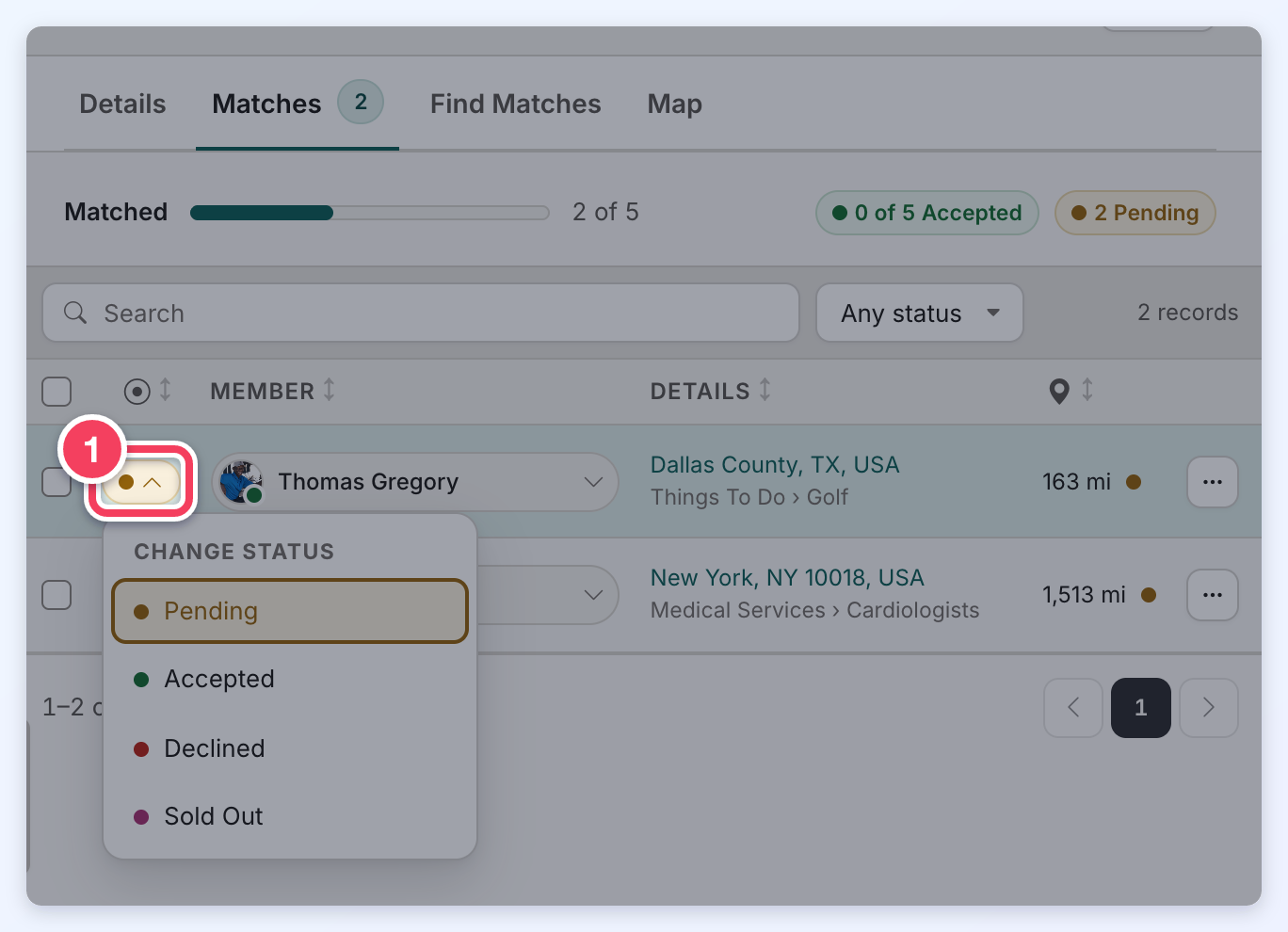
To change a match's status, click the status button (1) beside the member and choose Pending, Accepted, Declined or Sold Out.
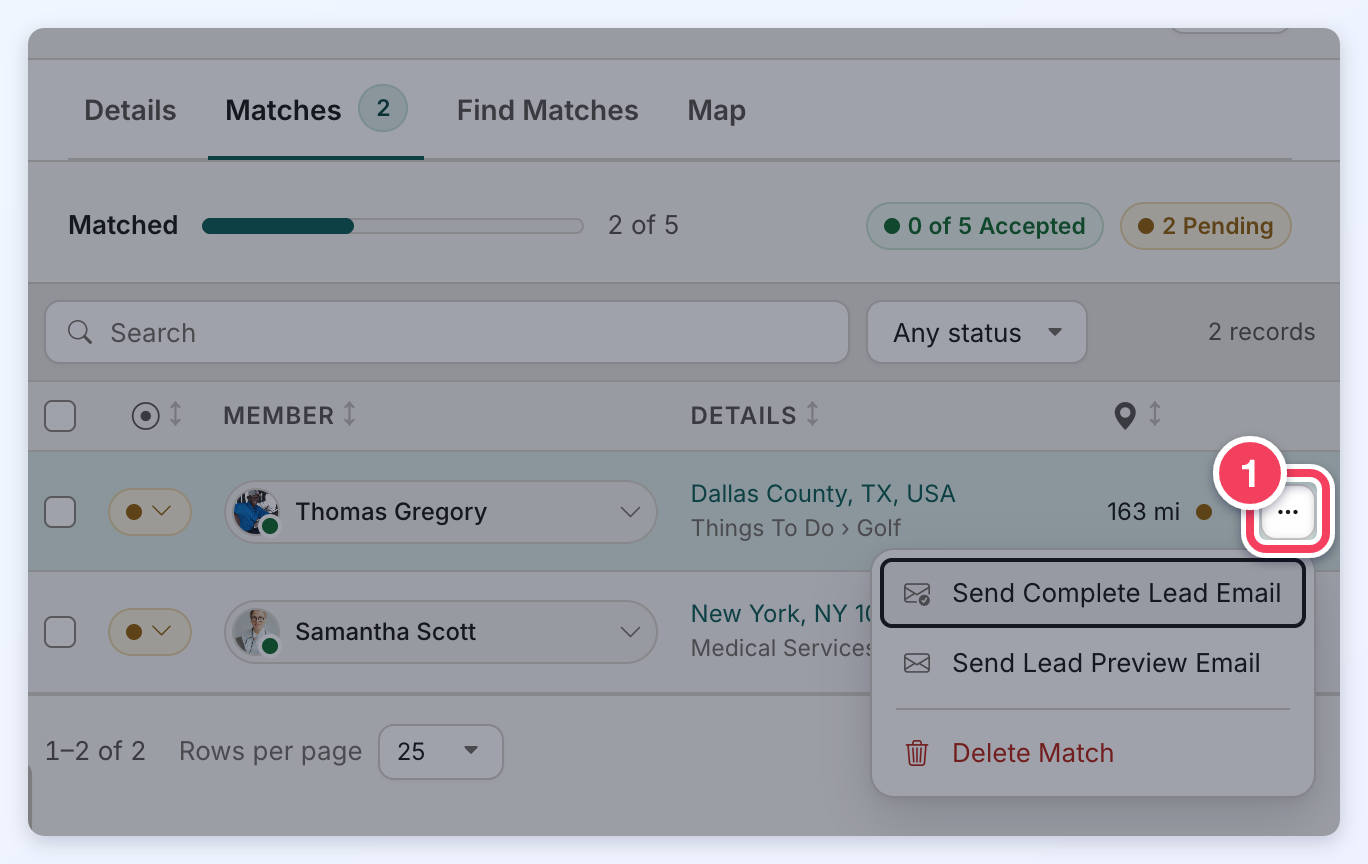
The ... button (1) at the end of each match's row resends the lead to that member with Send Complete Lead Email or Send Lead Preview Email, or removes the match with Delete Match.
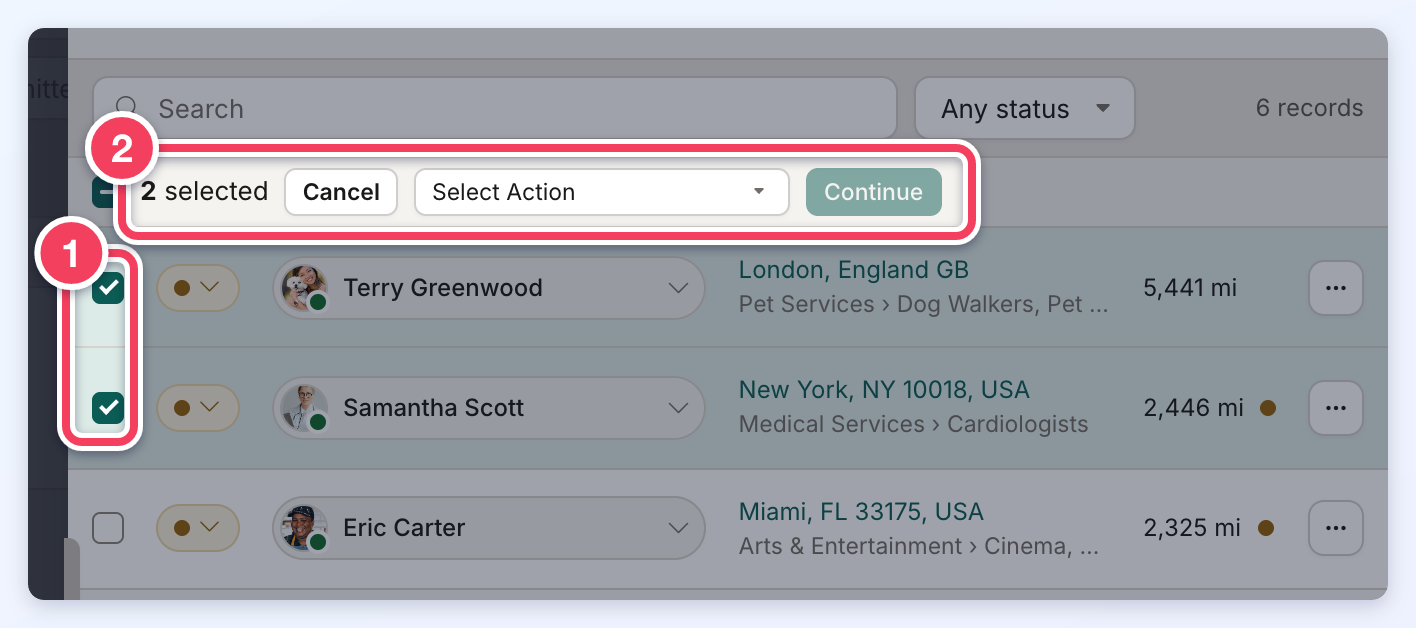
To change several matches at once, tick the members (1), choose a status, an email or Delete from Select Action (2) and click Continue. A confirmation opens before the change is made.
Sold Out, Closed and Bad Lead Leads
- When the number of accepted matches reaches Maximum Accepted Matches, the lead becomes Sold Out and its remaining Pending matches change to Sold Out, so those members can no longer accept it.
- A lead that is Sold Out, Closed or marked as Bad Lead cannot take new Pending matches: the Pending options are unavailable and members can only be matched as Accepted.
- Matching a member with a Closed, Bad Lead or Deleted lead from the lead drawer does not change the lead's status.
- If an accepted match is later declined or deleted and the accepted count drops below Maximum Accepted Matches, a lead that sold out because of the limit opens again and its Sold Out matches go back to Pending. A lead set to Sold Out by hand stays Sold Out.
Hide the Visitor's Name from Get Matched Lead Previews
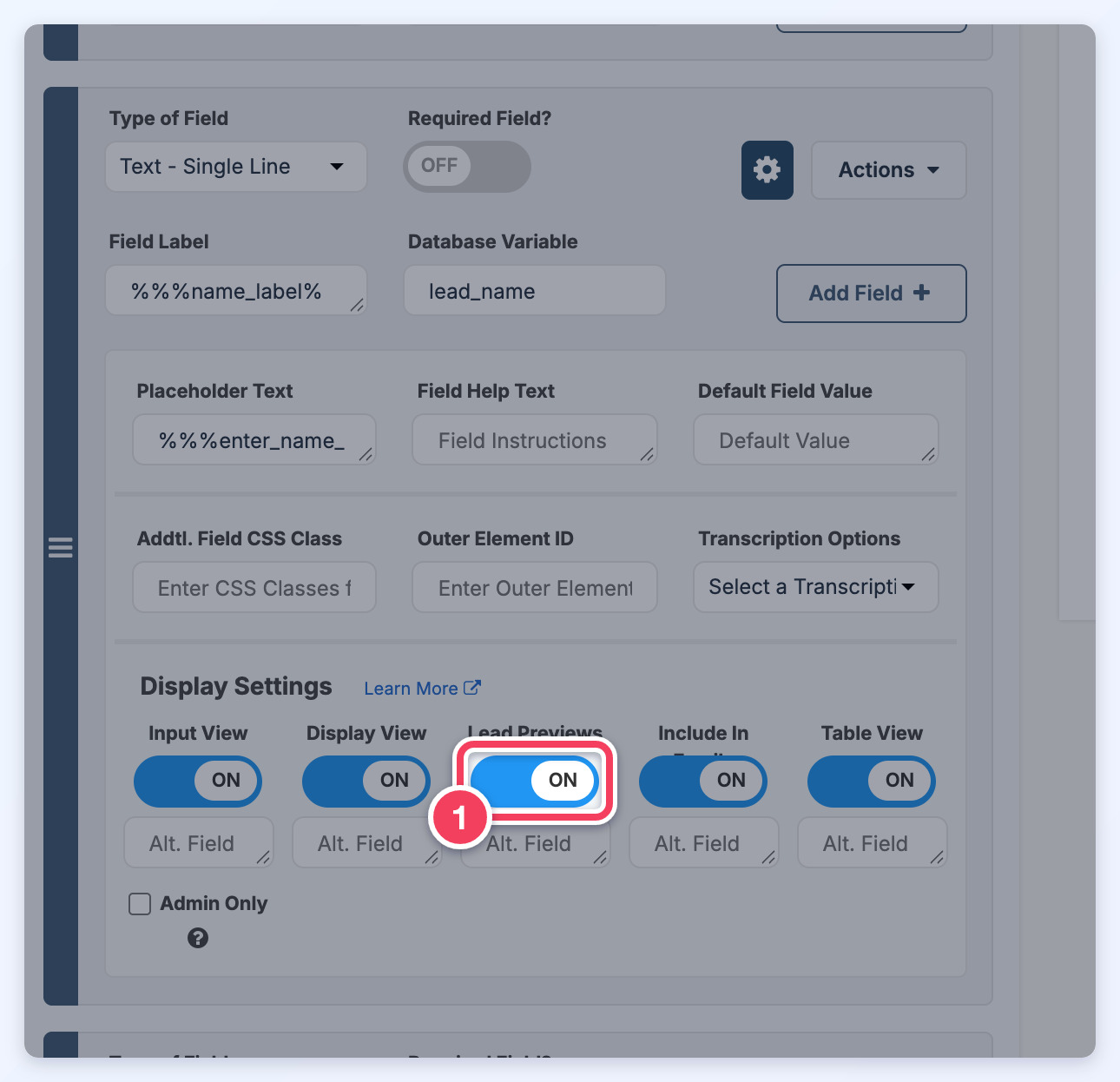
To keep the visitor's name out of the lead preview that members see before they accept a Get Matched lead, edit the Website - Lead Form - Get Matched form in Toolbox » Form Manager. Click the gear button of the name field (lead_name), switch Lead Previews (1) off under Display Settings, then click Save Changes. The name then shows only after a member accepts or purchases the lead.
Related Documentation:
» Member Leads » Lead Settings » Receiving Direct Leads Settings
