Member Leads » Lead Settings » Notifications
Link: https://support.brilliantdirectories.com/support/solutions/articles/12000008056
The Notifications settings control the emails sent to the site admin and to the visitor when a lead is submitted.
Open the Notifications Settings
- Navigate to Interactions » Member Leads (1).
- Click Lead Settings (2) at the top of the page.
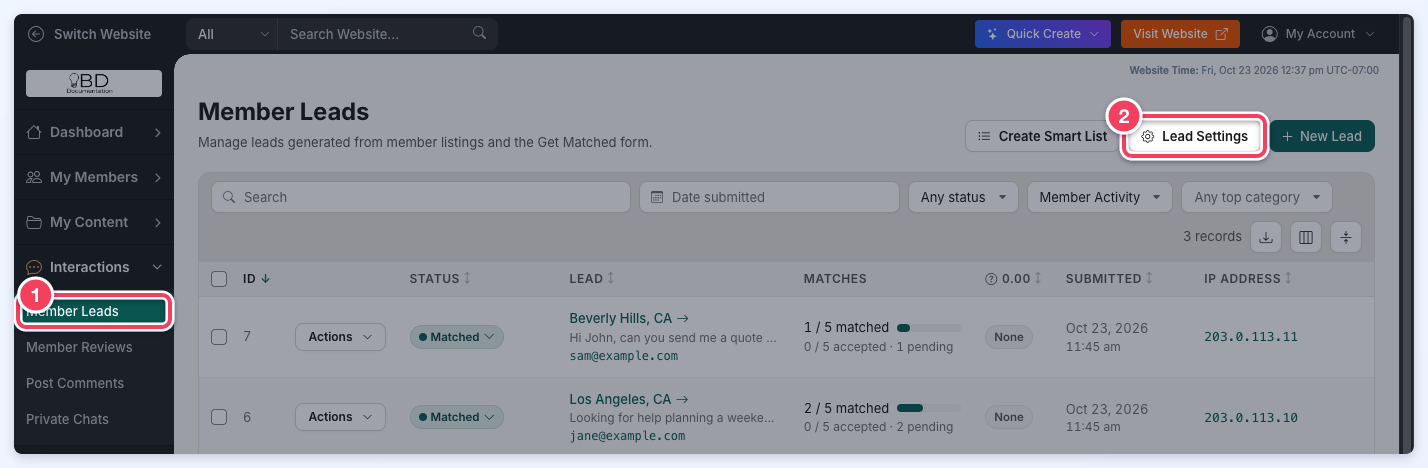
- In the Lead Settings drawer, click Notifications under Lead Rules in the side menu.
The Notifications settings have two tabs:
- Admin: Controls notifications sent to the website administrators.
- Visitor: Controls notifications sent to the visitor who submits the lead form.
With the Automatic Lead Matching add-on, open the Lead Rules tab of the drawer, click Edit beside a rule and then click Notifications. Each rule has more notification options there (see Auto-Match Workflows » Additional Notifications Settings).
Admin
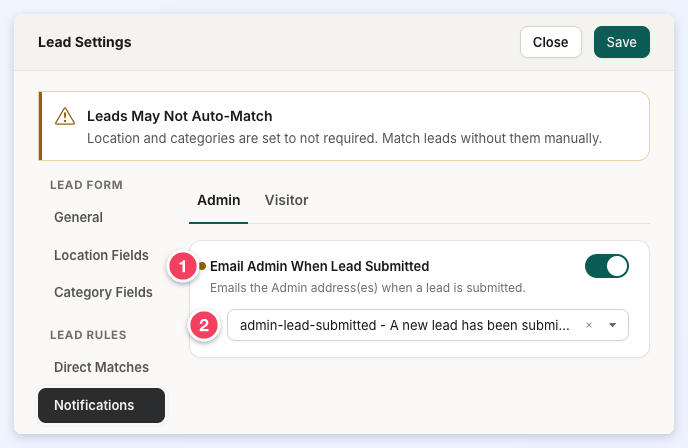
- Email Admin When Lead Submitted: Turn this on to email the admin address(es) whenever a lead is submitted on the website.
- Email template: Appears when the setting above is on. Choose the email template sent to the admin for each new lead (the default is admin-lead-submitted).
Visitor
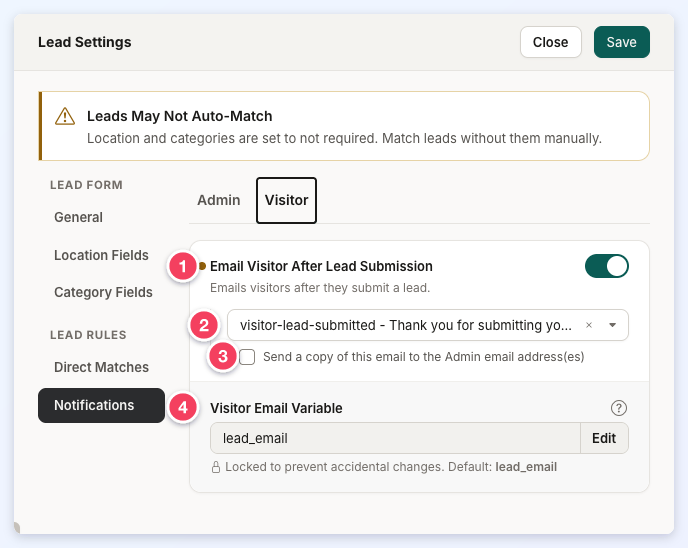
- Email Visitor After Lead Submission: Turn this on to email the visitor automatically after they submit a lead.
- Email template: Appears when the setting above is on. Choose the email template sent to the visitor (the default is visitor-lead-submitted).
- Send a copy of this email to the Admin email address(es): Also sends the visitor's email to the admin email address.
- Visitor Email Variable: The lead form field that holds the visitor's email address. The visitor email is sent to the address entered in this field. The default is lead_email, and it is locked to prevent accidental changes. Leave it unchanged for most websites; click Edit only when a custom lead form stores the visitor's email in a different field.
Click Save at the top of the drawer to keep the changes.
Notifications for Additional Lead Rules
With the Automatic Lead Matching Add-On, the admin can create additional lead rules on the Lead Rules tab of the Lead Settings drawer.
When a lead is submitted through a form that is not tied to a specific member (for example, the /getmatched page), the lead-submitted notifications follow the Main Rule, the default rule.
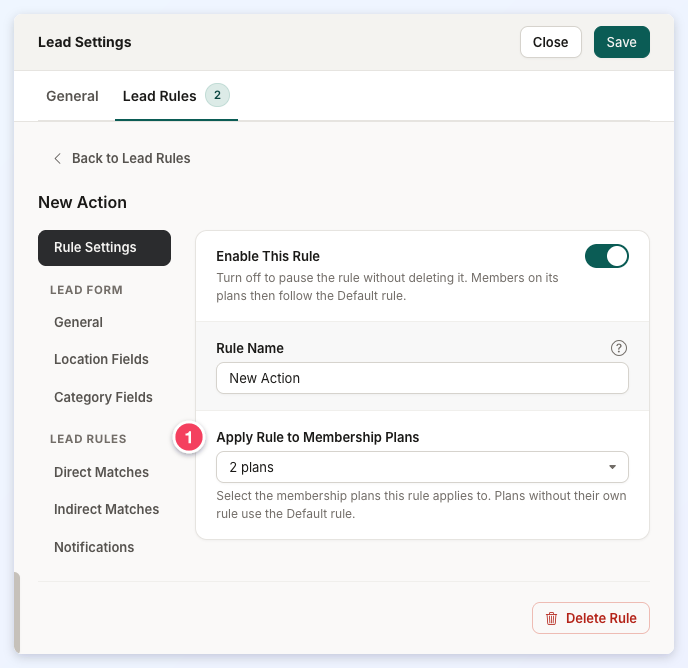
The lead-submitted notifications of an additional rule apply only to direct leads sent to members on the membership plans that rule applies to. Choose those plans in the rule's Rule Settings section, under Apply Rule to Membership Plans (1).