
Member Leads » Lead Settings » Direct Matches
Link: https://support.brilliantdirectories.com/support/solutions/articles/12000008054
A direct lead is a lead submitted from a member's profile or posts, for example through the contact form on a member's listing. The Direct Matches settings decide whether that member receives the lead right away and what they receive.
Open the Direct Matches Settings
- Navigate to Interactions » Member Leads (1).
- Click Lead Settings (2) at the top of the page.
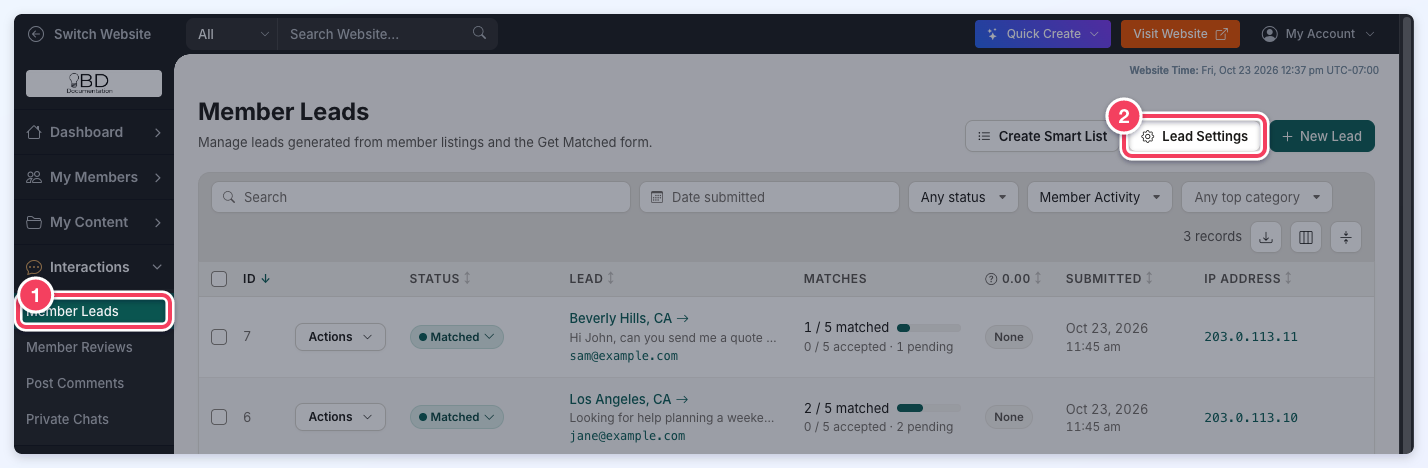
- In the Lead Settings drawer, click Direct Matches under Lead Rules in the side menu.
With the Automatic Lead Matching add-on, the drawer has a General and a Lead Rules tab: open Lead Rules, click Edit beside the rule (the Main Rule is the default) and then click Direct Matches. Each rule can have its own Direct Matches settings.
Available Settings
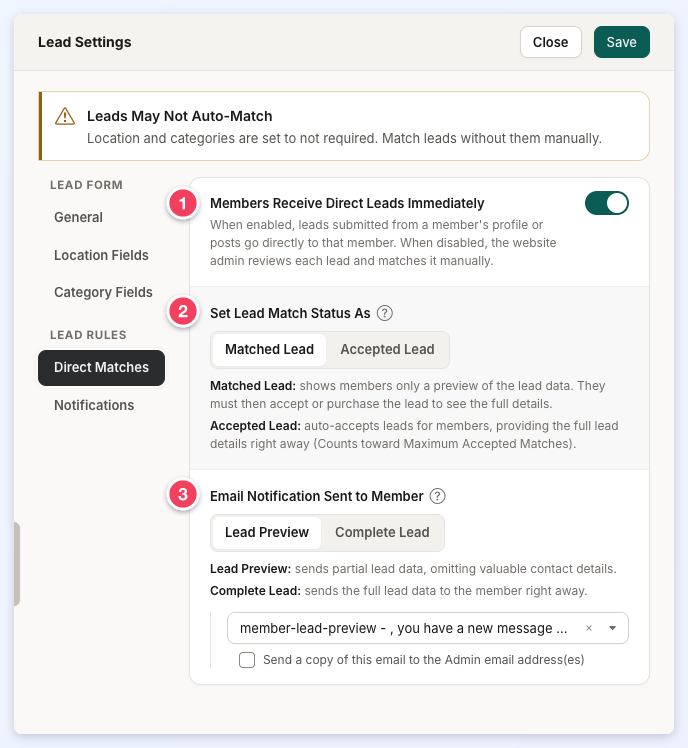
- Members Receive Direct Leads Immediately: When enabled, leads submitted from a member's profile or posts go directly to that member. When disabled, the website admin reviews each lead and matches it manually from the lead's Find Matches tab.
- Set Lead Match Status As:
- Matched Lead: Shows the member only a preview of the lead. The member must accept or purchase the lead to see the full details.
- Accepted Lead: Accepts the lead for the member automatically, giving them the full lead details right away. An accepted lead counts toward Maximum Accepted Matches.
- Email Notification Sent to Member:
- Lead Preview: Sends part of the lead, leaving out the visitor's contact details (email and phone number). The member accepts or purchases the lead on the website to see everything.
- Complete Lead: Sends the full lead to the member right away.
Recommended: use Lead Preview to follow lead management best practices.
Below the two options, choose the email template sent to the member, and tick Send a copy of this email to the Admin email address(es) to also send the member's email to the admin email address.
Click Save at the top of the drawer to keep the changes.
Where Members See Their Leads
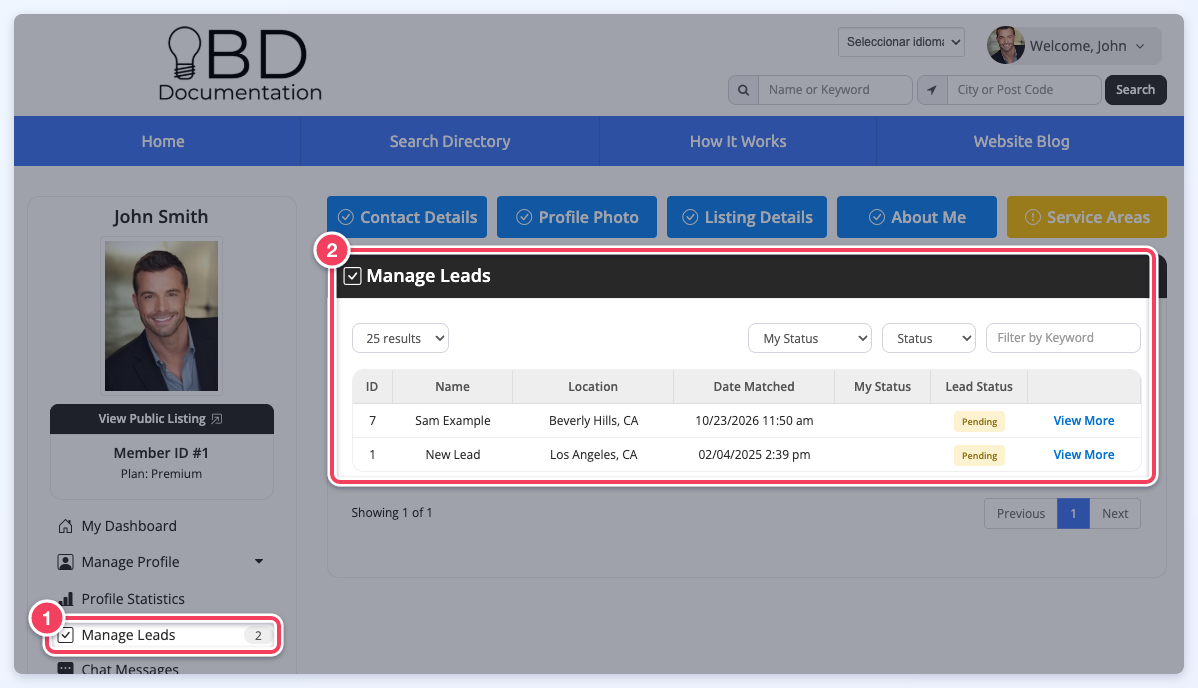
When a member logs in to their account, new leads are listed under Manage Leads (1) in the account menu. The Manage Leads page (2) shows each lead with its status, and View More opens the lead to accept or decline it.
Additional Information:
