


How to Post a Job Offer
Link: https://support.brilliantdirectories.com/support/solutions/articles/12000002337
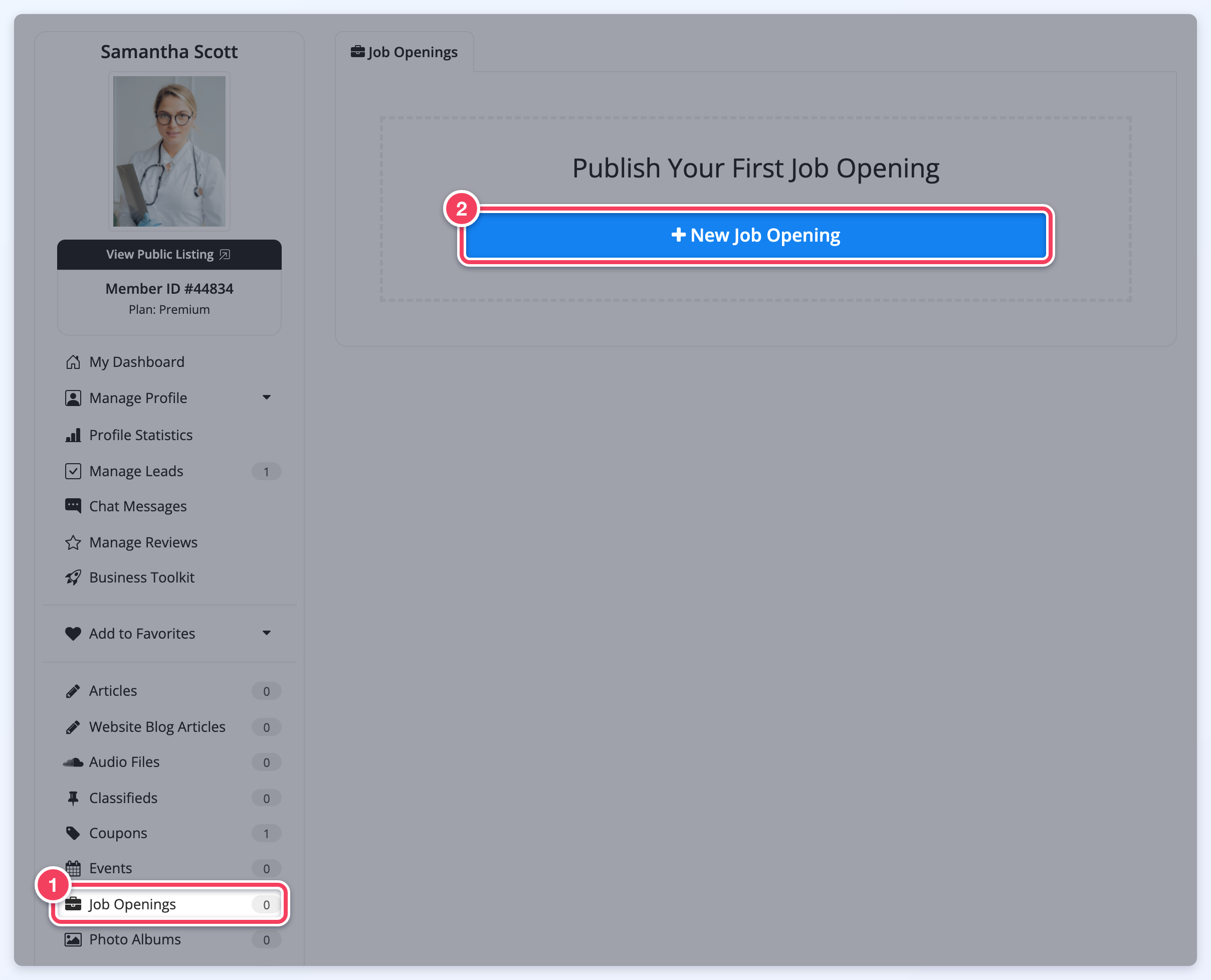
To post a job, access the Member Dashboard. On the left sidebar find the Job Listing post type, click on it to make a new post.
IMPORTANT:
If the Job Listings is not included in the member dashboard, the post needs to be enabled for the membership plan in the post publishing tab: Finance » Membership Plans - Post Publishing
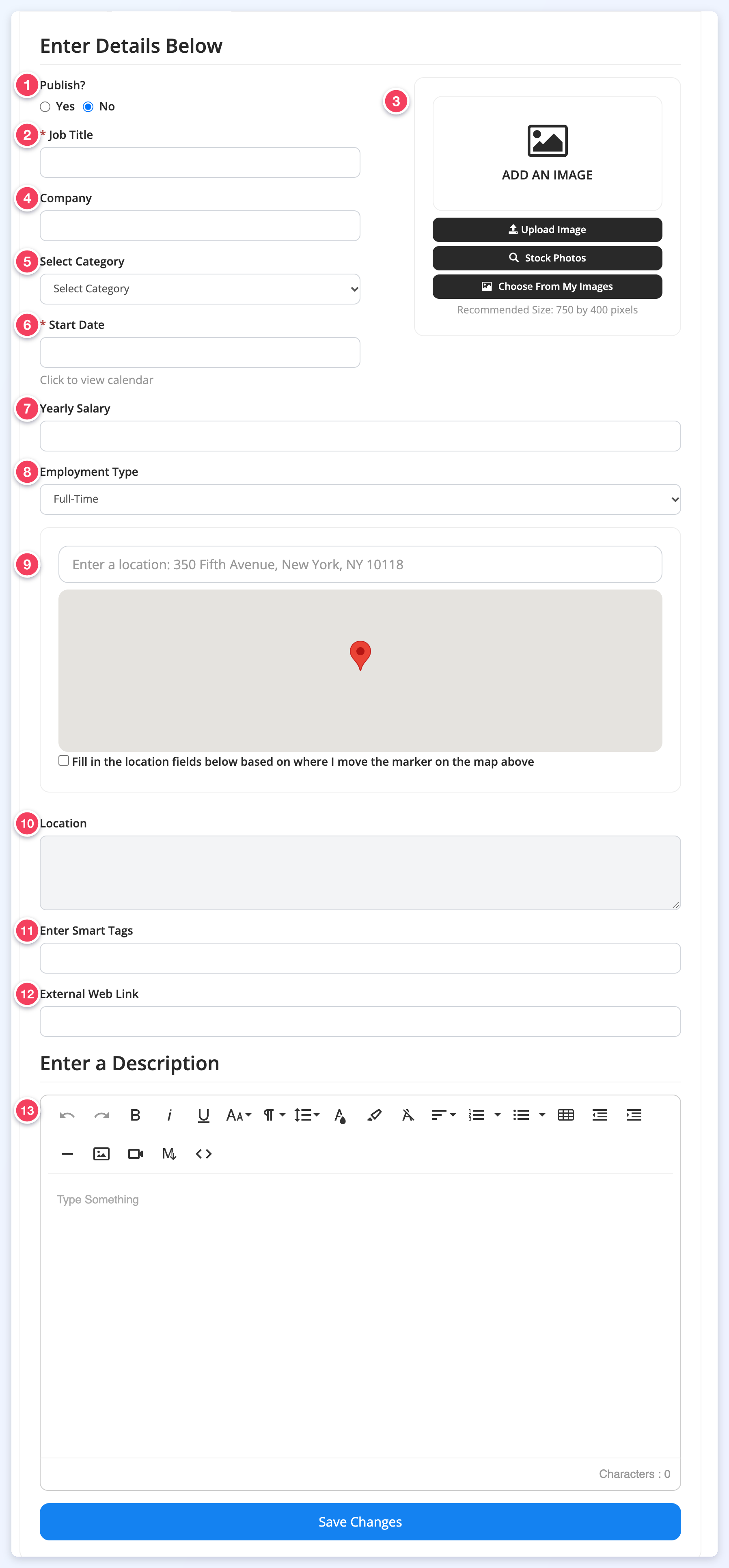
Add some content to the post, for example a title, description, image and more as explained below:
1. Publish content on the site or save it as a draft.
2. Add the Title of the Job Post.
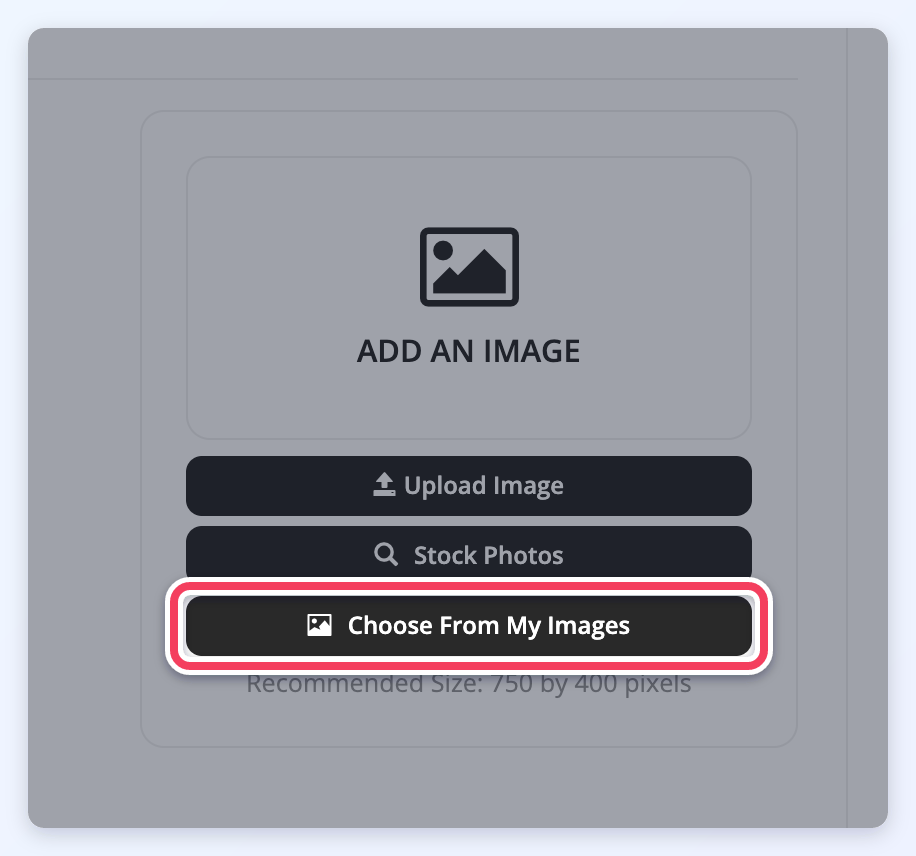
3. Add an image to the Job Post with Upload Image or Stock Photos. A photo already used on one of the member's other posts can be reused with the Choose From My Images button, which uses the same image file instead of uploading a second copy. It lists only photos from the member's own posts (the newest 60), not files in the Media Manager, and it shows only when the member has a photo on another post.
4. Enter the Company Name.
5. Select the Category for the Job post.
6. Choose the start date of the job post.
7. Enter the Yearly Salary.
8. Select the Employment Type.
9. Add the address of the Workplace.
10. The Complete address will be auto-populated by typing it in point #9.
11. Enter keywords that apply to the post, separate them with a comma.
12. Add an External Link, if necessary.
13. Enter the Description of the Job Post.
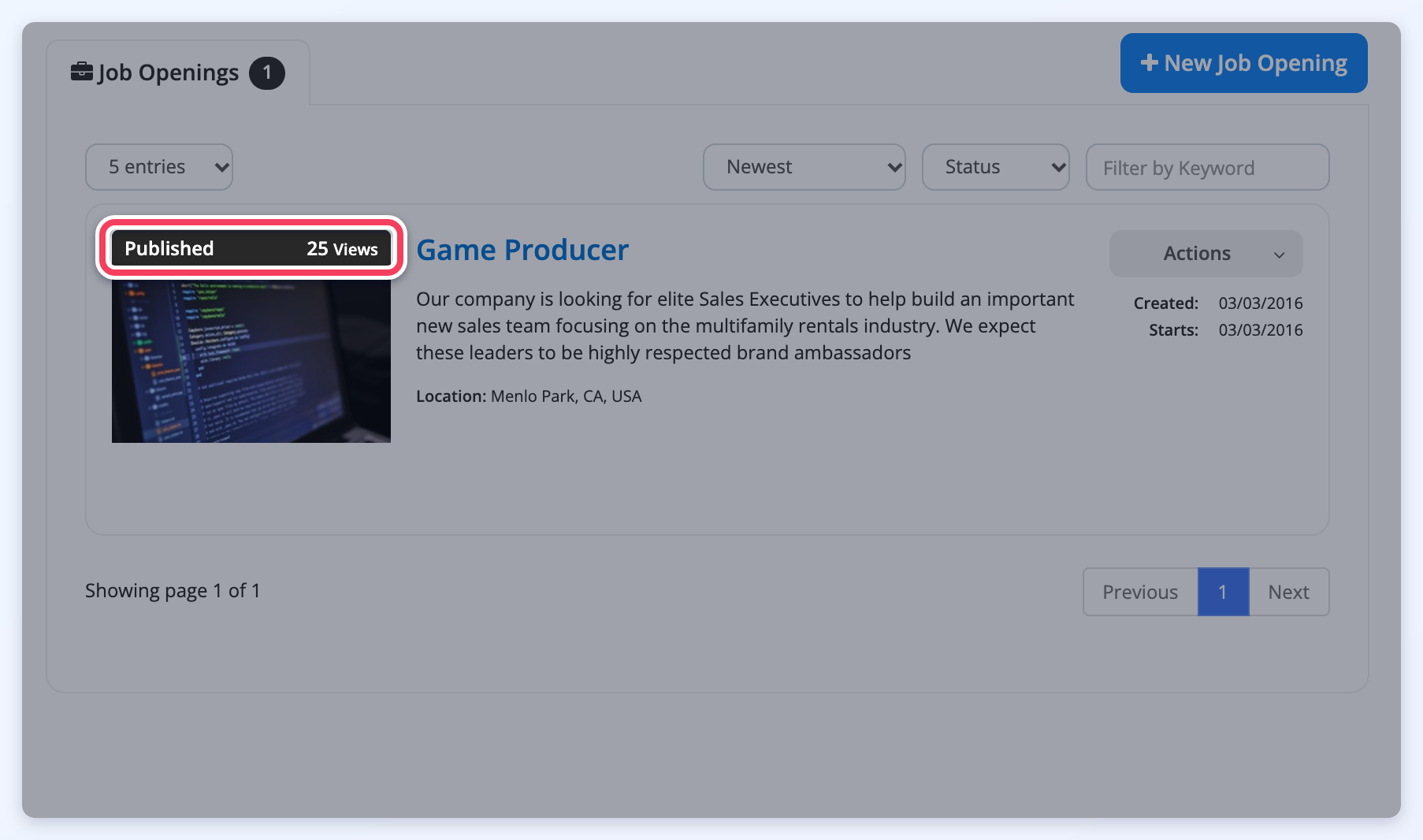
Once the Job Listing post has been created, it will display the current Status (Published, Draft, Expired). The number of views and Bookmarks will only show if the correspondent add ons are active on the site. Click Here to learn more.
Click on the Actions Button to View, Edit, Clone or Delete the post:
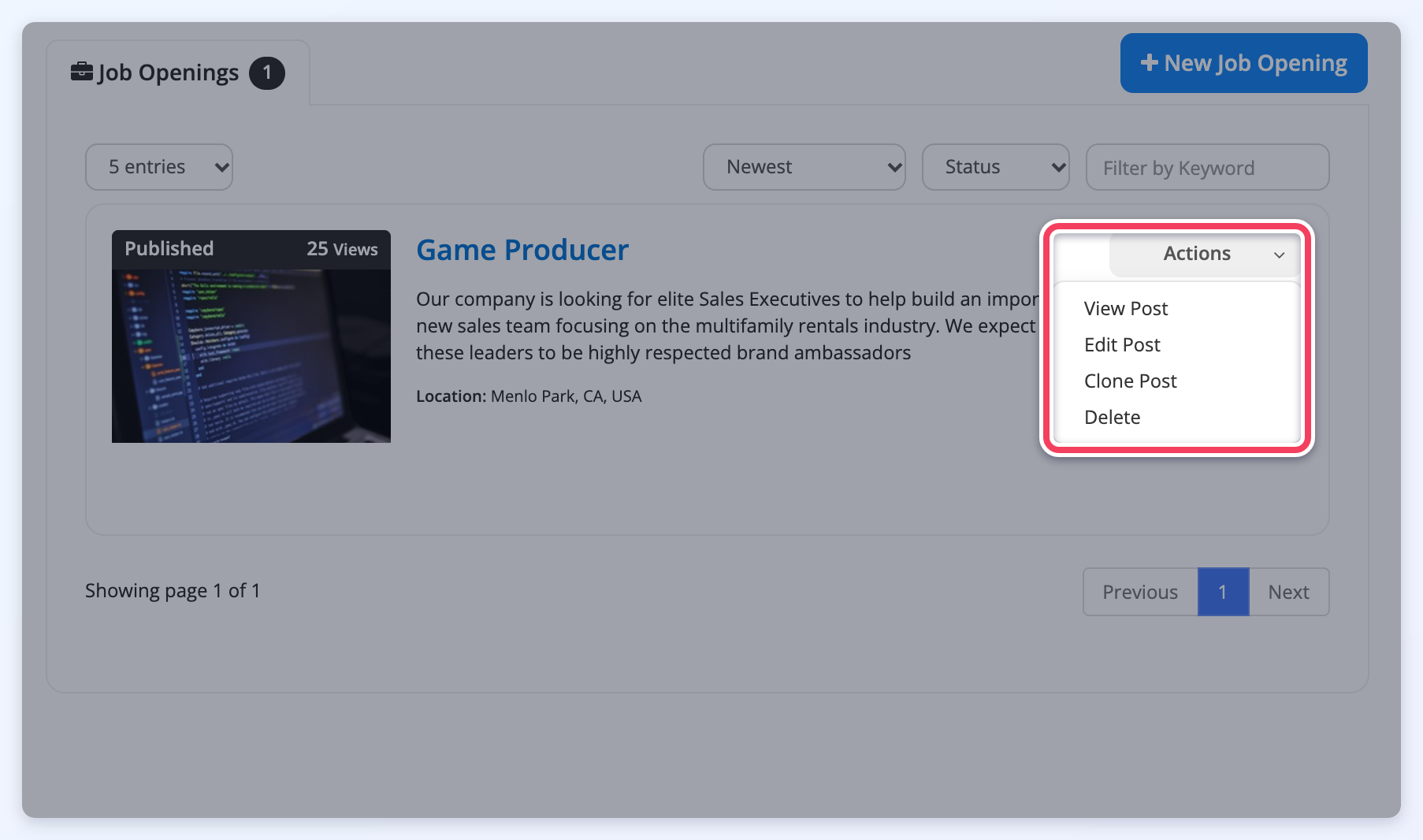
Member Dashboard Options
Different options are available on this section. For more information, please refer to the image and points shown below:
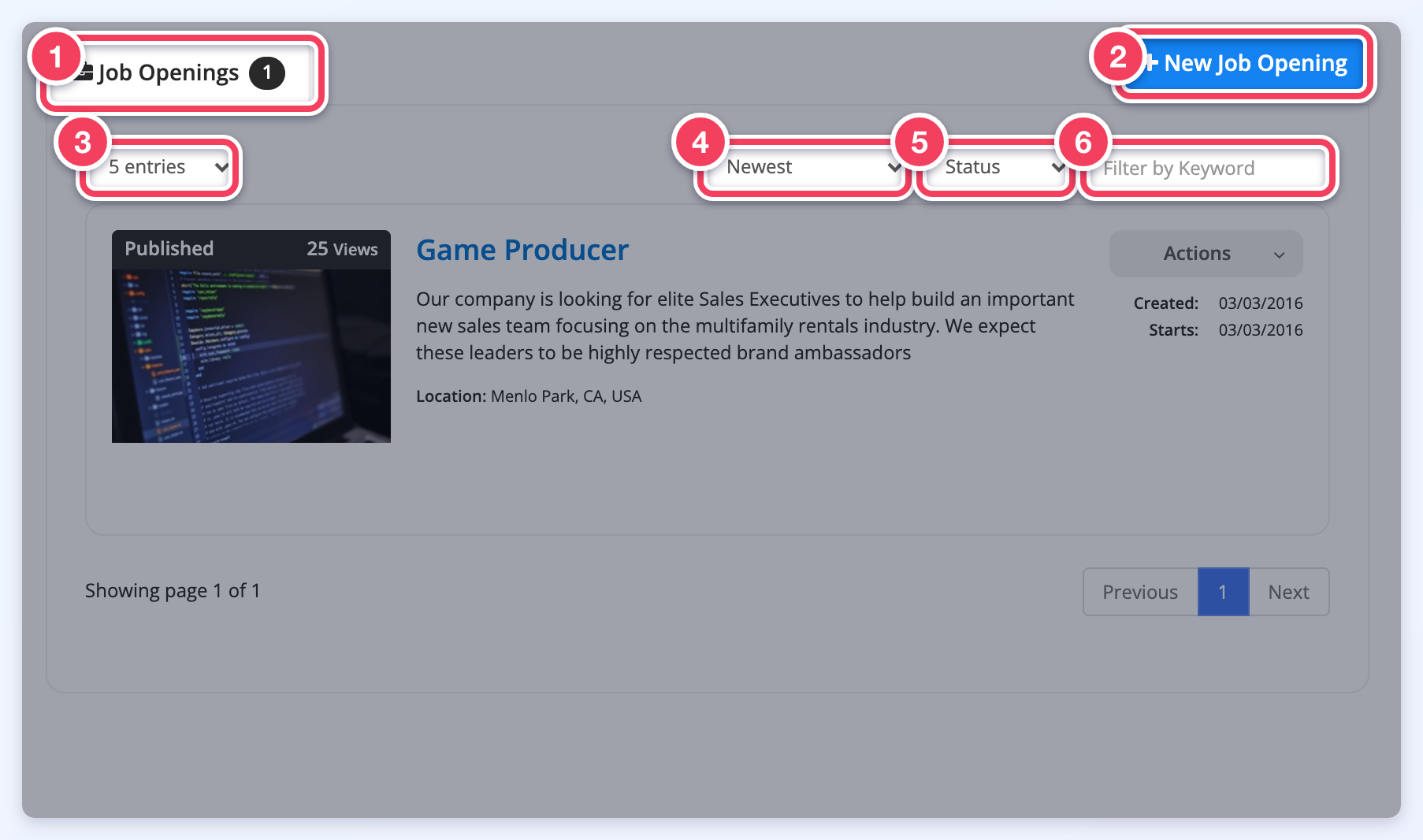
1. Job Listings: Will show all the job listings and display the amount of job listings in the account.
2. Add a Job Listing: Click to add a job listing. It will not display if the limit of posts has been reached.
3. Entries per page: Click on the dropdown to choose how many entries will show per page (5, 10, 25 or 50 entries).
4. Order of the Posts on the Page: Newest, Oldest, Updated (First), Updated (Last), Start Date (First), Start Date (Last).
5. Filter by Status: Published, Draft or Expired.
6. Filter by Keyword: Enter a desired keyword to display all job listings that contain it.
Lastly, all Post Types have a designated search results page:
EG: http://yourbrilliantdomain.directoryup.com/jobs
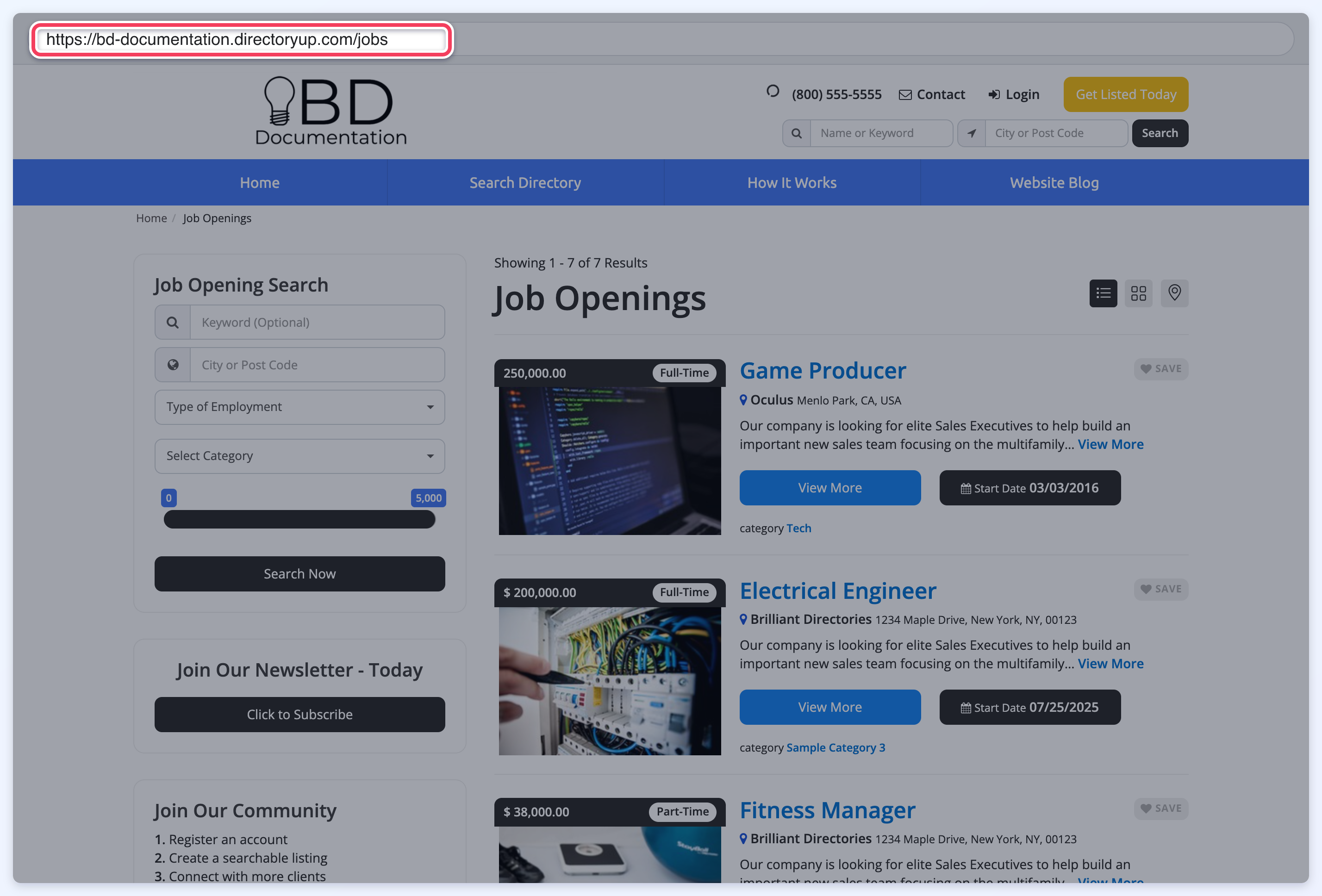
Note: To enable this post type on a membership plan go to Finance » Membership Plans - Post Publishing.
