
How to Locate Text Labels on the Front End of a Website
Link: https://support.brilliantdirectories.com/support/solutions/articles/12000055818
First, access the website from the admin backend in order to display the Admin Bar.
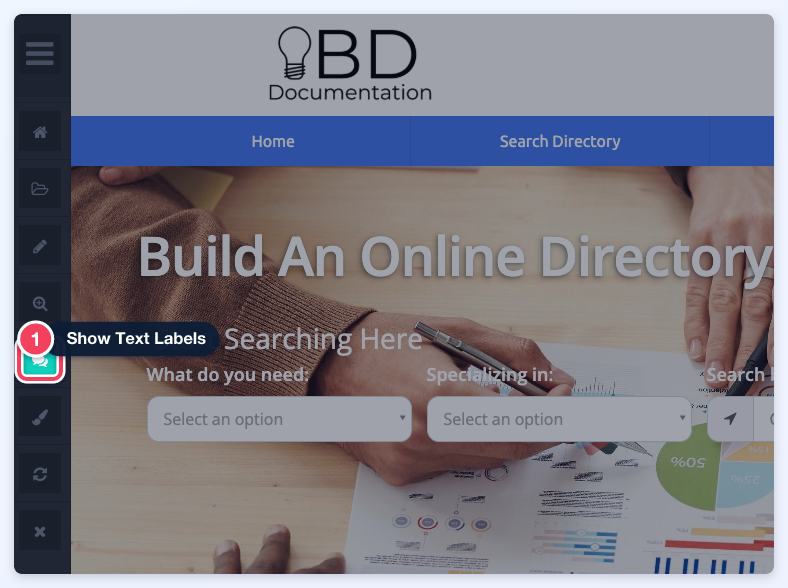
Once the Admin Bar is active, click on the "Show Text Labels" icon (1). All the available Text Labels on that specific page will be highlighted:
To look for the Text Label, scroll through the page. Each Text Label is highlighted, with its variable name shown underneath in brackets (for example [label=home_search_dropdown_1]). Labels that have never been saved on this site are highlighted in yellow, and labels that have been saved on this site (even with their default text) are highlighted in blue:
![The homepage search area with Show Text Labels on: What do you need:, Specializing in:, Search by location: and Search Now highlighted, each with its [label=...] variable underneath.](https://s3.amazonaws.com/cdn.freshdesk.com/data/helpdesk/attachments/production/12186737311/original/P-y7RS4rge3bEI51S9-EUI357u_sGS1spQ.png?1791936100)
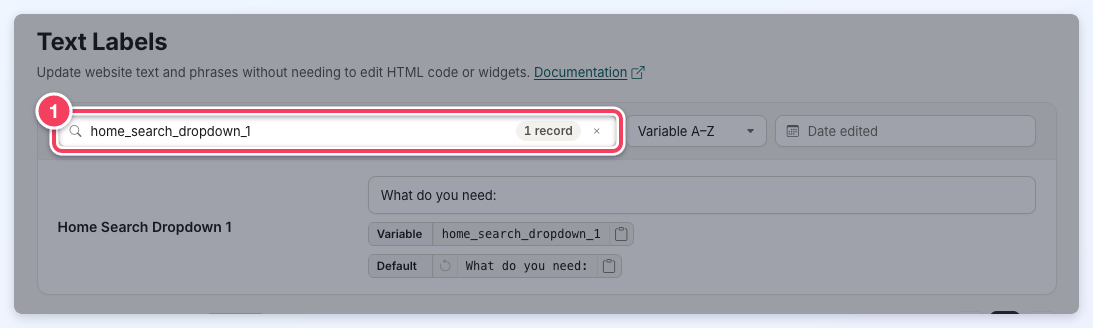
Clicking the variable name shown under a highlighted Text Label opens Settings » Text Labels in a new browser tab with that label's variable name already in the search box (1), so the label is the only result and its text can be changed right away:
Or use the Edit On-Page Text Labels panel that can be found in the bottom right corner of the screen. Click its title bar to open it, type in Search Text Labels... to find a label used on the page, open the label to edit its text, then click Save Changes:
Important Note: There are some areas the text labels cannot be highlighted by the tool, like if the text label is the placeholder attribute of a field, a <select><option>, or not initially displayed on the page. However, using the on-page text label editor, the label can be found.
Additional Information:
