How to Locate Widgets, Sidebars, Menus, and Forms Via Admin Bar
Link: https://support.brilliantdirectories.com/support/solutions/articles/12000051553
The Admin Bar is a tool that helps directory owners make live design edits on the front end. It also serves to locate SEO Templates, Static Web Pages, Widgets, and more. This article focuses on locating widgets with this tool.
How This Tool Works
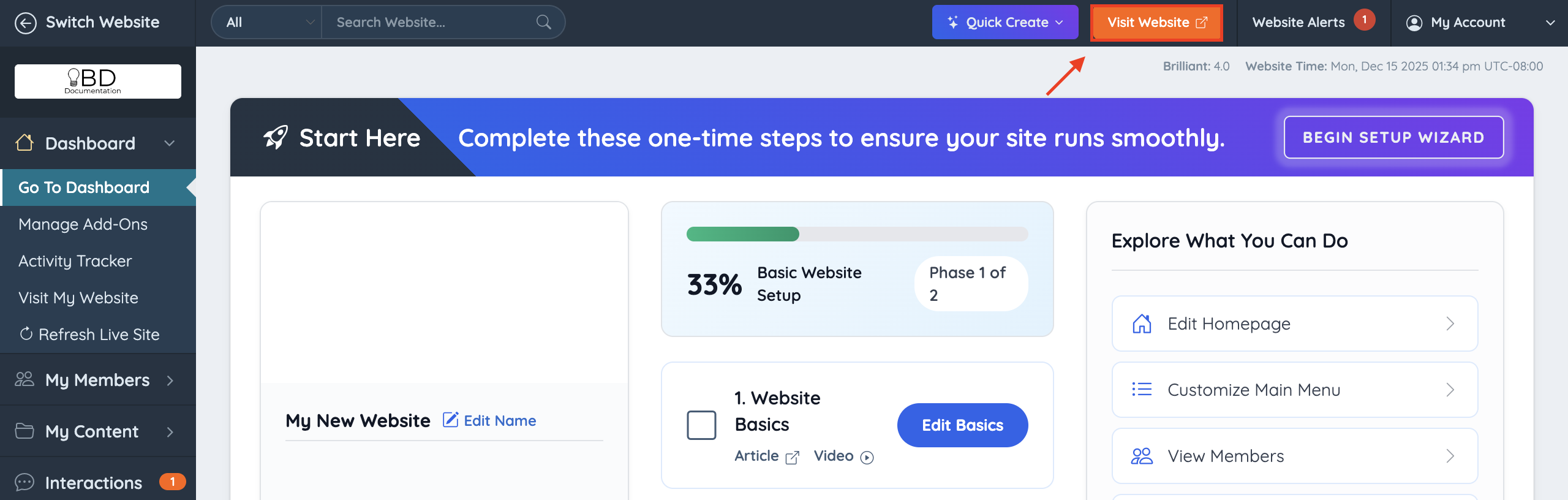
After logging into the admin, click the Visit Website button:
Clicking the Visit Website button redirects to the homepage:

The Admin Bar appears on the left side of the page:

How to Locate Widgets, Sidebars, Menus, and Forms
To display these elements, click "Show Widgets" and all the elements available on that specific page will be highlighted:

Important Note: This tool works on all web pages, not only the homepage. After clicking Visit Website and landing on the homepage, navigate to any other page of the site, or enter its URL directly in the browser, and use the Admin Bar there to locate the elements of that page.
All these highlighted elements are clickable:

When clicked, the element opens the respective Toolbox section in the admin:

How to Identify Customized Elements?
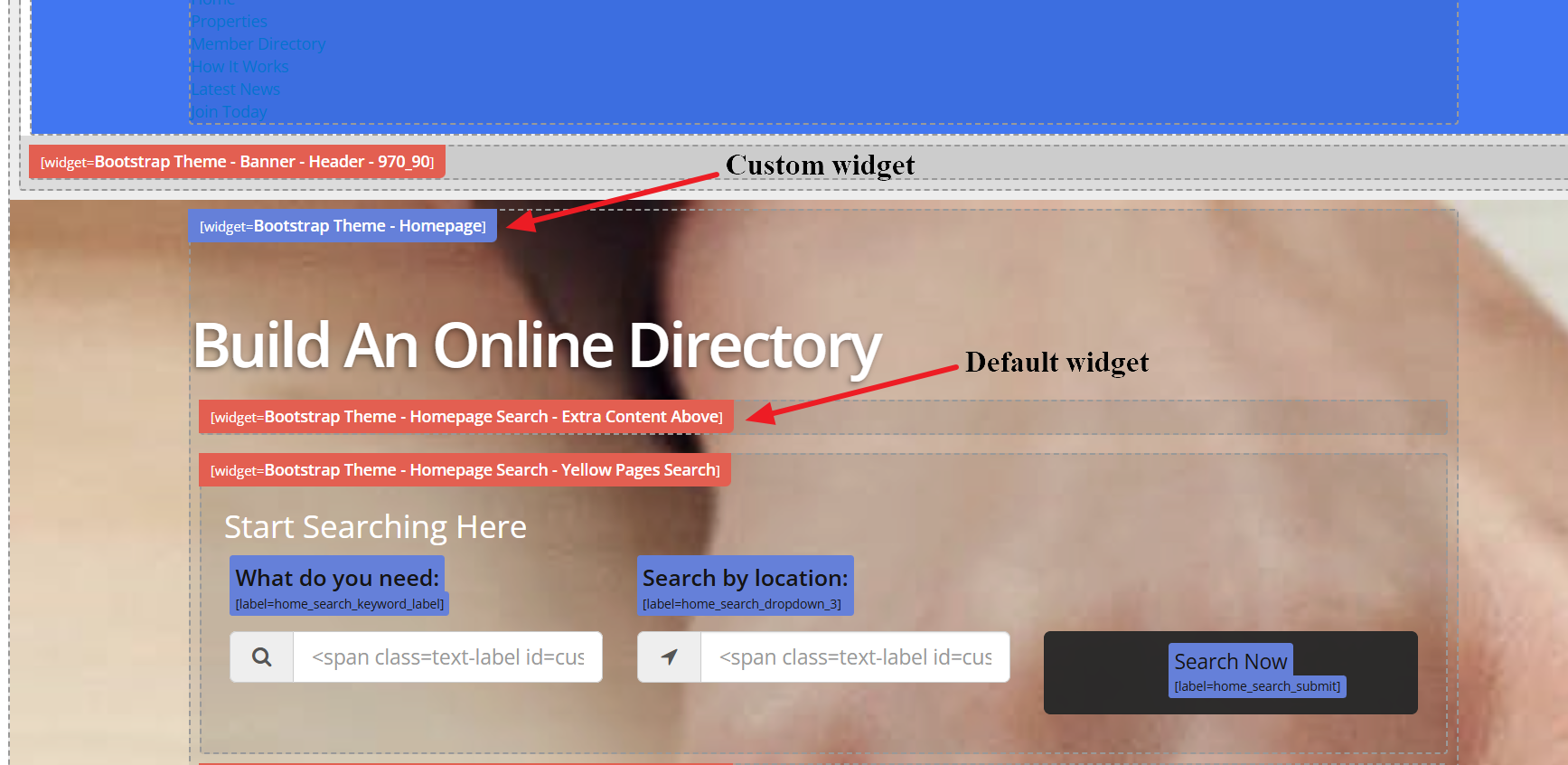
When viewing these elements via the Admin Bar, customized elements display with a blue background, and default elements display with a red background: