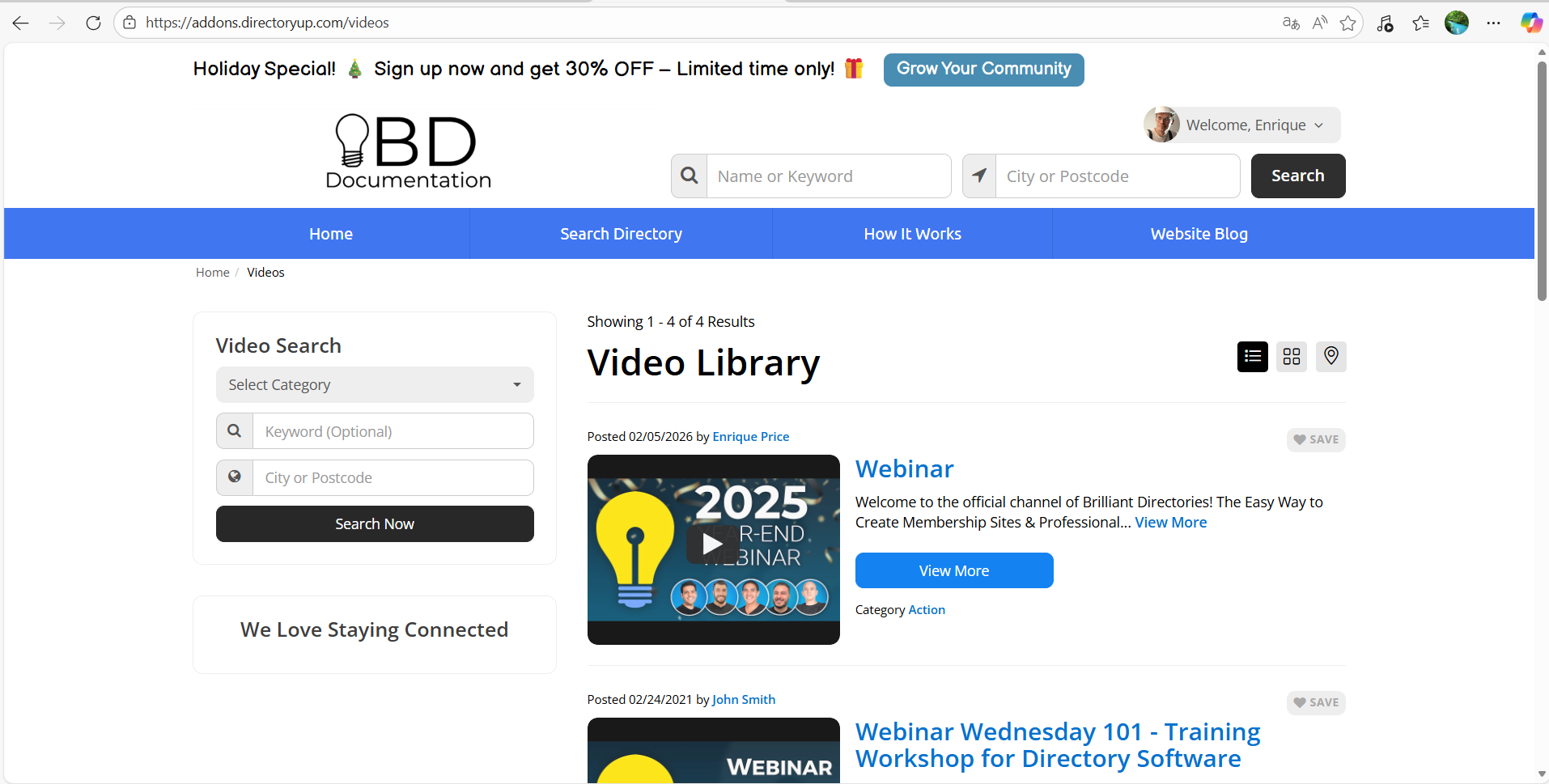
How to Post a Video
Link: https://support.brilliantdirectories.com/support/solutions/articles/12000001964
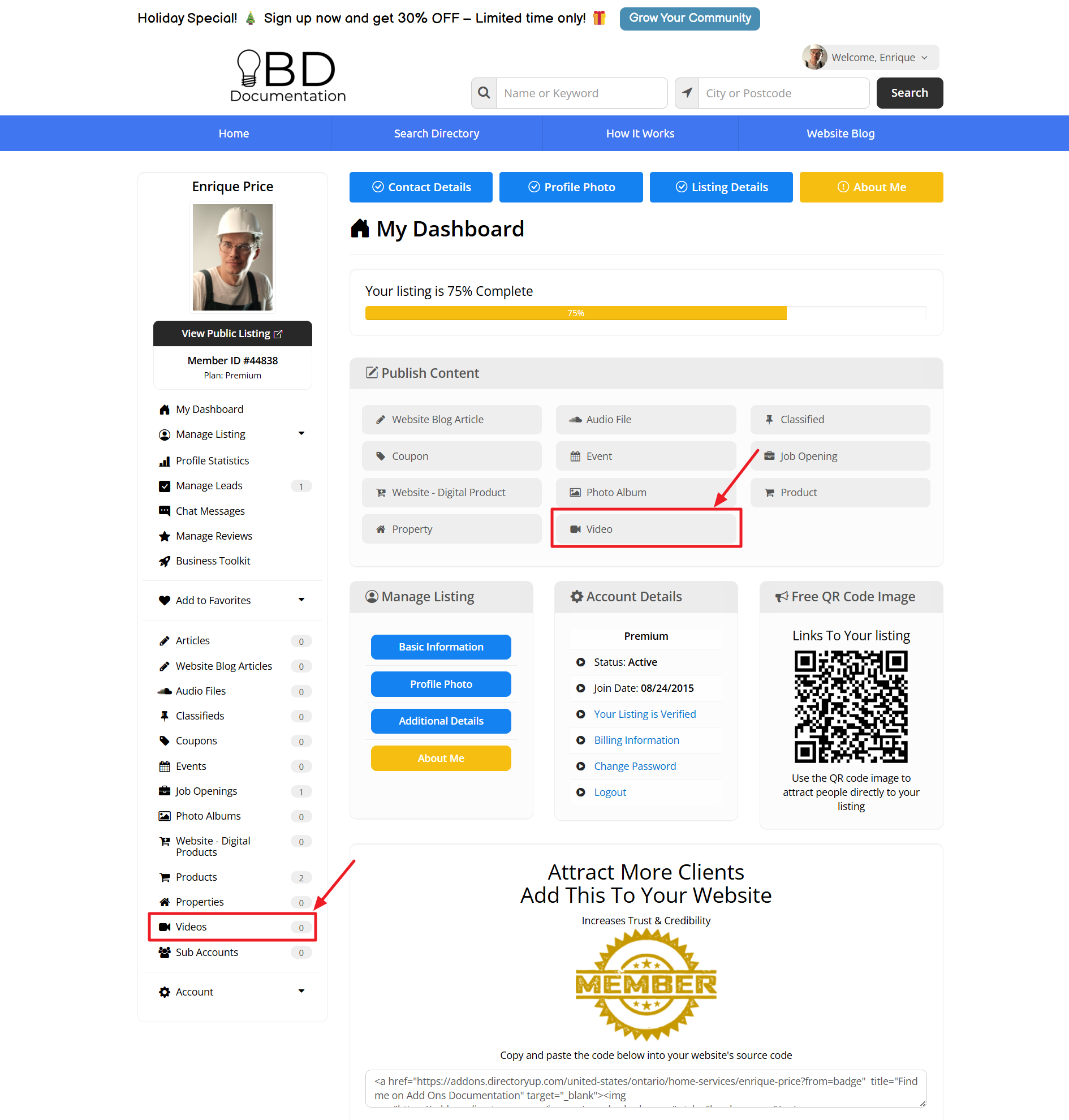
To post a video, access the Member Dashboard and locate the Videos post type in the left sidebar or Videos under Publish Content. Click the option available to add a new post.
IMPORTANT:
If the Videos option is not visible in the member dashboard, the post type must be enabled for the specific membership plan under the post publishing tab: Finance » Membership Plans - Post Publishing
Form Fields
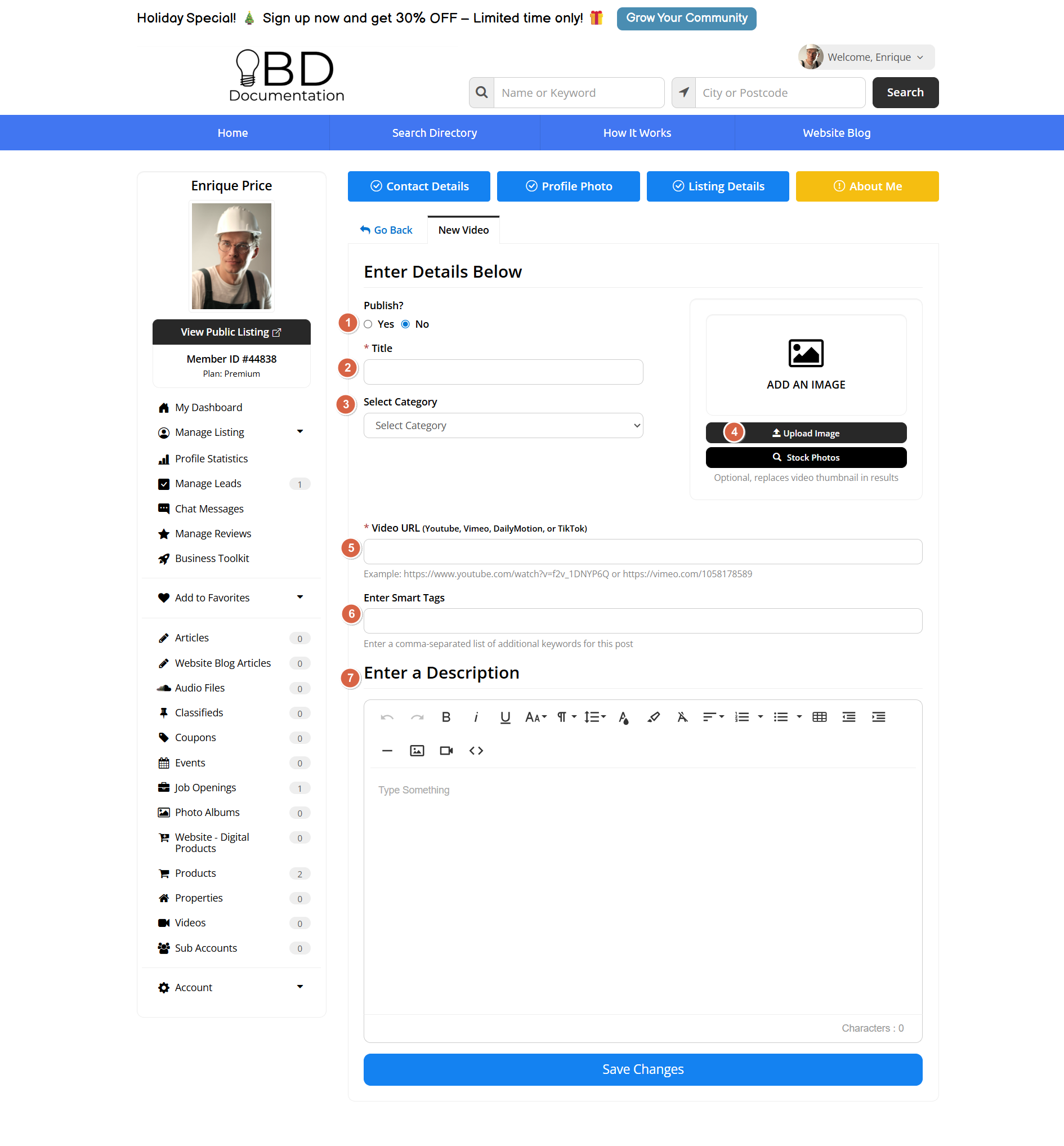
Content can be added to the post including a title, description, and link, as detailed below:
- Publish Status: Publish content to the site or save it as a draft.
- Video Title: Enter the title of the video.
- Category: Select the appropriate category for the video.
- Image: Upload an image to represent the video. If the site has the Stock Photo Library add-on it will appear under the Upload Image button.
- Video Link: Provide the video URL. (YouTube + YouTube Shorts, Vimeo, Dailymotion, Rumble, TikTok, TedTalk, and Wistia links are natively supported).
- Keywords: Enter relevant keywords separated by commas.
- Description: Provide a brief description of the video content.
 Video Link Requirements
Using the Share Link
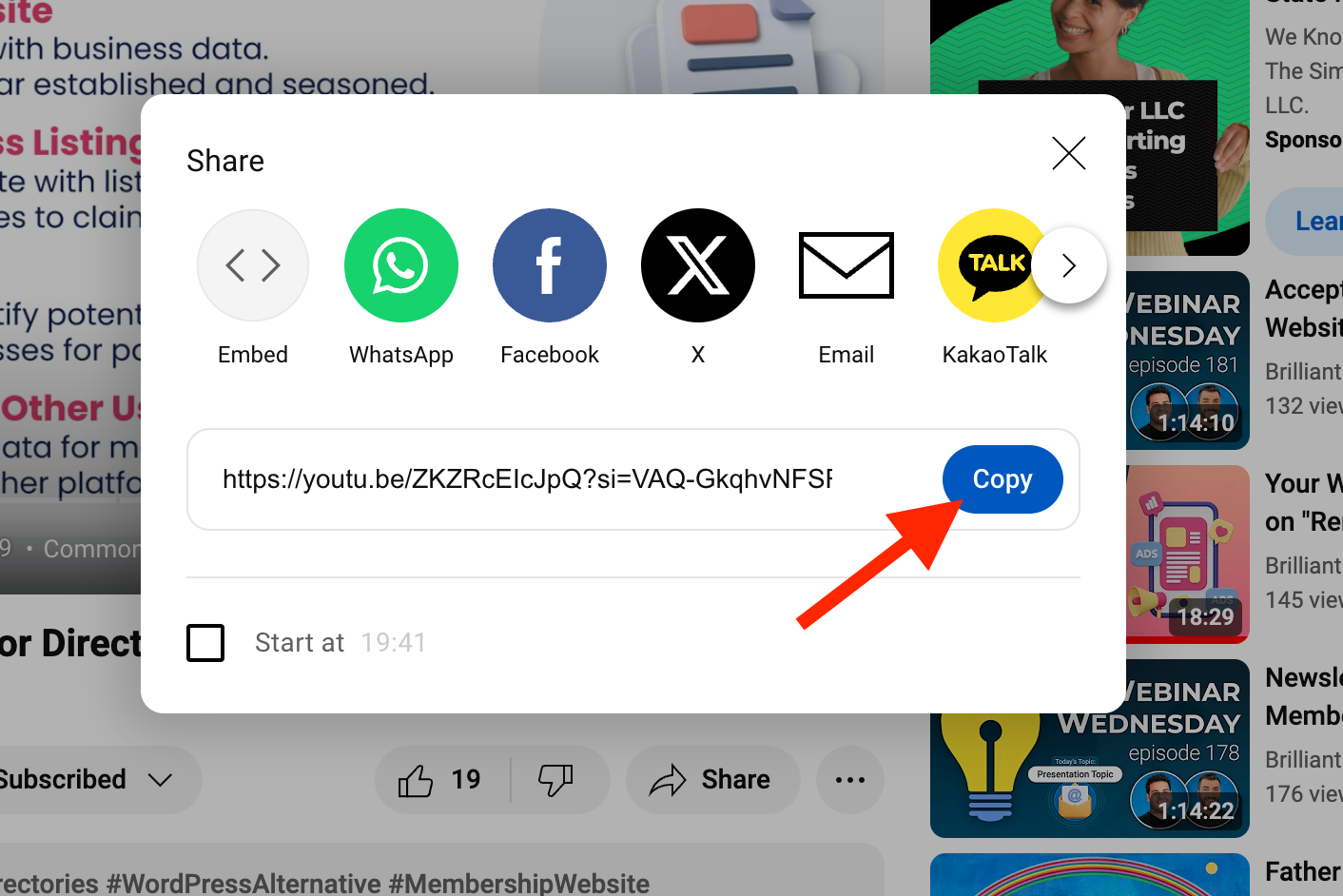
When providing the video link, ensure the Share link is used rather than the browser URL:
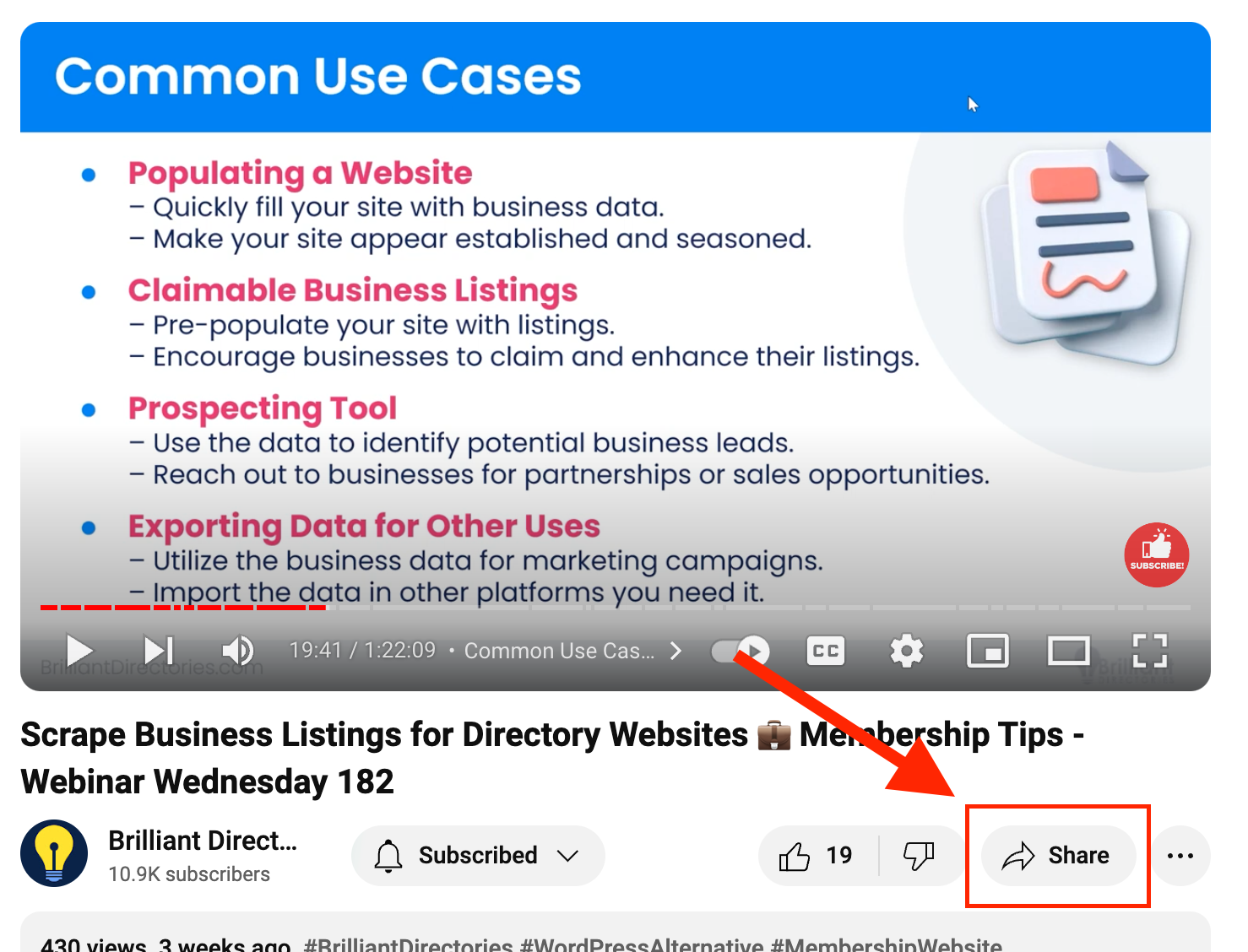
Click Copy to obtain the correct link. If the link is copied directly from the browser, the thumbnail may not generate properly, resulting in a missing image in the Video Streaming Widget or the /videos search results page.
Rumble Videos
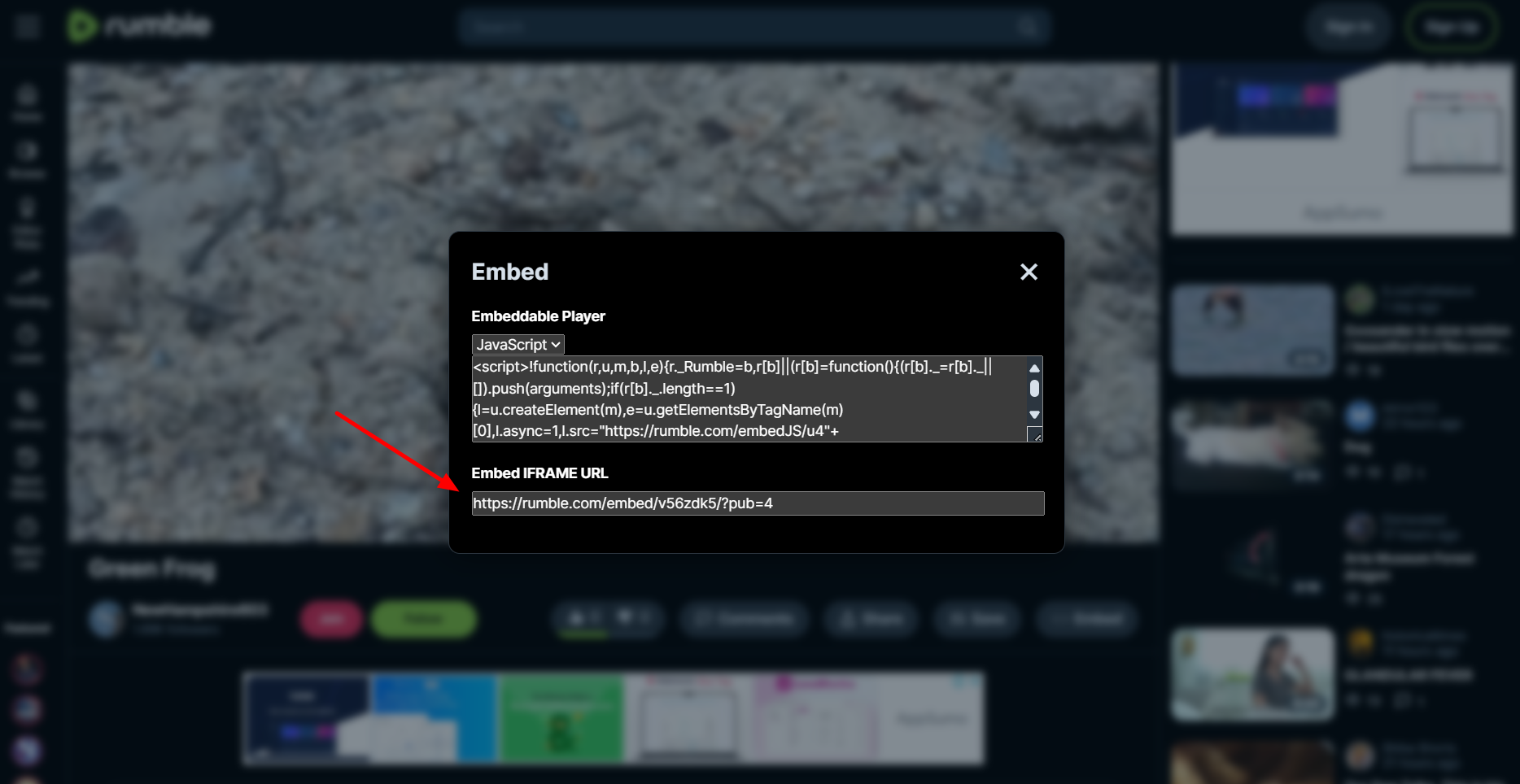
For videos hosted on Rumble, utilize the link provided in the Embed IFRAME URL field:
Managing Saved Video Posts
Once the videos are added, the user will see the videos, actions and statistics (this option appears if site has the Member Profile Analytics Add-on).
- Once created, the post will display its current Status: Published, Draft, or Expired.
- The number of views and bookmarks will be visible if the corresponding add-ons are active on the site.
- Create a new video + New Video.
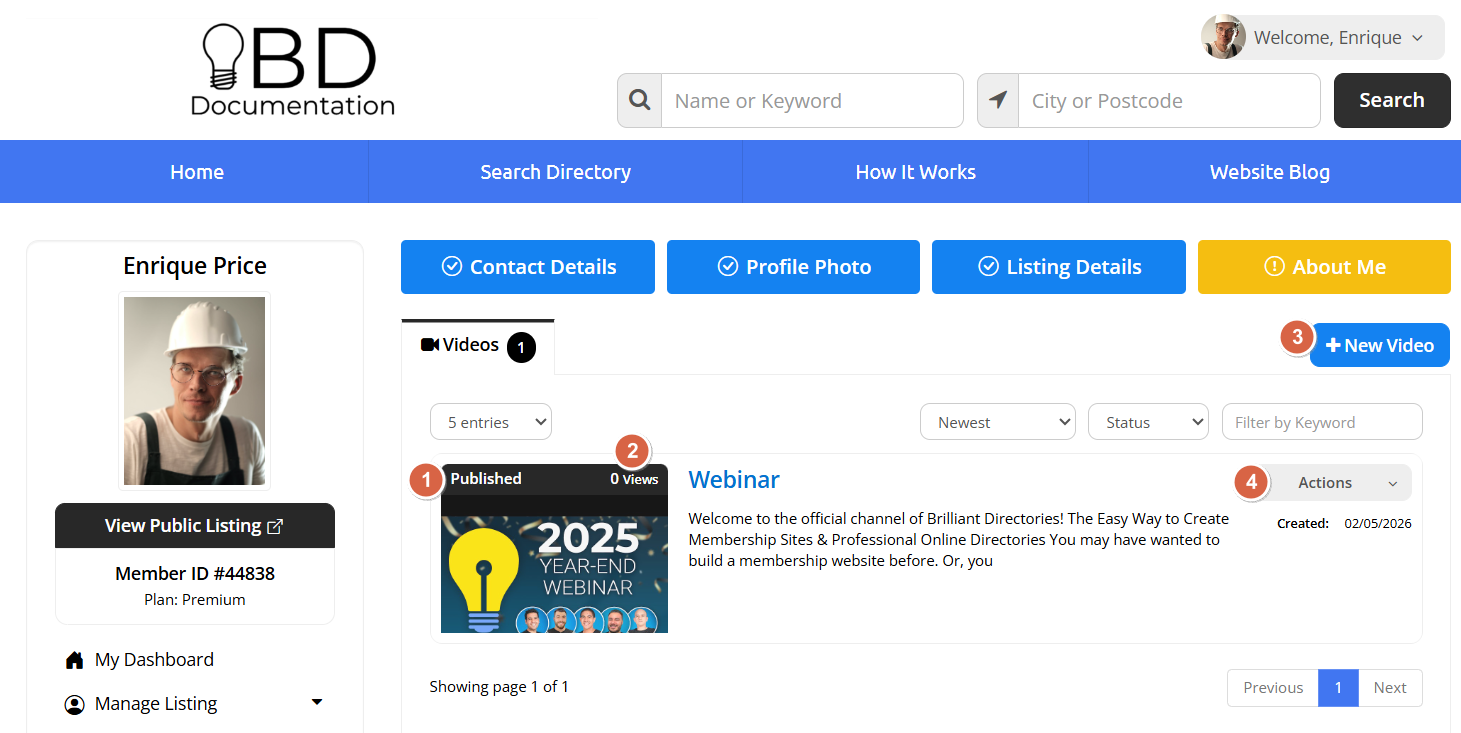 Click on the Actions button to View, Edit, Clone or Delete.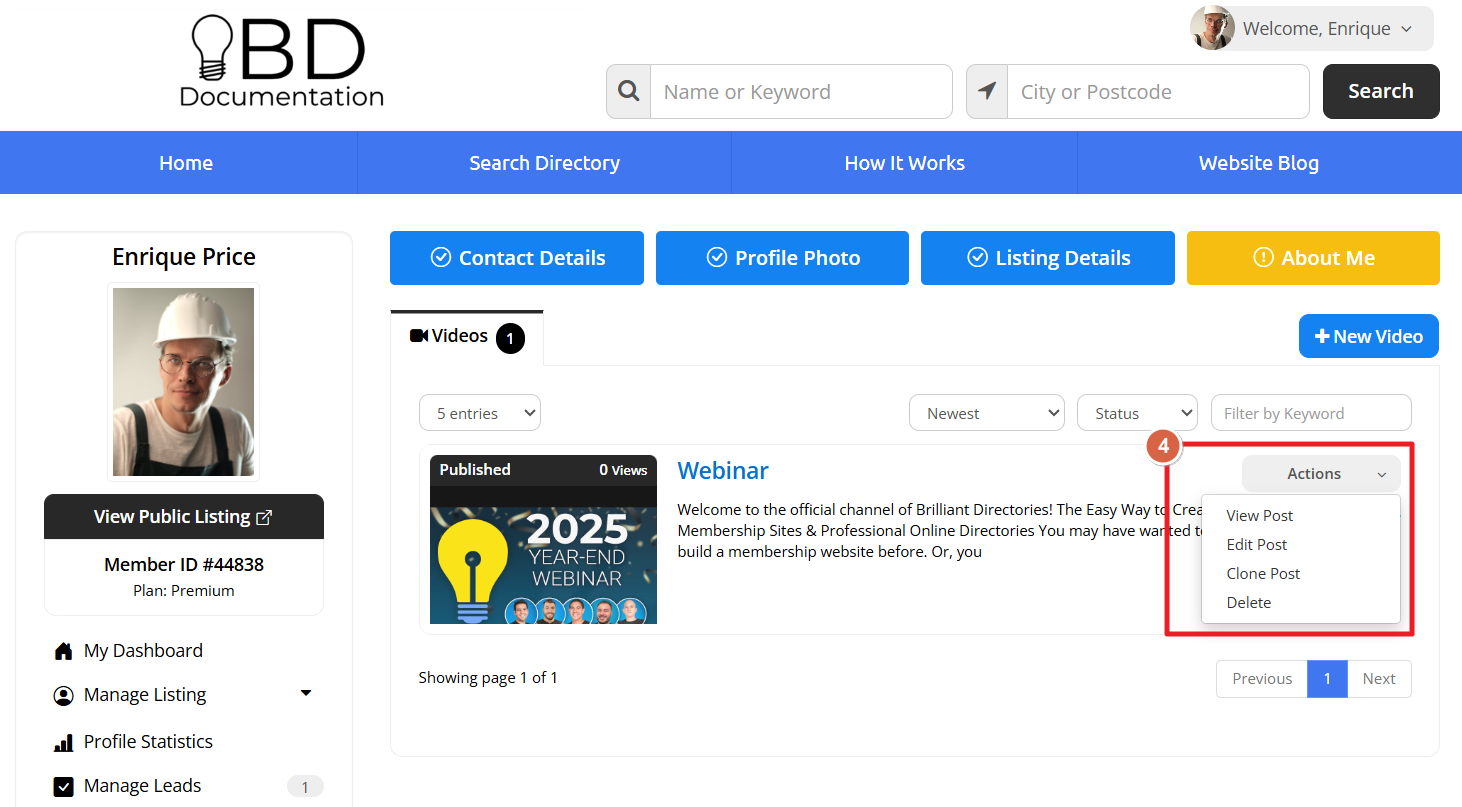
Member Dashboard Features
The following options are available within the management section of the dashboard:
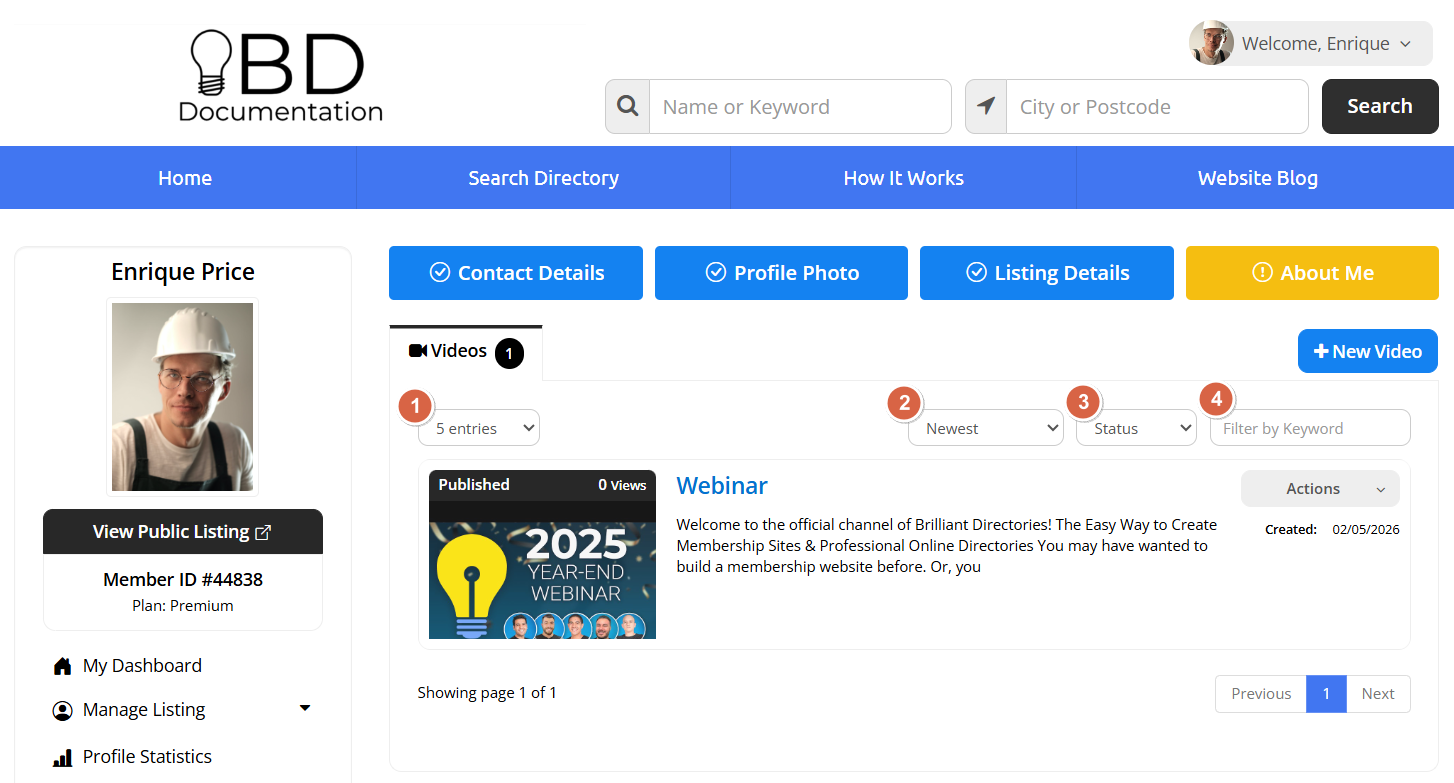
- Entries per Page: A dropdown to select the number of visible entries (5, 10, 25, or 50).
- Sorting Options: Sort posts by Newest, Oldest, Updated (First/Last), or Start Date (First/Last).
- Status Filter: Filter results by Published, Draft, or Expired status.
- Keyword Filter: Displays video posts containing the specified keyword.
Public Video Search Page
Each post type has a designated search results page accessible on the front end:
Example URL: http://example.com/videos
Note: To enable this post type for a specific membership plan, visit Finance » Membership Plans - Post Publishing.