
How To Edit The SEO Settings Of Dynamic (Search Results) Pages
Link: https://support.brilliantdirectories.com/support/solutions/articles/5000682653
Overview
Default on-page SEO is pre-configured for all pages of the site. Advanced configuration is available for the SEO settings of dynamic pages, primarily search results pages and member profile pages, for administrators who wish to customize them further.
CAUTION: These are dynamic pages. A change made to one SEO template is reflected across every page that uses that template. For example, editing the SEO template for a top-level category affects the search results pages for all locations and combinations tied to that category, not a single page.
Identifying an SEO Template
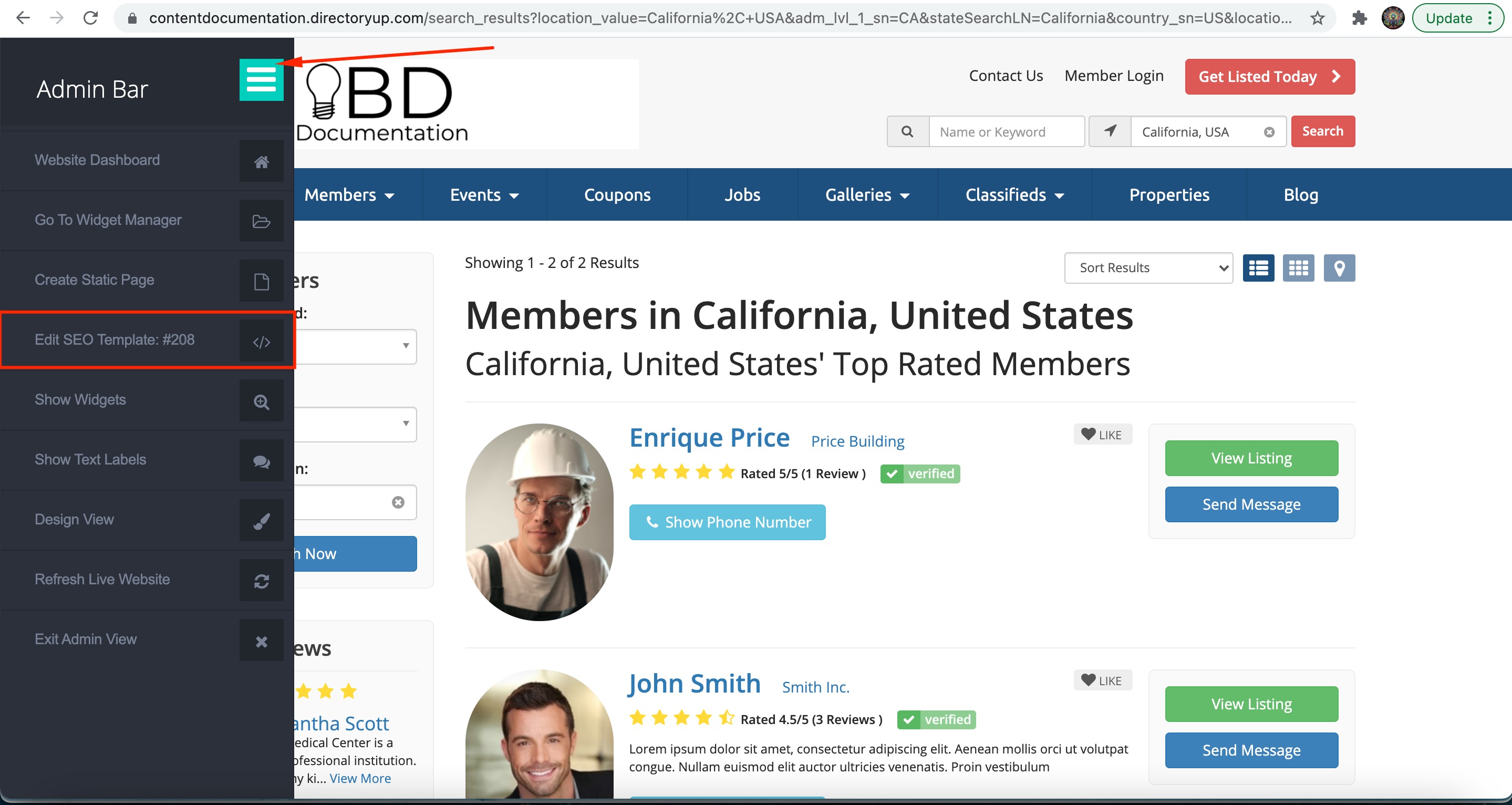
The Admin Toolbar can be used to identify which SEO template controls a given page:
- Click Visit Website from the Admin Area to enable the Admin Bar.
- Navigate to the search results page in question and open the Admin Bar dropdown menu. The SEO template name and number are displayed there.
Accessing SEO Template Settings
There are two ways to reach the SEO template settings.
Back End
- Navigate to My Content > SEO Templates.
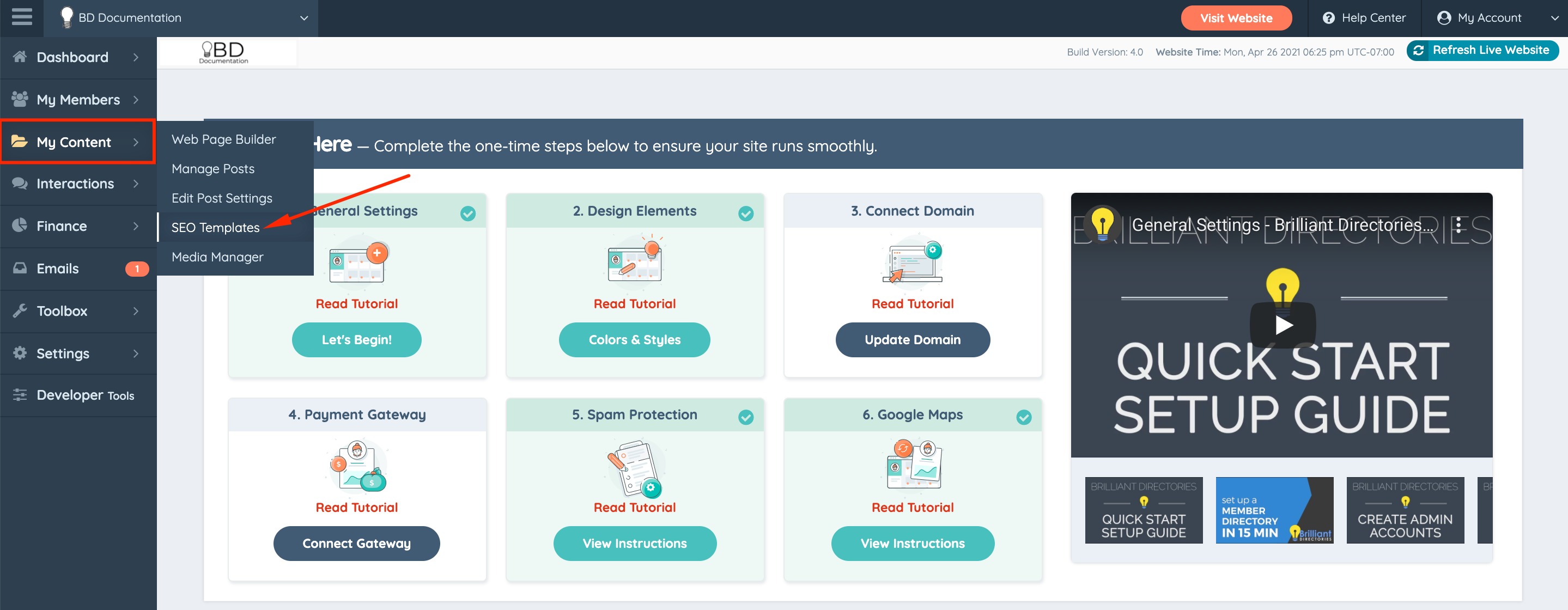
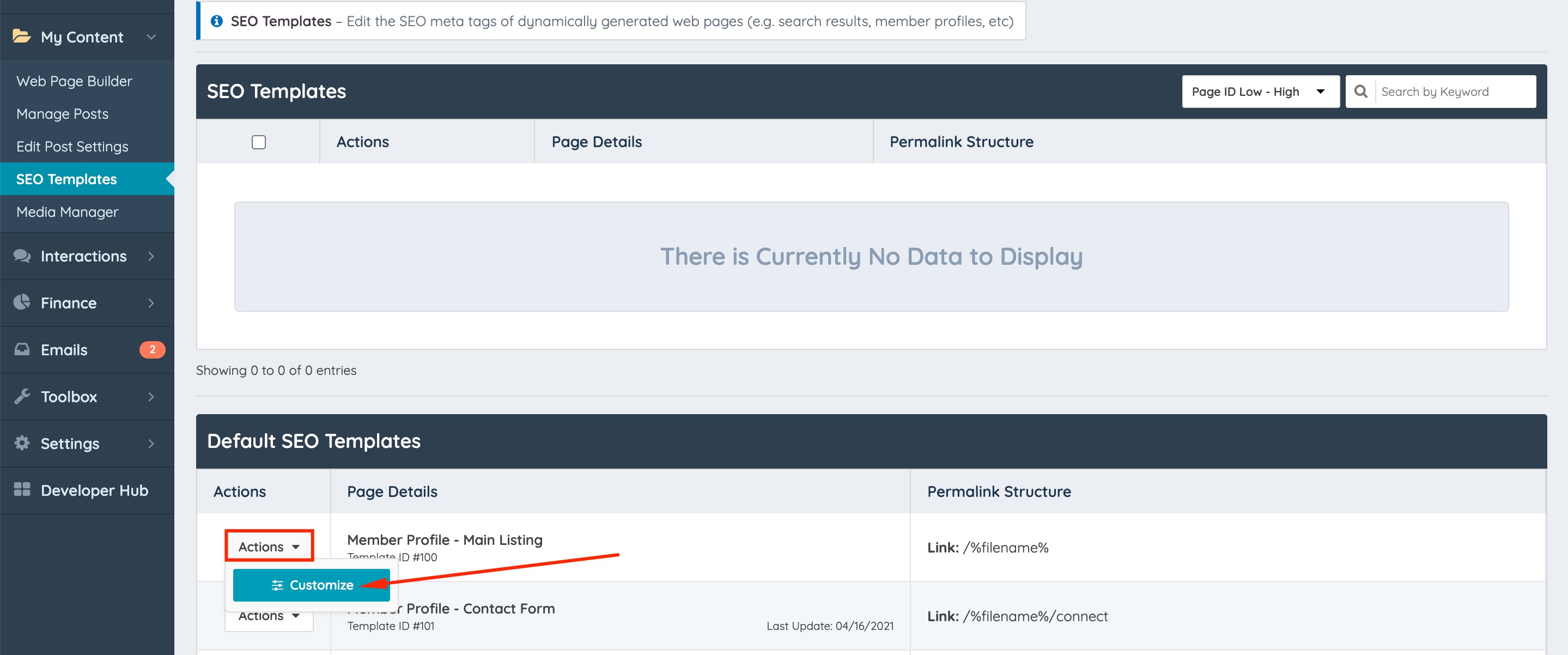
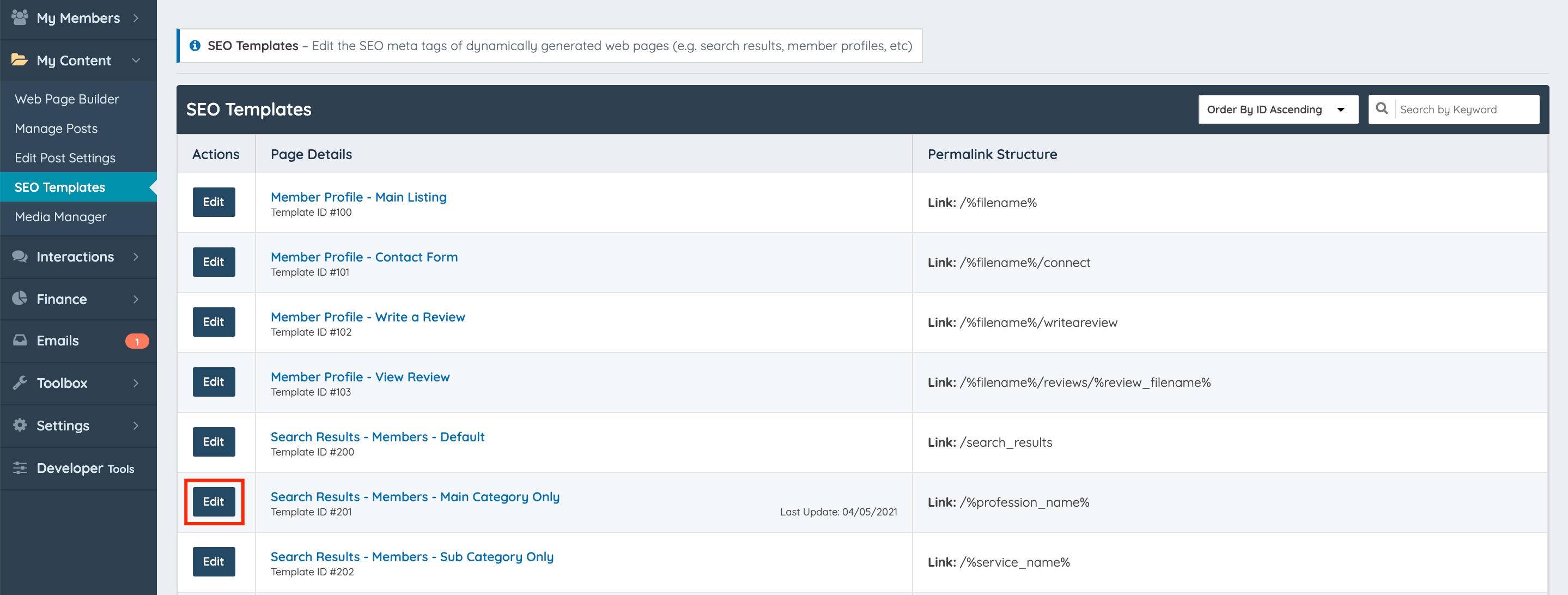
- Locate the relevant template and click Customize or Edit.
Front End
- From the Admin Toolbar on the front end, click Edit SEO Template #.
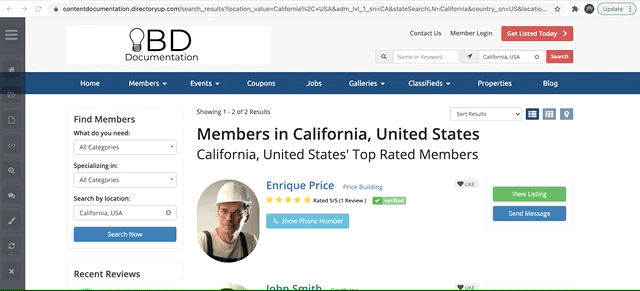
- The system redirects to the corresponding Admin Section. Click Customize or Edit.
Once the template loads, the SEO Settings tab contains the editable fields.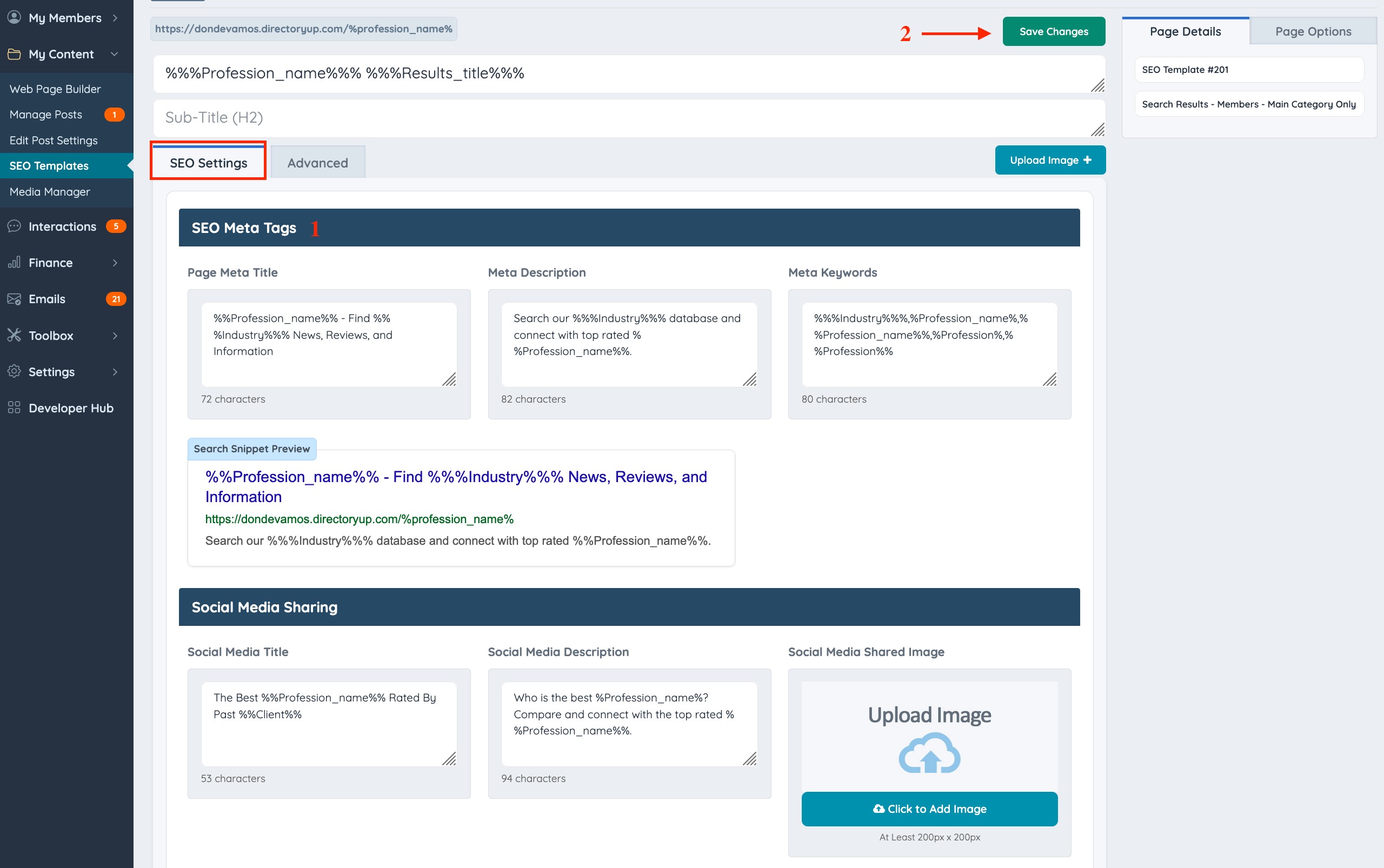
Editing SEO Meta Tags
- Update the
Page Meta Title,Meta Description, andMeta Keywordsfields as needed. - Click Save SEO Template to apply the changes.
NOTE: Default pages already include optimized SEO information, including default SEO variables. Existing values should be reviewed before being overwritten.
Dynamic Page Types
Dynamic SEO templates correspond to different combinations of category and location. Commonly edited templates include:
| Template | Path pattern |
|---|---|
| Profile page | %filename% |
| Top-level category search results | %profession% |
| Sub-level category search results | %service_name%, %sub_category_name%, %sub_sub_category_name% |
| Country search results | /%country_name% |
| City search results | /%country_name%/%city_name% |
Combinations of these are also available as separate templates, for example:
- Top-level category search results in a specific country —
/%country_name%/%profession% - Top-level category search results in a specific city —
/%country_name%/%city_name%/%profession%
Example: Profile Page Title
For a profile page belonging to a Dentist named James Smith, with a company called Smith Dentistry, located in Pasadena, California, the default Page Title template reads:
%City% %Profession% – %full_name% – %Company% – %Profession%On the live page, this renders as:
Pasadena Dentist – James Smith – Smith Dentistry – DentistEach %variable% pulls data specific to the page being displayed and can be replaced with different variables or static text.
Common SEO Variables
| Variable | Description |
|---|---|
%country_name% | The name of the country associated with the page |
%city% / %city_name% | The name of the city associated with the page |
%profession% | The name of the top-level category associated with the page |
%service_name% | The name of the sub-level category associated with the page |
%sub_category_name% | Alternate variable for the sub-level category; functionally equivalent to %service_name% |
%sub_sub_category_name% | The name of the sub-sub-level category associated with the page |
%full_name% | The full name of the member associated with the page |
%company% | The name of the member's company associated with the page |
%location% | The city and state associated with the listing |
%trade% | The Trade variable entered under Website > Website Settings > Variables |
%industry% | The Industry variable entered under Website > Website Settings > Variables |
Formatting Variables
- Pluralizing: Surround the variable with double percent signs —
%%profession%%displays "Dentists" instead of "Dentist." - Capitalizing: Capitalize the first letter of the variable name —
%Profession%displays "Dentist" instead of "dentist."
Related Reading
Additional detail on available variables is covered in the "Understanding SEO Variables" article.
